Las cámaras Canon graban imágenes en CR2, un formato de imagen RAW diseñado para capturar el máximo detalle de la imagen. Aunque es útil para la edición, no se puede utilizar en aplicaciones cotidianas debido a su gran tamaño de archivo y compatibilidad limitada. Cuando Conversión de CR2 a JPGSe puede compartir más fácilmente, subir más rápido y es compatible con una gama más amplia de dispositivos. Además, es un proceso que minimiza los requisitos de almacenamiento sin necesidad de conocimientos técnicos avanzados. Esta guía se divide en razones, métodos y herramientas, basándose en prácticas comunes de gestión de imágenes, para ayudarte a administrar tus archivos de forma clara y controlada.
Parte 1. Canon CR2: Por qué necesitas convertirla.
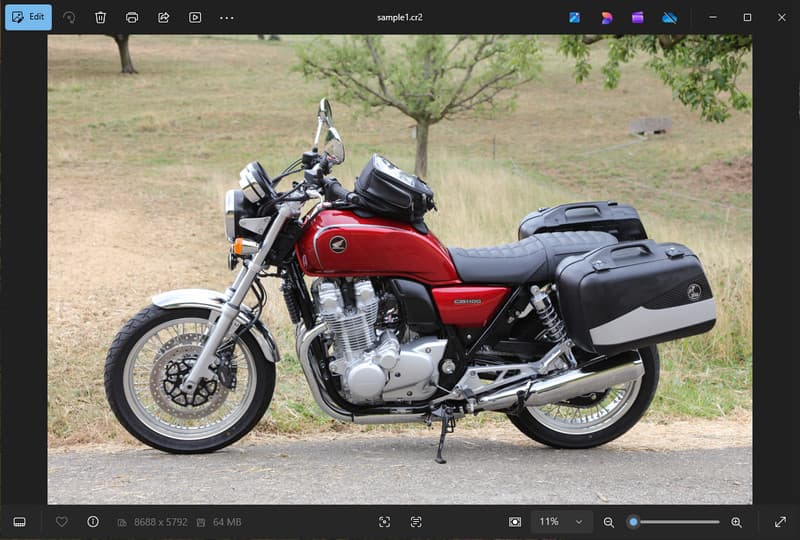
Canon CR2 es un formato de archivo RAW que registra información sin procesar del sensor de la cámara. Si bien es extremadamente detallado, puede ser necesario convertir el formato de archivo CR2 a JPG, ya que muchos dispositivos y aplicaciones no son compatibles con archivos RAW.
1. Compatibilidad limitada
Muchas herramientas estándar no son compatibles con archivos CR2, lo que dificulta la visualización de imágenes. Convertir un archivo CR2 a JPG garantiza que tus fotos se abran sin problemas en diferentes dispositivos, navegadores y visores de imágenes básicos.
2. Tamaño de archivo grande
Los archivos RAW son muy grandes, ya que almacenan más datos de imagen. Esto afecta al almacenamiento y al rendimiento. Convertir las imágenes CR2 a JPG reduce el tamaño del archivo, lo que facilita el almacenamiento y la transferencia eficiente de imágenes.
3. Compartir y subir archivos más fácilmente
Muchas plataformas no aceptan formatos RAW o tardan mucho en procesarlos. Cambiar de CR2 a JPG es una forma rápida y sencilla de subir tus fotos y asegurarte de que se muestren en el formato correcto en redes sociales, correo electrónico y otros sitios web.
4. No se necesita software especializado.
Los archivos CR2 requieren un software de edición capaz de procesar el formato RAW. Al convertir un archivo CR2 a JPG, se elimina la necesidad de programas complejos y se obtienen fácilmente imágenes para usar en el día a día.
5. Flujo de trabajo más rápido
Trabajar con archivos sin procesar puede ralentizar el proceso, especialmente en grandes cantidades. Utilizar un convertidor fiable de CR2 a JPG ayuda a acelerar el procesamiento de imágenes y a mejorar la productividad general.
6. Proceso más sencillo para principiantes
Los formatos RAW pueden resultar complejos para los usuarios principiantes. Aprender a convertir CR2 a JPG simplifica el flujo de trabajo y facilita la gestión de imágenes sin barreras técnicas.
Comprender estos puntos explica por qué la conversión suele ser la opción más práctica. En la siguiente sección, explorará los mejores métodos para convertir imágenes CR2 a JPG de forma eficiente.
Parte 2. Las 5 mejores maneras de convertir CR2 a JPG
1. AVAide Image Converter (La mejor opción gratuita en línea)
Convertidor de imágenes AVAide Es una solución rápida basada en navegador, diseñada para usuarios que necesitan resultados inmediatos sin necesidad de instalar software. Resulta especialmente útil cuando se necesita convertir archivos CR2 a JPG en grandes cantidades, manteniendo la calidad de la imagen.
Características clave:
- Convierte archivos CR2 por lotes y viceversa.
- Mantiene una alta calidad de imagen y colores naturales.
- Totalmente online y sin necesidad de instalación.
- Admite JPG, PNG y otros formatos.
- Interfaz fácil de usar para un procesamiento acelerado.
Plataformas:
- Basado en la web, funciona en Windows, Mac, Linux y navegadores móviles.
Paso 1Visite el sitio web oficial
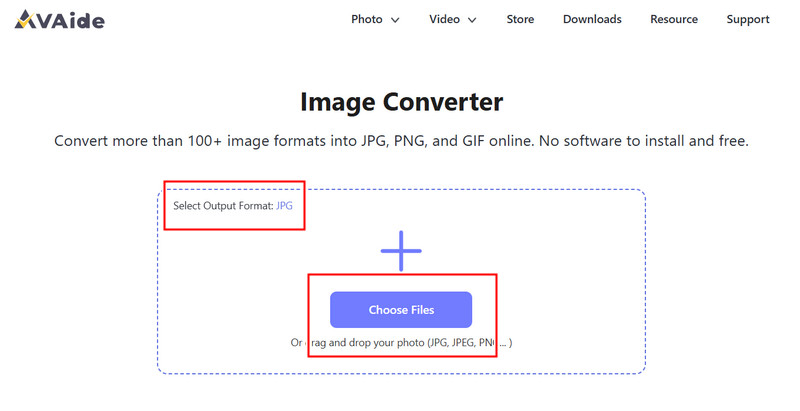
Dirígete a tu navegador y accede a la página oficial de AVAide Image Converter. Una vez cargada, podrás comenzar la conversión inmediatamente sin necesidad de registrarte ni instalar nada.
Paso 2Configurar salida y cargar
Seleccione JPG como formato de salida deseado. A continuación, haga clic en el botón + o arrastre y suelte sus archivos CR2 en el área de carga para comenzar.
Paso 3Iniciar conversión CR2
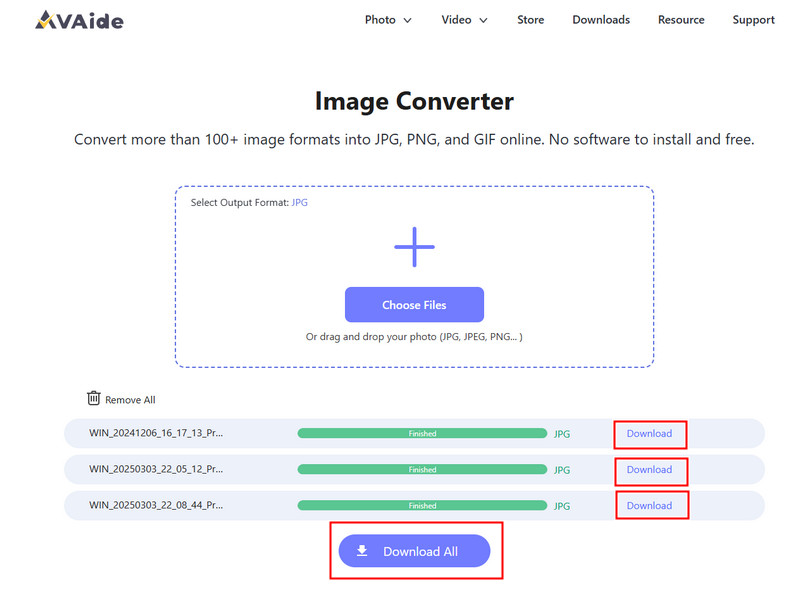
Espere a que la herramienta termine de procesar sus archivos. Una vez hecho esto, haga clic en Descargar para un solo archivo o Descargar todo si convertiste varias imágenes.
- ventajas
- Fácil y rápido de usar
- No requiere configuración ni instalación.
- Soporte para procesamiento por lotes eficiente
- Mantiene una calidad de producción constante.
- Contras
- Requiere conexión a internet
- Herramientas de edición avanzadas limitadas
2.Adobe Photoshop
Adobe Photoshop Es una aplicación eficaz que permite editar archivos RAW antes de exportarlos. Se suele utilizar cuando se necesita convertir archivos CR2 a JPG y tener control total sobre las modificaciones de la imagen.
Características clave:
- Edición avanzada de CR2 mediante Camera Raw
- Opciones de exportación de alta calidad
- Herramientas de edición de nivel profesional
Plataformas:
- Windows y Mac
Paso 1Inicia Photoshop y abre tu archivo CR2, que se cargará automáticamente en Camera Raw.
Paso 2Ajuste la exposición, el balance de blancos o el color según sea necesario y, a continuación, haga clic. Abierto continuar.
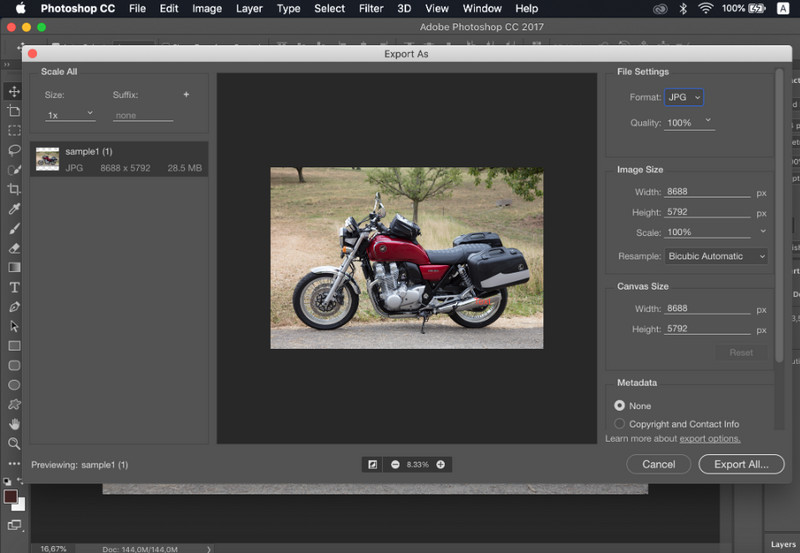
Paso 3Ir Archivo, seleccionar Guardar como, escoger JPG formatea, ajusta la calidad y guarda la imagen.
- ventajas
- Excelente control y precisión de la imagen.
- Software estándar de la industria
- Contras
- Requiere suscripción
- Curva de aprendizaje pronunciada
3. Lightroom
sala de luz es ideal para fotógrafos que gestionan grandes bibliotecas de imágenes, e incluso si quieres Eliminar el fondo en LightroomSimplifica la edición y exportación por lotes, lo que facilita el uso de un flujo de trabajo de conversión de CR2 a JPG para varias imágenes a la vez.
Características clave:
- Edición y exportación por lotes
- Sistema de edición no destructiva
- Gestión organizada de fotografías
Plataformas:
- Windows, Mac y dispositivos móviles
Paso 1Abre Lightroom y añade tus archivos CR2 a la biblioteca.
Paso 2Selecciona las imágenes y realiza las ediciones necesarias.
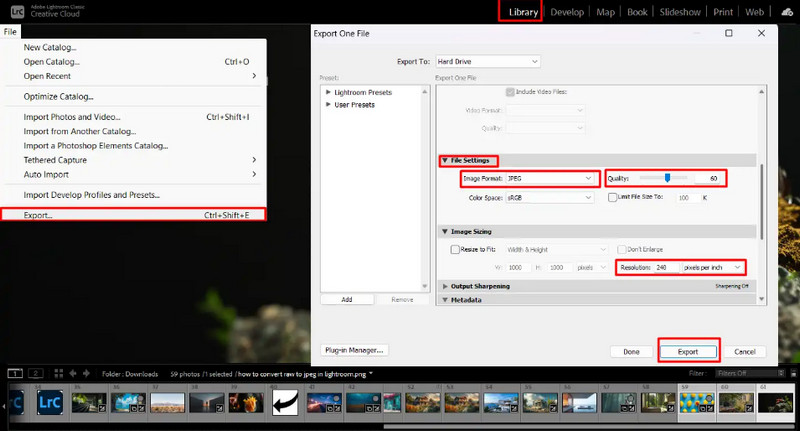
Paso 3Hacer clic Exportar, seleccionar JPG formatea, configura los ajustes y selecciona dónde guardar.
- ventajas
- Eficiente para el procesamiento masivo de imágenes.
- Calidad de salida constante
- Contras
- Se requiere suscripción
- Requiere aprendizaje para principiantes.
4. GIMP
Editor de fotos GIMP Es un editor gratuito de código abierto que puede procesar imágenes RAW mediante complementos. Es una opción eficaz si estás aprendiendo a convertir imágenes CR2 a JPG sin gastar dinero en software de pago.
Características clave:
- Software libre y de código abierto
- Admite múltiples formatos de imagen.
- Funciones básicas de edición y conversión
Plataformas:
- Windows, Mac, Linux
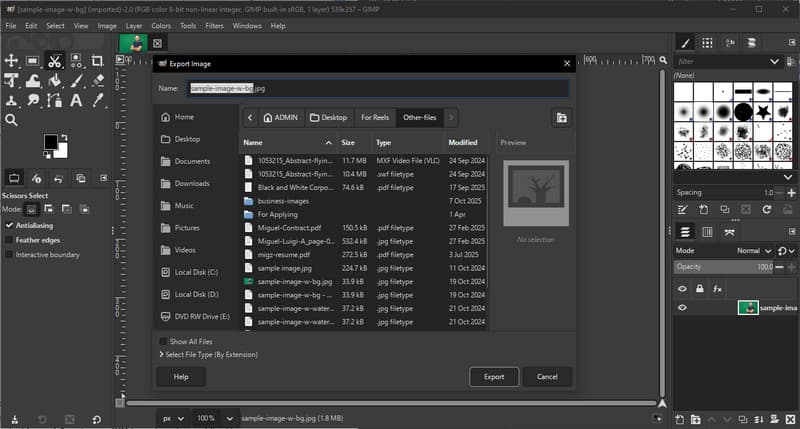
Paso 1Abre GIMP y carga tu archivo CR2 usando un plugin RAW.
Paso 2Ajusta la configuración de la imagen en la ventana de importación y confirma.
Paso 3Ir Archivo, seleccionar Exportar cómo, escoger JPG formatea y exporta el archivo.
- ventajas
- De uso totalmente gratuito.
- Flexible con complementos y extensiones.
- Contras
- La configuración puede ser técnica.
- Interfaz menos pulida
5. Conversión
Convertio Es una conocida herramienta web que permite a los usuarios convertir archivos rápidamente sin necesidad de instalación. Es una opción práctica cuando los usuarios buscan cómo convertir archivos CR2 a JPG mediante una plataforma online sencilla.
Características clave:
- Admite múltiples formatos de archivo, incluidos CR2 y JPG.
- Funciona directamente en el navegador.
- Permite la carga de archivos desde el dispositivo, la nube o una URL.
- Proceso de conversión sencillo y rápido
Plataformas:
- basado en la web
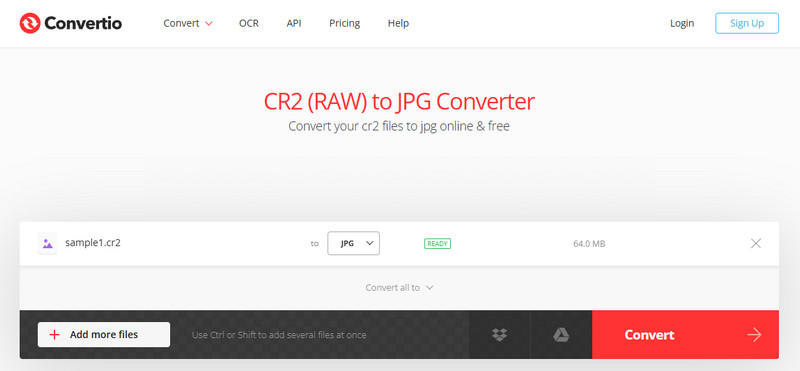
Paso 1Abre Convertio en tu navegador y sube tu archivo CR2.
Paso 2Seleccione JPG como formato de salida.
Paso 3Inicie la conversión y descargue el archivo una vez finalizada.
- ventajas
- Fácil de acceder y usar
- No requiere instalación
- Admite diversas fuentes de archivos
- Contras
- Límites de tamaño de archivo en la versión gratuita
- Requiere conexión a internet
Parte 3. Comparación de los 5 convertidores de CR2 a JPG
| Características | Convertidor de imágenes AVAide | Adobe Photoshop | sala de luz | CAÑUTILLO | Convertio |
| Fácil de usar | Muy fácil | Moderado | Moderado | Moderado | Fácil |
| Conversión por lotes | Sí | Limitado | Limitado | Limitado | Limitado a 5 |
| Calidad de la imagen | Más alto | Alto | Alto | Alto | Alto |
| Velocidad | Rápido | Moderado | Rápido | Moderado | Rápido |
| Limitación del tamaño del archivo | No | No | No | No | Sí |
Parte 4. Preguntas frecuentes sobre la conversión de CR2 a JPG
¿Qué hacer con los archivos CR2?
Los archivos CR2 son imágenes sin procesar que contienen datos sin procesar de una cámara Canon. Son útiles si se desea un control total sobre la edición, como el ajuste del brillo, el color y la nitidez. Sin embargo, no son fáciles de usar para tareas cotidianas como compartir o subir archivos.
¿Qué aplicaciones abren archivos CR2?
Los archivos CR2 se pueden abrir con varias aplicaciones de edición fotográfica. Adobe Photoshop y Lightroom son las opciones más comunes, ya que son totalmente compatibles con los formatos RAW y ofrecen herramientas de edición avanzadas. GIMP también puede abrir archivos CR2 mediante un complemento.
¿Cómo convertir archivos RAW a JPG de una sola vez?
Para convertir varios archivos RAW simultáneamente, necesitas una herramienta que admita la conversión por lotes. Programas como Lightroom o herramientas en línea como AVAide Image Converter te permiten importar o cargar varios archivos CR2 a la vez. Simplemente selecciona JPG como formato de salida e inicia el proceso.
Convertir archivos CR2 a JPG facilita compartir, ver y almacenar imágenes. Si bien CR2 es ideal para editar, JPG es más práctico para el uso diario. Si te lo estás preguntando Cómo cambiar el tipo de archivo de CR2 a JPG., puedes usar herramientas como Photoshop, Lightroom o convertidores en línea como Convertidor de imágenes AVAideEl objetivo es sencillo: convertir archivos RAW de gran tamaño en imágenes JPG más pequeñas y utilizables sin perder calidad importante.
SOBRE EL AUTOR


Convertidor de imágenes AVAide
Puede convertir fácilmente su foto desde cualquier formato de imagen a un JPG, PNG o GIF popular sin pérdida de calidad.
PROCESAR AHORA