Viele Menschen zeichnen ihren Bildschirm für YouTube, TikTok und andere Social-Media-Apps auf. Deshalb suchen sie oft nach einer einfachen Möglichkeit, Videos im richtigen Format zu speichern. MP4-Recorder ist die beste Wahl für diesen Bedarf.
[P p=”Aus diesem Grund stellt Ihnen dieser Artikel die 6 besten MP4-Recorder vor. Er hilft Ihnen auch dabei, den passenden für Ihre Bedürfnisse zu finden. Lesen Sie die Details unten und wählen Sie das richtige Tool für Ihre Bildschirmaufnahmen!” /]- Teil 1. Warum MP4?
- Teil 2. Die besten PC-MP4-Recorder (Desktop-Software)
- Teil 3. Die besten Online-MP4-Recorder (kostenlos, ohne Wasserzeichen)
- Teil 4. Die besten MP4-Recorder-Apps
- Teil 5. So wählen Sie den richtigen MP4-Recorder für sich aus
- Teil 6. Kann ich Bildschirmaufnahmen in MP4 konvertieren?
Teil 1. Warum MP4?
Eines der heutzutage am weitesten verbreiteten Videoformate ist MP4. Es wird von sozialen Medien, PCs und Smartphones gleichermaßen unterstützt. MP4 zeichnet sich durch geringe Dateigröße bei gleichzeitig hoher Videoqualität aus und ermöglicht so einfaches Speichern, Teilen und Hochladen. Aus diesem Grund speichern viele Aufnahmegeräte Videos im MP4-Format.
Wenn Sie also einen guten MP4-Recorder suchen, scrollen Sie einfach nach unten und sehen Sie sich die Optionen für Desktop-, Online- und mobile Tools an.
Teil 2. Die besten PC-MP4-Recorder (Desktop-Software)
1. AVAide-Bildschirmrekorder
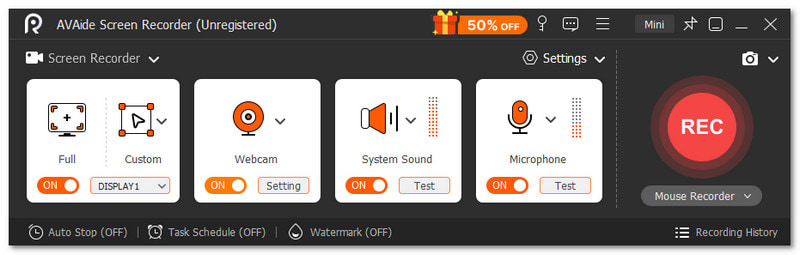
Sie möchten den besten MP4-Recorder für Ihren Windows- oder Mac-Computer? AVAide Screen Recorder Das ist genau das, wonach Sie suchen. Es zeichnet Ihre Bildschirmaktivitäten auf und speichert Videos im MP4-Format.

KOSTENLOSER DOWNLOAD Für Windows 7 oder höher
 Sicherer Download
KOSTENLOSER DOWNLOAD Für Mac OS X 10.13 oder höher
Sicherer DownloadSie entscheiden, ob Sie den gesamten Bildschirm oder nur einen bestimmten Bereich aufnehmen möchten. Sie können auch gleichzeitig Systemton und Mikrofon aufnehmen. Auch lange Aufnahmen sind kein Problem, denn AVAide Screen Recorder verarbeitet sie flüssig und ohne Verzögerungen.
- Vorteile
- Unterstützt Bildschirm-, Audio-, Spiel-, Webcam- und Telefonaufnahmemodi.
- Funktioniert mit vielen Formaten wie MP4, AVI, WMV, GIF, MP3 und mehr.
- Ermöglicht das Hinzufügen von Text, Bildern, Whiteboard-Elementen und Fokus-Tools während der Aufnahme.
- Unterstützt Bearbeitungswerkzeuge wie Trimmen, Zusammenführen, Komprimieren, Konvertieren und Audioverstärkung.
- Ermöglicht das Festlegen einer benutzerdefinierten Start- oder Stoppzeit für die Aufnahme.
- Beinhaltet geplante Aufnahmen mit automatischer Start- und Stoppzeit.
- Nachteile
- Für die uneingeschränkte Nutzung ist ein Upgrade auf die kostenpflichtige Version mit dem Tarif $39.00 und einer 30-Tage-Geld-zurück-Garantie erforderlich.
2. OBS Studio
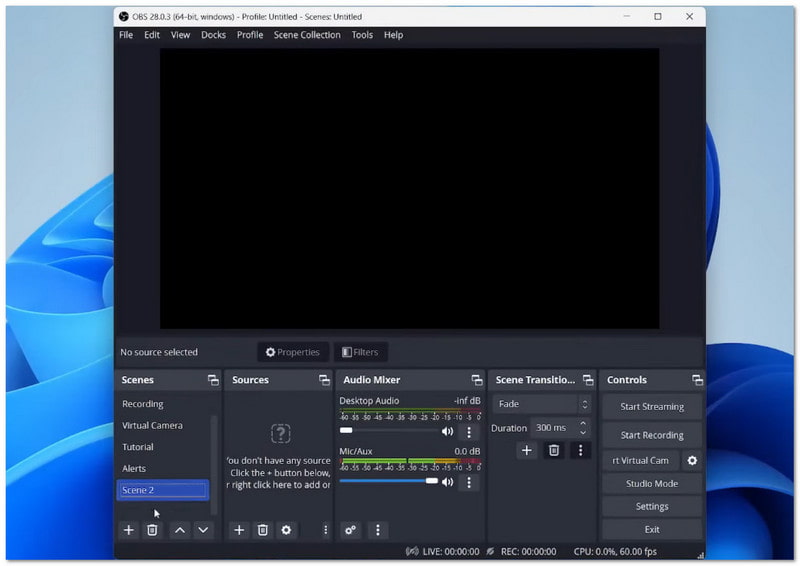
Sie möchten mehrere Quellen gleichzeitig aufnehmen? Dieses Tool kann das. OBS Studio ist ein MP4-Bildschirmrekorder, mit dem Sie Bildschirm, Webcam, Bilder und Text in einer Szene kombinieren können. Szenenwechsel erfolgen fließend. Außerdem können Sie vor der Aufnahme eine Vorschau anzeigen, um Fehler zu vermeiden.
- Vorteile
- Unterstützt unbegrenzt viele Szenen mit fließenden Übergängen.
- Beinhaltet einen fortschrittlichen Audiomixer mit Filtern und Bedienelementen.
- Ermöglicht die Benutzerdefinierte Tastenkombination für schnelle Aktionen.
- Unterstützt Plugins und Skripte für zusätzliche Funktionen.
- Nachteile
- Die Einrichtung kann für neue Benutzer komplex erscheinen.
- Für optimale Ergebnisse ist eine manuelle Konfiguration erforderlich.
Teil 3. Die besten Online-MP4-Recorder (kostenlos, ohne Wasserzeichen)
1. Capme
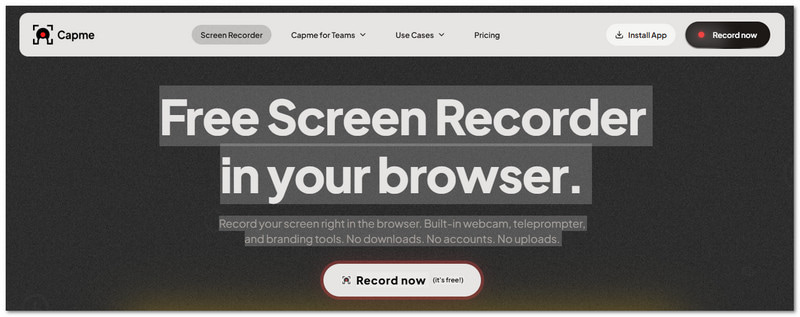
Sie möchten schnell und unkompliziert Video-Updates per Online-MP4-Recorder versenden? Mit diesem Tool ist das ganz einfach. Sie können Ihren Bildschirm, Ihr Gesicht oder beides aufnehmen. Fügen Sie einfach Ihr Skript und Ihr Logo hinzu. Der Stil Ihrer Videos lässt sich im Handumdrehen anpassen. Ideal für Onboarding-Aufgaben, Team-Updates und Demos.
- Vorteile
- Beinhaltet einen integrierten Teleprompter für geführte Reden.
- Unterstützt Branding-Elemente wie Logos, Texte und Hintergründe.
- Bietet mehrere Seitenverhältnisse für verschiedene Plattformen.
- Alle Dateien werden lokal gespeichert, um absolute Privatsphäre zu gewährleisten.
- Nachteile
- Nach der Aufnahme sind nur eingeschränkte erweiterte Bearbeitungsmöglichkeiten verfügbar.
- Das Branding muss vor der Aufnahme eingerichtet werden.
2. Panopto
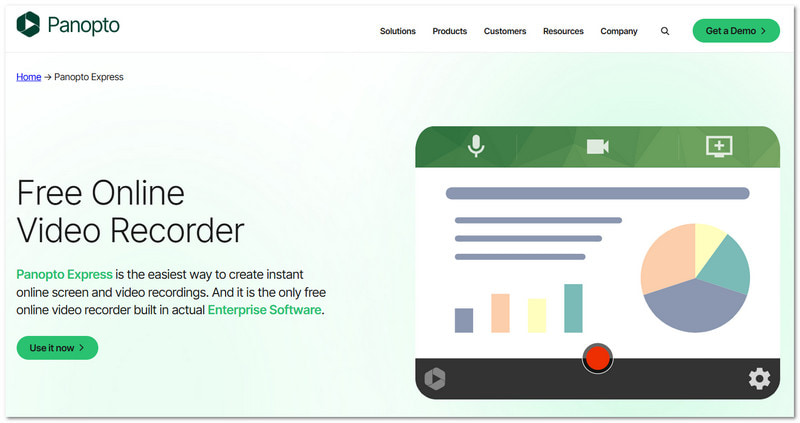
Was, wenn Sie ein Tool für übersichtliche und geführte Videobearbeitung benötigen? Genau dafür wurde Panopto Express entwickelt. kostenloser Bildschirmrekorder Damit können Sie Bildschirmaufnahmen im MP4-Format erstellen und Lektionen, Demos und Schritt-für-Schritt-Anleitungen mit Sprechertext aufzeichnen. Es eignet sich hervorragend für Schule und Beruf. Außerdem können Sie damit Inhalte auf Plattformen teilen, die von Schülern und Teams genutzt werden.
- Vorteile
- Auf gespeicherten Videos wird kein Wasserzeichen angezeigt.
- Es gibt keine Begrenzung der Aufnahmelänge oder der Anzahl der Videos.
- Behält die vollen Eigentumsrechte an Ihren Aufnahmen.
- Teil eines bewährten Videosystems für Unternehmen.
- Nachteile
- Um den Zugriff zu behalten, müssen die Nutzungsbedingungen eingehalten werden.
- Besser geeignet für formale oder strukturierte Inhalte.
Teil 4. Falls Sie Ihr Telefon mit einem größeren Bildschirm aufnehmen möchten
1. V-Recorder
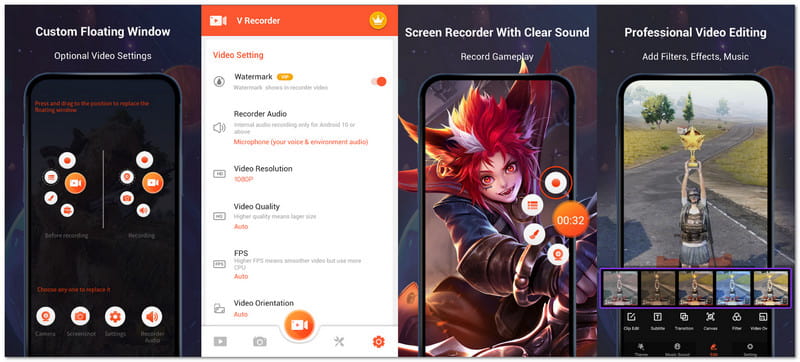
Möchtest du dein Spiel während des Spielens aufnehmen und dabei trotzdem gut sehen? Diese App macht das perfekt. Sie zeichnet deinen Bildschirm in HD auf und ermöglicht es dir, während der Aufnahme zu zeichnen. Außerdem kannst du Rauschen reduzieren und eine klarere Sprachaufnahme erzielen. Sie eignet sich ideal für Gameplay-Videos, Tutorials und kurze Videoclips auf deinem Smartphone.
- Vorteile
- Beinhaltet integrierte Video- und Fotobearbeitungswerkzeuge.
- Bietet Filter, Sticker, Designs und Musikoptionen.
- Unterstützt Geschwindigkeitsregelung und Videokomprimierung.
- Videos lassen sich mit einem einfachen Tool in GIFs umwandeln.
- Nachteile
- Beim Aufzeichnen von Inhalten müssen die Urheberrechtsbestimmungen beachtet werden.
- Vorwiegend nur für den persönlichen Gebrauch bestimmt.
2. DU-Recorder
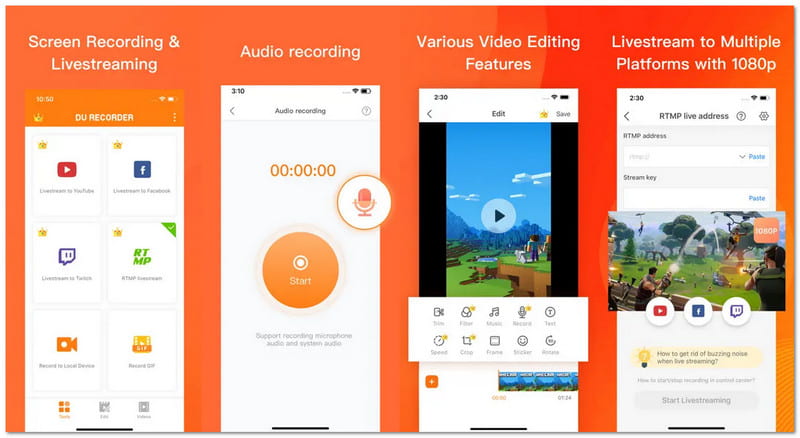
Sie suchen eine App, mit der Sie sowohl aufnehmen als auch live streamen können? Dann ist DU Recorder genau das Richtige. Mit dieser App können Sie Ihren Bildschirm auf Plattformen wie YouTube, Facebook und Twitch streamen. Außerdem zeichnet sie flüssige Videos von Spielen, Anrufen oder Sendungen auf. Sie können die Datenschutzeinstellungen vor dem Teilen Ihrer Inhalte anpassen. Die App ist auch hilfreich für Nutzer, die nach Anleitungen zum Aufnehmen von MP4-Dateien auf dem iPhone suchen und sich über die verschiedenen Möglichkeiten der mobilen Bildschirmaufnahme informieren möchten.
- Vorteile
- Unterstützt hochwertiges Livestreaming mit verschiedenen Auflösungsoptionen.
- Ermöglicht die gleichzeitige Aufnahme von Mikrofon- und internem Audio.
- Bietet die FaceCam-Funktion für Reaktionsvideos.
- Beinhaltet grundlegende Videobearbeitungsfunktionen wie Trimmen, Zuschneiden und Zusammenfügen.
- Nachteile
- Für einige erweiterte Funktionen ist ein Premium-Abonnement erforderlich.
- Das Abonnement verlängert sich automatisch, sofern es nicht manuell deaktiviert wird.
Teil 5. So wählen Sie den richtigen MP4-Recorder für sich aus
Welcher MP4-Recorder am besten für Sie geeignet ist, hängt von Ihren Bedürfnissen ab. Hier sind einige grundlegende Punkte, die Sie beachten sollten:
- Wenn Sie Anfänger sind oder gerade erst anfangen, wählen Sie ein Gerät mit einfacher Bedienung.
- Achten Sie auf die Unterstützung verschiedener Modi wie Bildschirm, Audio, Webcam oder Spielrekorder falls Sie mehr Flexibilität benötigen.
- Prüfen Sie, ob Sie den gesamten Bildschirm oder nur einen ausgewählten Bereich aufzeichnen können, um eine bessere Kontrolle zu haben.
- Wählen Sie ein Gerät, das eine reibungslose Leistung, klare Videoqualität und hochwertige Aufnahmen bietet. Es sollte keine Verzögerungen oder Unschärfen bei der Aufnahme geben.
- Stellen Sie sicher, dass die Dateien im MP4-Format gespeichert werden, um ein einfaches Abspielen und Teilen zu ermöglichen.
- Erwägen Sie zusätzliche Funktionen wie Bearbeiten, Kürzen, Komprimieren oder Planen von Aufnahmen.
- Prüfen Sie, ob es Videos ohne Wasserzeichen exportiert, um saubere und professionelle Ergebnisse zu erzielen.
Teil 6. Kann ich Bildschirmaufnahmen in MP4 konvertieren?
Ja! Bildschirmaufnahmen lassen sich auf verschiedene Arten in MP4-Dateien umwandeln. Viele Aufnahmeprogramme exportieren Videos nach der Aufnahme bereits im MP4-Format. Liegt die Datei in einem anderen Format vor, können Sie sie mit einem Videokonverter in MP4 konvertieren. Dadurch wird die reibungslose Wiedergabe Ihres Videos auf den meisten Geräten gewährleistet und das Hochladen oder Teilen vereinfacht.
Ich weiß bereits, was MP4-Bildschirmrekorder Welchen MP4-Recorder werden Sie verwenden? Falls nicht, lesen Sie bitte noch einmal den Abschnitt „So wählen Sie den richtigen MP4-Recorder für sich aus“. Er kann Ihnen helfen, eine bessere Entscheidung basierend auf Ihren Bedürfnissen zu treffen.
Wenn Sie ein Desktop-Nutzer sind, empfiehlt sich die Verwendung von AVAide Screen RecorderEs läuft unter Windows und Mac. Damit können Sie ganz einfach Ihren Bildschirm, Spiele, Meetings und sogar Ihr Smartphone-Display aufzeichnen. Wählen Sie immer das, was am besten zu Ihrer Arbeit oder Ihrem Alltag passt!
ÜBER DEN AUTOR

Erfassen Sie die besten Momente mit AVAide Screen Recorder. Screencast, anpassen und in Sekundenschnelle teilen.
Bildschirmaufnahme
- Bildschirmaufnahme unter Windows
- Instagram Live aufnehmen
- Rippen Sie Videos von Tubi
- Konvertieren Sie YouTube-Videos in MP3
- Laden Sie Videos von Fansly herunter
- Herunterladen von JW Player-Videos
- Laden Sie Bilibili-Videos herunter
- Patreon-Videos herunterladen
- SpankBang-Videos herunterladen
- Discord-Videos herunterladen
- DoodSream-Video herunterladen