Stellen Sie sich vor, Sie übertragen eine große Menge Fotos oder Dokumente auf Ihren Computer und stellen fest, dass die Felder „Erstellungsdatum“ oder „Änderungsdatum“ völlig durcheinander sind. Ob es sich nun um einen Fehler bei der Datensicherung oder eine Zeitzonenabweichung handelt – falsche Dateizeitstempel können Ihre digitale Archivierung ruinieren und Ihren Arbeitsablauf völlig durcheinanderbringen.
Zum Glück müssen Sie nicht mit dem Chaos leben. Ein engagierter Dateidatum-Wechsler Sie erhalten damit die volle Kontrolle über Ihre Metadaten und können Dateizeitstempel mit wenigen Klicks stapelweise bearbeiten. In diesem Leitfaden stellen wir Ihnen die 5 besten Programme zum Ändern des Dateidatums für Windows und Mac vor, damit Sie die Kontrolle über Ihre digitale Organisation zurückgewinnen. Los geht's!
Teil 1. Übersicht der 5 besten Dateidatumsänderungsprogramme
In diesem Abschnitt stellen wir Ihnen die besten Tools zum Ändern des Dateidatums vor, auf die Sie sich verlassen können. Lesen Sie weiter, um herauszufinden, wie Ihnen diese Tools bei Ihrer Aufgabe helfen können!
1. AVAide-Videokonverter
Verfügbar für Windows und Mac, AVAide Video Converter ist eine vielseitige Plattform mit einem leistungsstarken, integrierten Dateidatums-Änderer. Diese intuitive Funktion ermöglicht es Ihnen, umfassende Zeitstempeldetails, einschließlich Erstellungs-, Änderungs- und Zugriffsdatum, mühelos zu ändern.
- Nahtlose Verarbeitung vieler Medienformate in den Bereichen Video, Audio und Bilder.
- Importieren und aktualisieren Sie mehrere Dateien gleichzeitig, um Zeit zu sparen und Ihren Workflow zu optimieren.
- Verfügt über eine übersichtliche, benutzerfreundliche Oberfläche, mit der Sie das Dateidatum schnell ändern können.
- Ihre Datei bleibt auch nach Datumsänderungen nahtlos.
2. Dateidatum-Wechsler
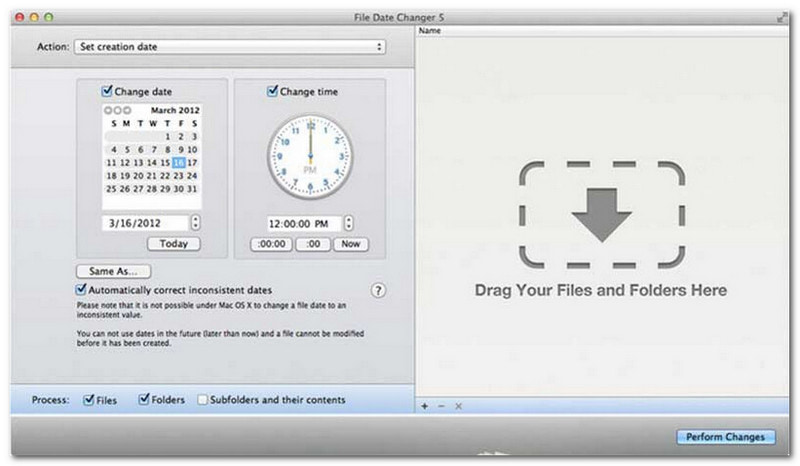
File Date Changer macht seinem Namen alle Ehre und bietet eine spezielle Lösung zum Ändern von Dateierstellungsdaten. Dank seines einfachen Designs ist es für Benutzer aller Erfahrungsstufen leicht zugänglich. Es unterstützt sowohl die Bearbeitung von Erstellungs- als auch von Änderungsdaten. Egal, ob Sie die Daten einzelner Dateien oder ganzer Ordner ändern möchten – dieser Dateidatumsänderer für Mac vereinfacht den Prozess durch seine effiziente Funktionalität.
Der Dateidatumswechsler ist zwar kostenpflichtig, sein Nutzen hängt jedoch von Ihren individuellen Anforderungen hinsichtlich Kosten und Funktionalität ab. Manche Nutzer empfinden den Funktionsumfang im Verhältnis zum Preis als etwas eingeschränkt. Für alle, die Wert auf Effizienz und einen reibungslosen Arbeitsablauf legen, ist er jedoch eine äußerst zuverlässige und lohnende Investition.
Hauptmerkmale des Dateidatumswechslers:
- Ändern Sie die Erstellungs-, Änderungs- und Zugriffszeiten für mehrere Dateien.
- Unterstützung für das Addieren oder Subtrahieren bestimmter Tage, Stunden, Minuten oder Sekunden.
- Ändern Sie Dateieigenschaften wie Schreibgeschützt oder Versteckt und aktualisieren Sie die EXIF-Metadaten.
- Der Dateidatumswechsler funktioniert sofort und bietet eine übersichtliche Benutzeroberfläche.
3. ExifTool
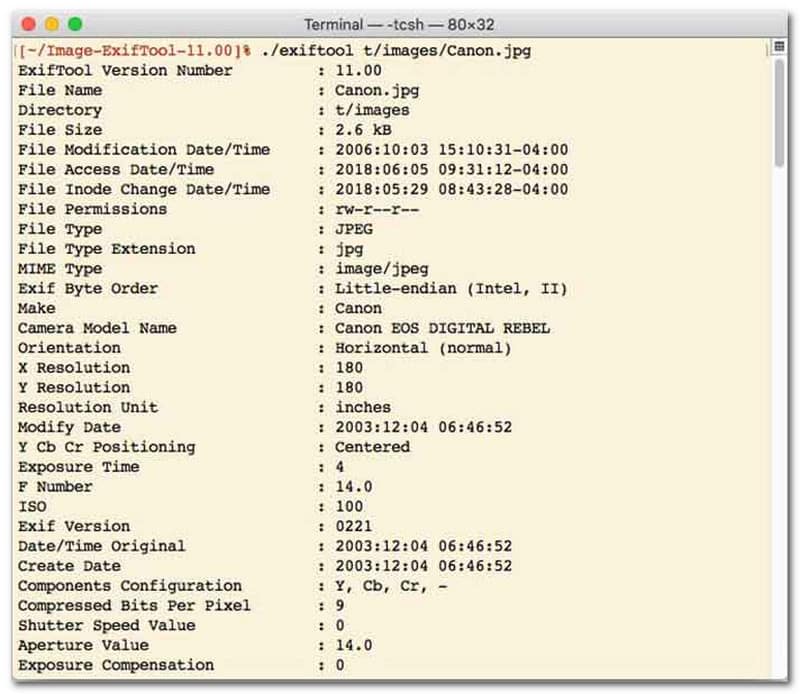
Für Anwender, die einen Dateidatums-Changer mit Kommandozeilenschnittstelle (CLI) bevorzugen, ist ExifTool der Goldstandard für hochpräzise Dateiverwaltung. Dieses außergewöhnlich vielseitige Tool unterstützt eine Vielzahl von Dateitypen, darunter Fotos, Videos, Dokumente und Audiodateien. Neben der einfachen Bearbeitung von Erstellungs- und Änderungsdaten ermöglicht ExifTool das nahtlose Kopieren von Zeitstempel-Metadaten von einer Datei in eine andere. So bleibt Ihre gesamte Medienbibliothek mühelos perfekt synchronisiert.
Hauptmerkmale von ExifTool:
- Nahtloses Lesen und Ändern von Dateisystem-Zeitstempeln.
- Kopierdaten zwischen völlig unterschiedlichen Metadatenebenen.
- Unterstützt erweiterte Datums- und Zeitberechnungen, um Ihnen das Ändern von Dateidaten in Stapeln zu erleichtern.
- Datums- und Medieninformationen aus allen Dateitypen extrahieren.
4. BulkFileChanger
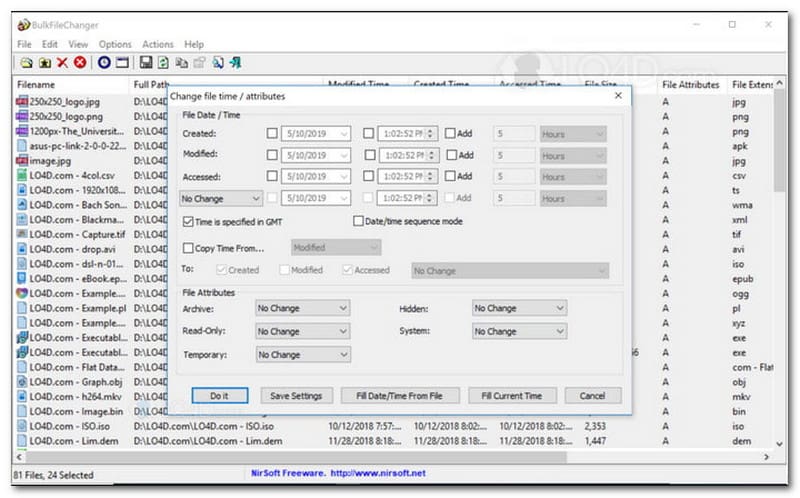
BulkFileChanger ist ein schlankes und leistungsstarkes Tool zum Ändern des Dateidatums unter Windows. Es ermöglicht die einfache Verwaltung von Dateizeitstempeln. Benutzer können damit schnell verschiedene Datums- und Zeitattribute wie Erstellungs-, Änderungs- und Zugriffszeitpunkte für nahezu alle Dateitypen – von Dokumenten und Bildern bis hin zu Videos – anpassen. Dank seiner Formatvielfalt und Geschwindigkeit eignet es sich hervorragend zum Organisieren digitaler Archive. Die Verfügbarkeit ist jedoch ausschließlich auf Windows beschränkt; macOS- und Linux-Benutzer müssen sich daher nach Alternativen umsehen.
Hauptmerkmale von BulkFileChanger:
- Dateierstellungs-, Änderungs- und letztes Zugriffsdatum ändern.
- Verarbeitet nahezu alle Dateitypen problemlos, einschließlich Dokumente, Bilder und Videos.
- Es zeichnet sich durch ein leichtes Design aus, das ultraschnelle Aktualisierungen von Metadaten in großen Mengen ermöglicht.
- Bestimmte Tage, Stunden, Minuten und Sekunden hinzufügen oder extrahieren.
5. AttributMagic
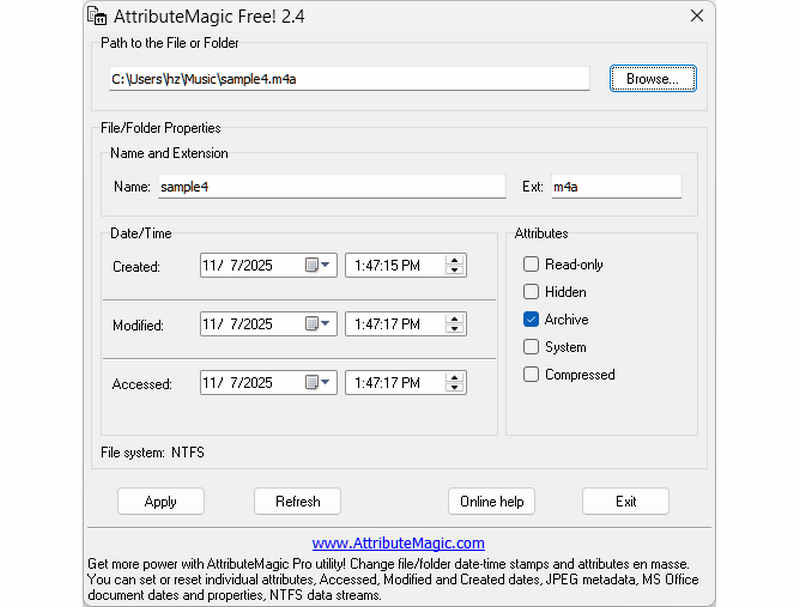
AttributeMagic bietet weit mehr als nur die einfache Änderung des Dateidatums. Es ist eine umfassende Lösung zur Verwaltung von Ordner- und Dateiattributen. Mit diesem Tool lassen sich Zeitstempel präzise bearbeiten, sodass Benutzer Erstellungs-, Änderungs- und Zugriffsdatum mühelos überschreiben können. Neben der einfachen Änderung des Dateidatums ermöglicht AttributeMagic die detaillierte Anpassung von Dateisystemeigenschaften an Ihre spezifischen Archivierungsanforderungen. Die kostenlose Version bietet grundlegende Funktionen zur Zeitstempelbearbeitung. Mit dem Upgrade auf die Premium-Version erhalten Sie erweiterte Metadatenverwaltung und leistungsstarke Automatisierungsfunktionen.
Hauptmerkmale von AttributeMagic:
- Erstellungs-, Änderungs- und Zugriffszeitpunkte ändern oder ausblenden.
- Ändern Sie das Dateidatum sowohl für einzelne Dateien als auch für einen gesamten Ordner.
- Dateizeitstempel lassen sich einfach erhöhen, verringern oder vorwärts oder rückwärts verschieben.
- Setzen, Zurücksetzen oder Invertieren von Kernattributen des Dateisystems wie beispielsweise Schreibgeschützt, Versteckt und System.
Teil 2. Vergleich der 5 Dateidatumswechsler
| Produkt | Unterstützte Plattformen | Benutzeroberfläche | Stapelbearbeitung | Zusätzliche Funktionen |
| AVAide Video Converter | Windows & macOS | Modern, klar und fließend | Ja (ultraschnell) | Komplettpaket: 8K-Videokonvertierung, DVD-Ripping, Metadatenbearbeitung, Erstellung von Musikvideos/Diashows |
| Dateidatumswechsler (NirSoft) | Nur Mac | Veraltet (Legacy-Weboberfläche) | Begrenzt | Keine (Einzweck) |
| ExifTool | Windows, macOS, Linux | Nur über die Kommandozeile (keine grafische Benutzeroberfläche) | Ja (Erfordert komplexe Skripte) | Nur Metadaten lesen/schreiben |
| BulkFileChanger | Nur für Windows | Klassisches Windows-Dienstprogramm | Ja | Grundlegende Anpassung von Windows-Dateiattributen |
| Attributmagie | Nur für Windows | Starr / Komplex | Ja | ausschließlich Dateisystem-Flagverwaltung |
Teil 3. So ändern Sie Dateidaten im AVAide Video Converter
Mussten Sie schon einmal das Erstellungsdatum einer Datei ändern, um Ihre digitalen Dateien besser zu organisieren? Das können Sie tun mit AVAide Video Converter! Lesen Sie weiter, um zu erfahren, wie Sie das Erstellungsdatum einer Datei ändern können, um Ihre Datei einfacher zu verwalten.
Schritt 1Laden Sie AVAide Video Converter von der offiziellen Website herunter und installieren Sie ihn, um vollständigen Zugriff zu erhalten.

KOSTENLOSER DOWNLOAD Für Windows 7 oder höher
 Sicherer Download
KOSTENLOSER DOWNLOAD Für Mac OS X 10.13 oder höher
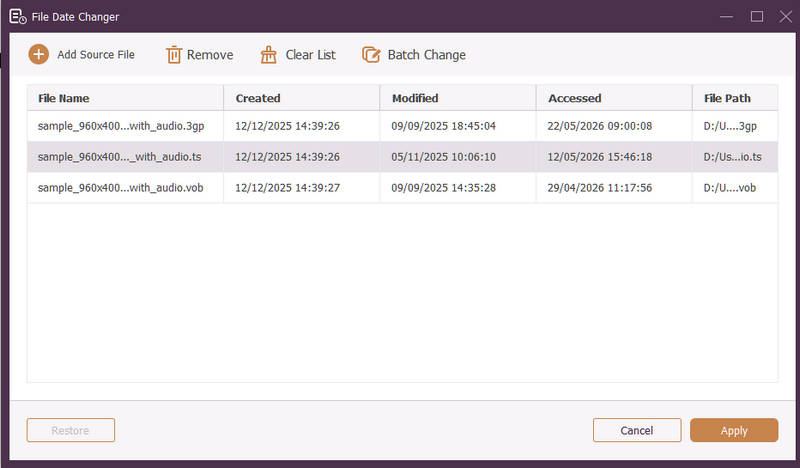
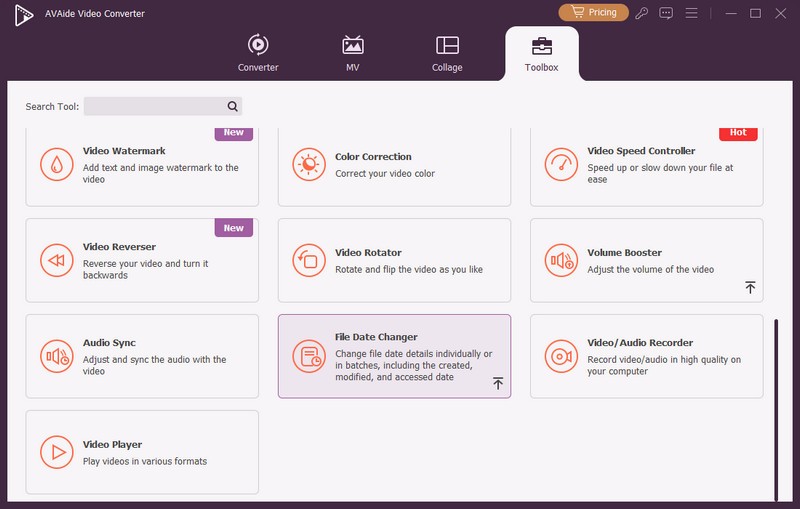
Sicherer DownloadSchritt 1Öffnen Sie das Programm auf Ihrem Computer, um loszulegen. Gehen Sie zu Werkzeugkasten Registerkarte, um auf verschiedene Funktionen zuzugreifen. Scrollen Sie mit der Maus nach unten, suchen Sie nach Dateidatum-Wechsler unter den Optionen und klicken Sie darauf. Mit dieser Funktion können Sie die Dateidatumsdetails ändern.
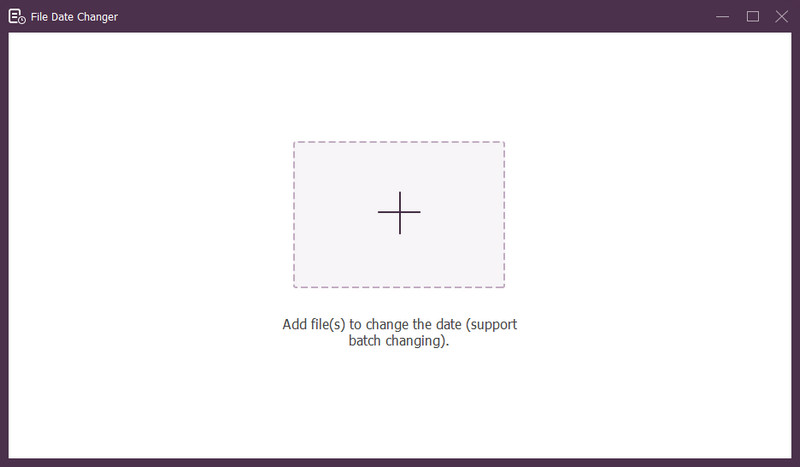
Schritt 3Drücken Sie die (+), um Dateien zu importieren. Dies können Audio-, Bild- und Audiodateien sein. Sie können mehr als eine Datei importieren, um die Dateidetails zu ändern.
Schritt 4Sobald alle Dateien importiert sind, können Sie mit der Änderung der Daten beginnen. Sie können die Erstellungs-, Änderungs- und Zugriffsdaten entsprechend ändern. Klicken Sie dazu auf das Element, bis das Pfeil wird angezeigt und weist auf eine Bearbeitung hin.
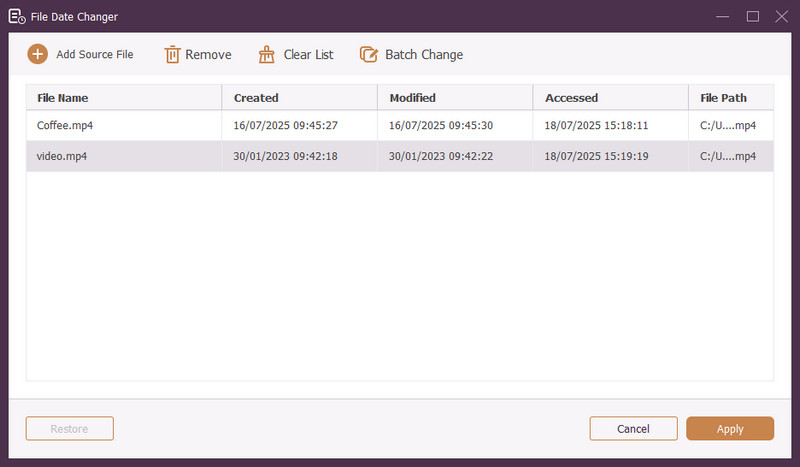
Schritt 5Nachdem Sie alle Dateidaten bearbeitet haben, klicken Sie auf das Sich bewerben , um die Änderungen zu bestätigen. Nachdem die Änderungen übernommen wurden, überprüfen Sie die aktualisierten Dateidatendetails, um sicherzustellen, dass sie korrekt sind.
Teil 4. Häufig gestellte Fragen zu Best File Date Changer
Wie kann ich die Datumsinformationen einer Datei anzeigen?
Wenn Sie überprüfen möchten, wann eine Datei erstellt oder zuletzt geändert wurde, können Sie dies direkt auf Ihrem Computer tun. Suchen Sie die Datei, klicken Sie mit der rechten Maustaste darauf und wählen Sie Eigenschaften. Anschließend können Sie alle Details zur Datei sehen. Dazu gehören das Erstellungs- und Änderungsdatum.
Wird jemand Bescheid wissen, wenn ich das Dateidatum ändere?
Nein! Das Ändern des Datums einer Datei hinterlässt keine Spuren. Niemand weiß also, wann Sie die Änderung vorgenommen haben.
Was ist der Grund, warum Datum und Uhrzeit aus der Datei verschwinden?
Es gibt einige Gründe, warum Datum und Uhrzeit aus Dateien verschwinden können. Dies kann passieren, wenn Sie eine Datei herunterladen und aufgrund einer schlechten Internetverbindung einige Informationen verlieren. Manchmal liegt es an der Website, von der Sie die Datei heruntergeladen haben.
Kann ich das geänderte Erstellungsdatum der Datei abrufen?
Ja! Sie können das ursprüngliche Datum wiederherstellen, indem Sie es manuell auf den Anfangswert zurücksetzen. Nur so können Sie das Erstellungsdatum der Datei abrufen.
Wirkt sich das Ändern von Dateidatum und -uhrzeit auf die Dateiintegrität oder den Dateiinhalt aus?
Nein! Das Ändern von Datum und Uhrzeit einer Datei hat keine Auswirkungen auf den Inhalt oder die Integrität. Es werden nur die Metadaten geändert, z. B. Erstellungs- und Änderungsdatum. Die eigentliche Datei bleibt unverändert.
Da hast du es! Du hast gelernt So ändern Sie das Erstellungsdatum einer Datei, was aus verschiedenen Gründen hilfreich sein kann. Für eine optimierte und anfängerfreundlichere Erfahrung sollten Sie AVAide Video Converter als Ihren bevorzugten Dateidatumswechsler verwenden. Es ist die beste Wahl für die Verwaltung Ihrer digitalen Dateien. Probieren Sie es aus und teilen Sie uns unten Ihre Meinung mit!
ÜBER DEN AUTOR

Der umfassendste Medienkonverter zum Konvertieren von Video und Audio ohne Qualitätsverlust.
Video bearbeiten
- AI Upscale-Video
- Wasserzeichen aus Video entfernen
- Text aus Video entfernen
- Herunterskalieren von 4K auf 1080p/720p
- Hintergrundgeräusche aus Videos entfernen
- MP4-Metadaten-Editor
- Schärfen Sie die Videoqualität
- Reverse-Video
- Beheben Sie das Video in schlechter Qualität
- Metadaten aus Video/Audio entfernen
- Frontkamera-Video spiegeln/entspiegeln