Canon-Kameras zeichnen Bilder im CR2-Format auf, einem Rohbildformat, das für die Erfassung maximaler Bilddetails entwickelt wurde. Obwohl es für die Bildbearbeitung praktisch ist, eignet es sich aufgrund seiner großen Dateigröße und eingeschränkten Kompatibilität nicht für den täglichen Gebrauch. CR2 in JPG konvertierenDadurch lassen sie sich einfacher teilen, schneller hochladen und auf einer größeren Gerätevielfalt unterstützen. Außerdem minimiert dieser Prozess den Speicherbedarf und erfordert keine tiefgreifenden technischen Kenntnisse. Dieser Leitfaden ist in Gründe, Methoden und Werkzeuge unterteilt, basierend auf gängigen Vorgehensweisen bei der Bildbearbeitung, um Ihnen eine übersichtliche und kontrollierte Dateiverwaltung zu ermöglichen.
Teil 1. Canon CR2: Warum Sie es konvertieren müssen
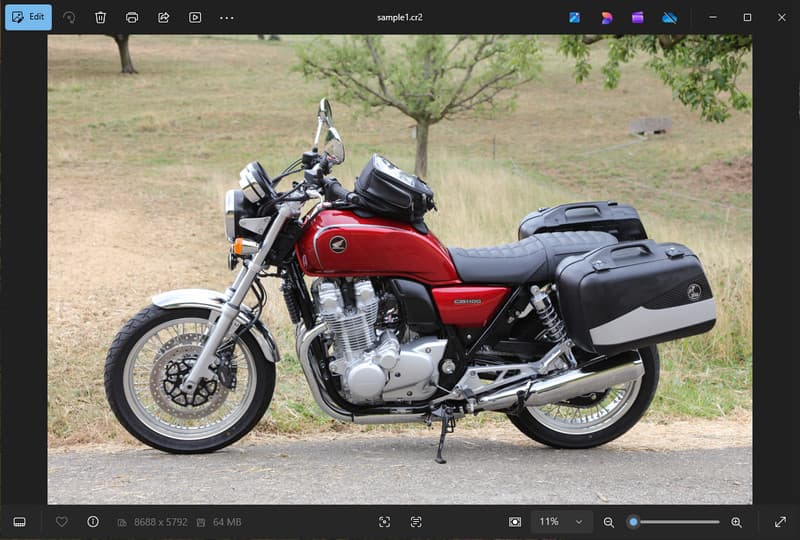
Canon CR2 ist ein RAW-Dateiformat, das die Rohdaten des Kamerasensors aufzeichnet. Obwohl es extrem detailliert ist, kann es notwendig sein, die CR2-Datei in JPG zu konvertieren, da viele Geräte und Anwendungen RAW-Dateien nicht unterstützen.
1. Eingeschränkte Kompatibilität
Viele Standardprogramme unterstützen CR2-Dateien nicht, was die Bildanzeige erschwert. Durch die Konvertierung einer CR2-Datei in JPG wird sichergestellt, dass Ihre Fotos auf allen Geräten, Browsern und gängigen Bildbetrachtern problemlos angezeigt werden.
2. Große Dateigröße
RAW-Dateien sind sehr groß, da sie mehr Bilddaten enthalten. Dies beeinträchtigt Speicherplatz und Leistung. Durch die Konvertierung von CR2-Bildern in JPG wird die Dateigröße reduziert, wodurch Bilder einfacher und effizienter gespeichert und übertragen werden können.
3. Einfacheres Teilen und Hochladen
Viele Plattformen akzeptieren keine RAW-Dateien oder verarbeiten sie langsam. Der Wechsel von CR2 zu JPG ist eine schnelle und einfache Möglichkeit, Ihre Bilder hochzuladen und sicherzustellen, dass Ihre Fotos in sozialen Medien, E-Mails und auf anderen Websites im richtigen Format angezeigt werden.
4. Keine spezielle Software erforderlich
CR2-Dateien benötigen Bearbeitungssoftware, die das RAW-Format verarbeiten kann. Durch die Konvertierung von CR2 in JPG vermeiden Sie den Einsatz komplexer Programme und erhalten unkompliziert Bilder für den täglichen Gebrauch.
5. Schnellerer Arbeitsablauf
Die Bearbeitung von RAW-Dateien kann Ihren Prozess verlangsamen, insbesondere bei großen Datenmengen. Ein zuverlässiger CR2-zu-JPG-Konverter beschleunigt die Bildverarbeitung und steigert die Gesamtproduktivität.
6. Vereinfachter Prozess für Anfänger
Rohdatenformate können für neue Benutzer komplex wirken. Zu lernen, wie man CR2 in JPG konvertiert, vereinfacht Ihren Arbeitsablauf und macht die Bildverwaltung ohne technische Hürden leichter.
Das Verständnis dieser Punkte erklärt, warum die Konvertierung oft die praktische Wahl ist. Im nächsten Abschnitt erfahren Sie mehr über die besten Methoden, um CR2-Dateien effizient in JPG zu konvertieren.
Teil 2. 5 beste Wege, CR2 in JPG zu konvertieren
1. AVAide Image Converter (Beste kostenlose Online-Option)
AVAide-Bildkonverter ist eine schnelle, browserbasierte Lösung für Anwender, die rasche Ergebnisse ohne Softwareinstallation benötigen. Sie ist besonders nützlich, wenn Sie CR2-Dateien in großen Mengen in JPG konvertieren und dabei die Bildqualität erhalten möchten.
Hauptmerkmale:
- Konvertiert in und aus Batch-CR2-Dateien.
- Sorgt für eine hohe Bildqualität und natürliche Farben.
- Vollständig online, keine Installation erforderlich
- Akzeptiert JPG, PNG und weitere Formate.
- Benutzerfreundliche Oberfläche für beschleunigte Verarbeitung.
Plattformen:
- Webbasiert, funktioniert unter Windows, Mac, Linux und mobilen Browsern.
Schritt 1Besuchen Sie die offizielle Website
Öffnen Sie Ihren Browser und rufen Sie die offizielle Seite des AVAide Image Converters auf. Nach dem Laden können Sie sofort mit der Konvertierung beginnen, ohne sich anzumelden oder etwas zu installieren.
Schritt 2Ausgabe und Upload einstellen
Wählen Sie JPG als gewünschtes Ausgabeformat. Klicken Sie anschließend auf die Schaltfläche „+“ oder ziehen Sie Ihre CR2-Dateien per Drag & Drop in den Upload-Bereich, um zu beginnen.
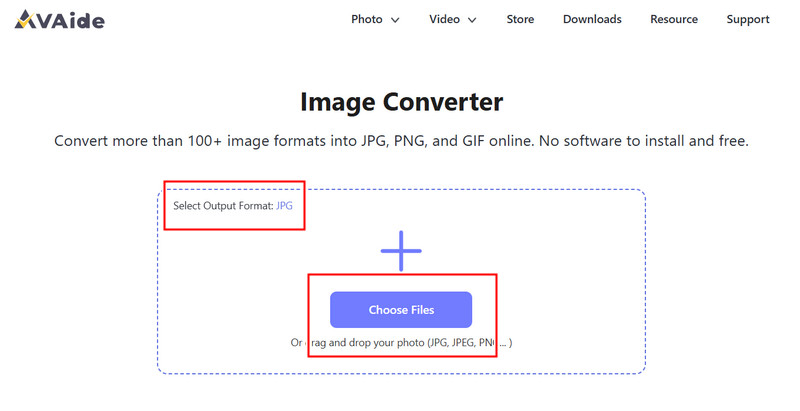
Schritt 3CR2-Konvertierung starten
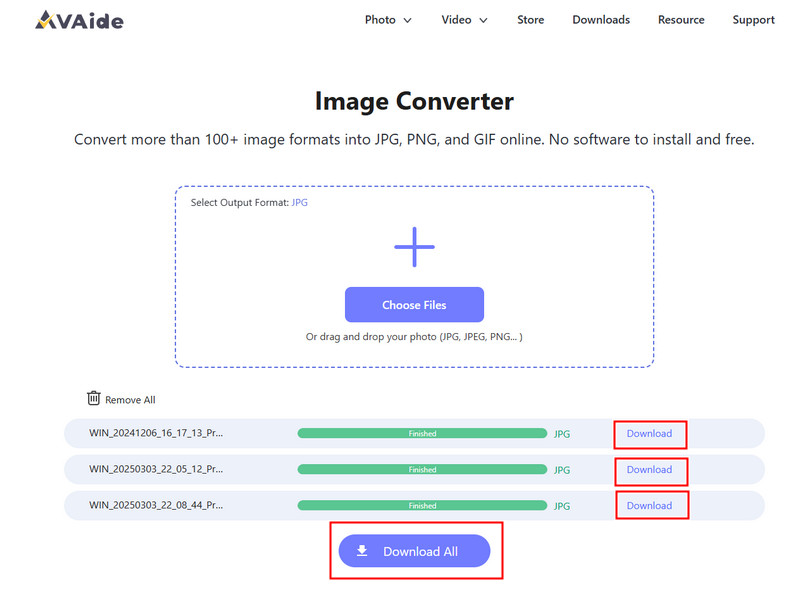
Warten Sie, bis das Tool die Verarbeitung Ihrer Dateien abgeschlossen hat. Klicken Sie anschließend auf „Weiter“. Herunterladen für eine einzelne Datei oder Alles herunterladen wenn Sie mehrere Bilder konvertiert haben.
- Vorteile
- Einfach und schnell zu bedienen
- Keine Einrichtung oder Installation erforderlich
- Effiziente Unterstützung für Stapelverarbeitung
- Gewährleistet eine gleichbleibende Ausgabequalität
- Nachteile
- Erfordert eine Internetverbindung
- Beschränkte erweiterte Bearbeitungswerkzeuge
2. Adobe Photoshop
Adobe Photoshop ist eine leistungsstarke Anwendung, mit der man Rohdateien vor dem Export bearbeiten kann. Sie wird typischerweise verwendet, wenn man CR2-Dateien in JPG konvertieren und die volle Kontrolle über die Bildbearbeitung haben möchte.
Hauptmerkmale:
- Erweiterte CR2-Bearbeitung mit Camera Raw
- Hochwertige Exportoptionen
- Professionelle Bearbeitungswerkzeuge
Plattformen:
- Windows und Mac
Schritt 1Starten Sie Photoshop und öffnen Sie Ihre CR2-Datei, die automatisch in Camera Raw geladen wird.
Schritt 2Passen Sie Belichtung, Weißabgleich oder Farbe nach Bedarf an und klicken Sie dann. Offen weitermachen.
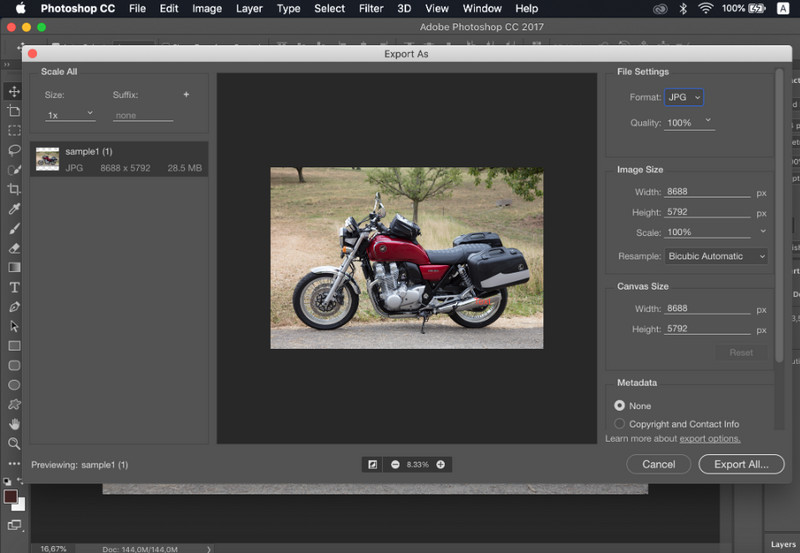
Schritt 3Gehe zu Datei, wählen Speichern als, wählen JPG Formatieren, Qualität einstellen und Bild speichern.
- Vorteile
- Hervorragende Bildkontrolle und Präzision
- Branchenübliche Software
- Nachteile
- Erfordert ein Abonnement
- Steile Lernkurve
3. Lightroom
Lichtraum ist ideal für Fotografen, die große Bildbibliotheken verwalten, und selbst wenn Sie möchten Hintergrund in Lightroom entfernenEs vereinfacht die Stapelbearbeitung und den Export und ermöglicht so die einfache Anwendung eines CR2-zu-JPG-Konverter-Workflows für mehrere Bilder gleichzeitig.
Hauptmerkmale:
- Stapelbearbeitung und Export
- nicht-destruktives Bearbeitungssystem
- Organisierte Fotoverwaltung
Plattformen:
- Windows, Mac und Mobilgeräte
Schritt 1Öffnen Sie Lightroom und fügen Sie Ihre CR2-Dateien zur Bibliothek hinzu.
Schritt 2Wählen Sie die Bilder aus und bearbeiten Sie sie gegebenenfalls.
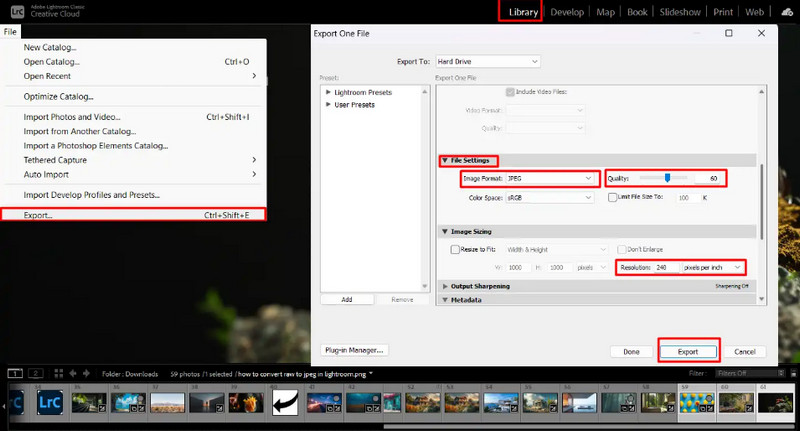
Schritt 3Klicken Export, wählen JPG Formatieren, Einstellungen festlegen und Speicherort auswählen.
- Vorteile
- Effizient für die Verarbeitung großer Bildmengen
- Gleichbleibende Ausgabequalität
- Nachteile
- Abonnement erforderlich
- Erfordert Lernaufwand für Anfänger
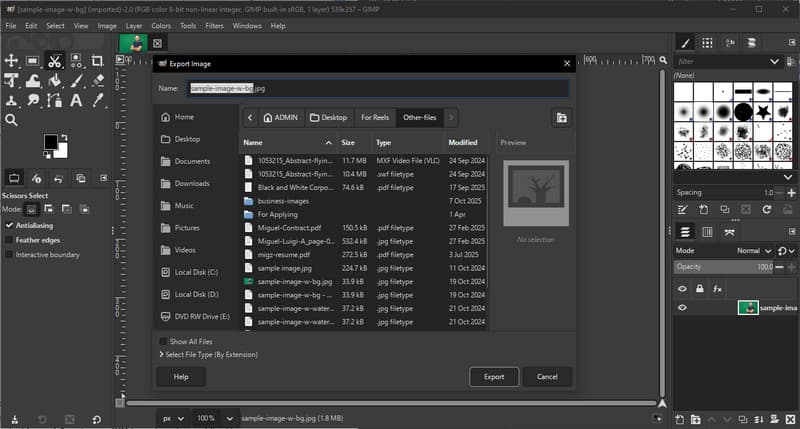
4. GIMP
GIMP-Fotoeditor ist ein kostenloser Open-Source-Editor, der mithilfe von Plugins auch RAW-Bilder verarbeiten kann. Er ist eine gute Option, wenn Sie lernen möchten, wie man CR2-Dateien in JPG konvertiert, ohne dafür kostenpflichtige Software kaufen zu müssen.
Hauptmerkmale:
- Freie und Open-Source-Software
- Unterstützt mehrere Bildformate
- Grundlegende Bearbeitungs- und Konvertierungsfunktionen
Plattformen:
- Windows, Mac, Linux
Schritt 1Öffnen Sie GIMP und laden Sie Ihre CR2-Datei mithilfe eines RAW-Plugins.
Schritt 2Passen Sie die Bildeinstellungen im Importfenster an und bestätigen Sie.
Schritt 3Gehe zu Datei, wählen Exportieren als, wählen JPG Formatieren und die Datei exportieren.
- Vorteile
- Völlig kostenlos nutzbar
- Flexibel mit Plugins und Erweiterungen
- Nachteile
- Die Einrichtung kann technisch anspruchsvoll sein.
- Weniger ausgereifte Benutzeroberfläche
5. Konvertierung
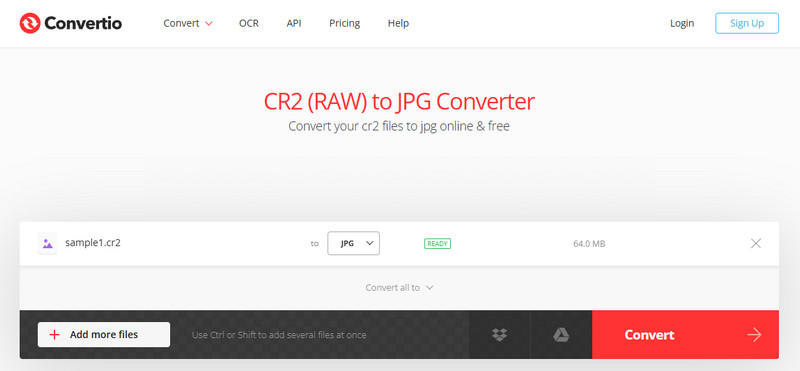
Konvertierung ist ein bekanntes webbasiertes Tool, mit dem Benutzer Dateien schnell und ohne Installation konvertieren können. Es ist eine praktische Wahl, wenn Benutzer wissen möchten, wie sie CR2-Dateien mithilfe einer einfachen Online-Plattform in JPG konvertieren können.
Hauptmerkmale:
- Unterstützt mehrere Dateiformate, darunter CR2 und JPG.
- Funktioniert direkt im Browser
- Ermöglicht das Hochladen von Dateien vom Gerät, aus der Cloud oder von einer URL.
- Einfacher und schneller Konvertierungsprozess
Plattformen:
- Webbasiert
Schritt 1Öffnen Sie Convertio in Ihrem Browser und laden Sie Ihre CR2-Datei hoch.
Schritt 2Wählen JPG als Ausgabeformat.
Schritt 3Starten Sie die Konvertierung und laden Sie die Datei nach Abschluss herunter.
- Vorteile
- Einfach zugänglich und benutzerfreundlich
- Keine Installation erforderlich
- Unterstützt verschiedene Dateiquellen
- Nachteile
- Dateigrößenbeschränkungen in der kostenlosen Version
- Erfordert eine Internetverbindung
Teil 3. Vergleich der 5 CR2-zu-JPG-Konverter
| Merkmale | AVAide-Bildkonverter | Adobe Photoshop | Lichtraum | GIMP | Konvertierung |
| Einfach zu verwenden | Sehr einfach | Mäßig | Mäßig | Mäßig | Leicht |
| Batch-Konvertierung | Ja | Begrenzt | Begrenzt | Begrenzt | Beschränkt auf 5 |
| Bildqualität | Höchste | Hoch | Hoch | Hoch | Hoch |
| Geschwindigkeit | Schnell | Mäßig | Schnell | Mäßig | Schnell |
| Dateigrößenbeschränkung | Nein | Nein | Nein | Nein | Ja |
Teil 4. Häufig gestellte Fragen zur Konvertierung von CR2 in JPG
Was tun mit CR2-Dateien?
CR2-Dateien sind Rohbilder, die unbearbeitete Daten einer Canon-Kamera enthalten. Sie eignen sich, wenn Sie die volle Kontrolle über die Bearbeitung benötigen, z. B. über die Anpassung von Helligkeit, Farbe und Schärfe. Für alltägliche Aufgaben wie das Teilen oder Hochladen sind sie jedoch nicht so einfach zu verwenden.
Welche Apps öffnen CR2-Dateien?
CR2-Dateien lassen sich mit verschiedenen Bildbearbeitungsprogrammen öffnen. Adobe Photoshop und Lightroom sind die gängigsten Programme, da sie RAW-Formate vollständig unterstützen und über umfangreiche Bearbeitungswerkzeuge verfügen. Auch GIMP kann CR2-Dateien mithilfe eines Plugins öffnen.
Wie kann man Rohdaten in einem Schritt in JPG konvertieren?
Um mehrere RAW-Dateien gleichzeitig zu konvertieren, benötigen Sie ein Programm, das Stapelverarbeitung unterstützt. Programme wie Lightroom oder Online-Tools wie AVAide Image Converter ermöglichen den Import oder Upload mehrerer CR2-Dateien gleichzeitig. Wählen Sie einfach JPG als Ausgabeformat und starten Sie den Vorgang.
Durch die Konvertierung von CR2-Dateien in JPG lassen sich Bilder einfacher teilen, ansehen und speichern. CR2 eignet sich zwar hervorragend zur Bildbearbeitung, JPG ist jedoch praktischer für den täglichen Gebrauch. Wenn Sie sich fragen… Wie kann ich den Dateityp von CR2 in JPG ändern?Sie können Tools wie Photoshop, Lightroom oder Online-Konverter wie z. B. verwenden. AVAide-BildkonverterDas Ziel ist einfach: große Rohdateien in kleinere, nutzbare JPG-Bilder umwandeln, ohne dabei wichtige Qualitätseinbußen hinnehmen zu müssen.
ÜBER DEN AUTOR


Sie können Ihr Foto problemlos und ohne Qualitätsverlust von einem beliebigen Bildformat in ein gängiges JPG-, PNG- oder GIF-Format konvertieren.
JETZT BEARBEITEN