Prøver at finde ud af det hvordan man skærmoptager på en Dell Det kan føles forvirrende at optage en tutorial, et gameplay eller et møde uden det rigtige værktøj. Uanset om du har brug for noget hurtigt eller mere avanceret, gennemgår denne guide enkle og effektive metoder til problemfrit at optage din skærm.
Del 1. Den nemmeste måde: Brug af Xbox Game Bar
Xbox Game Bar er primært designet til optagelse af gameplay, men kan også bruges til daglig skærmoptagelse. Den giver dig mulighed for at optage din skærm og lyd og gemme klip med det samme. Den kan dog ikke optage dit skrivebord eller Stifinder; den kan kun optage aktive programvinduer.
Trin 1For at åbne Xbox Game Bar-overlayet skal du trykke på Windows + G tasterne på dit tastatur. Hvis spørgsmålet handler om, hvorvidt det er et spil, skal du svare bekræftende.
Trin 2Det Fange panelet er i overlayet. Hvis du ikke kan se det, oprettes der en Widgets-menu, og indstillingen Optag vælges.
Trin 3For at starte optagelsen af din skærm skal du klikke på Optag (●) knap eller Windows + Alt + RVærktøjet vil automatisk tage et øjebliksbillede af det aktive vindue.
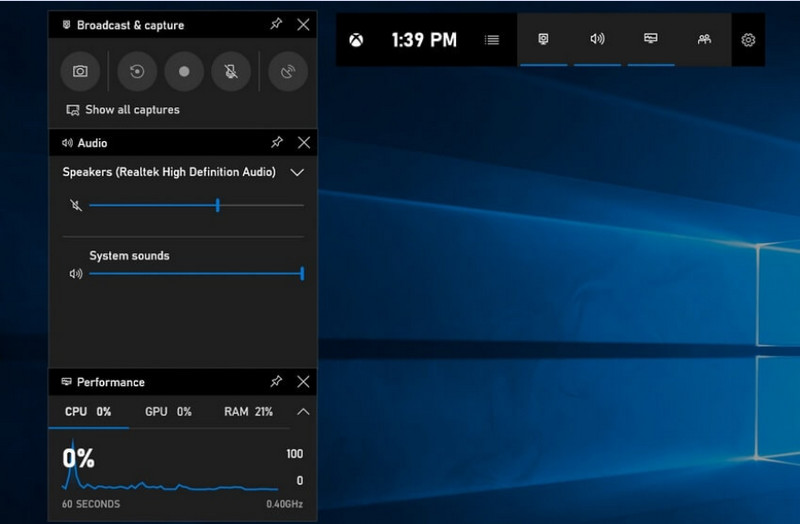
Trin 4Mikrofonoptagelse kan aktiveres ved at klikke på Mic knappen før eller under optagelse.
Trin 5For at afslutte optagelsen, tryk på Windows + Alt + R en anden gang eller tryk på Stop (■) knappen på den flydende bjælke.
Trin 6Videoer, du optager, gemmes automatisk i Videoer > Fanger mappen på din computer.
Del 2. De professionelle valg
1. Brug af OBS-skærmoptager
OBS skærmoptager er en gratis, open source-skærmoptager, der almindeligvis bruges til både optagelse og streaming af liveindhold. Og den tilbyder et brugerdefineret arrangement, der giver dig mulighed for at optage hele din skærm, et separat vindue eller flere kilder samtidigt. Dens kraftfulde video- og lydkontroller gør den til en effektiv mulighed for brugere, der ikke kun er interesserede i den enkleste type skærmoptagelse.
Ydeevne:
OBS Screen Recorder er software med hardwareacceleration, der leverer pålidelig ydeevne og muliggør jævn optagelse i 1080p og 60fps. Når den er installeret, kan den fungere effektivt med ensartet output og lav latenstid under længerevarende optagelsessessioner på kompatible systemer.
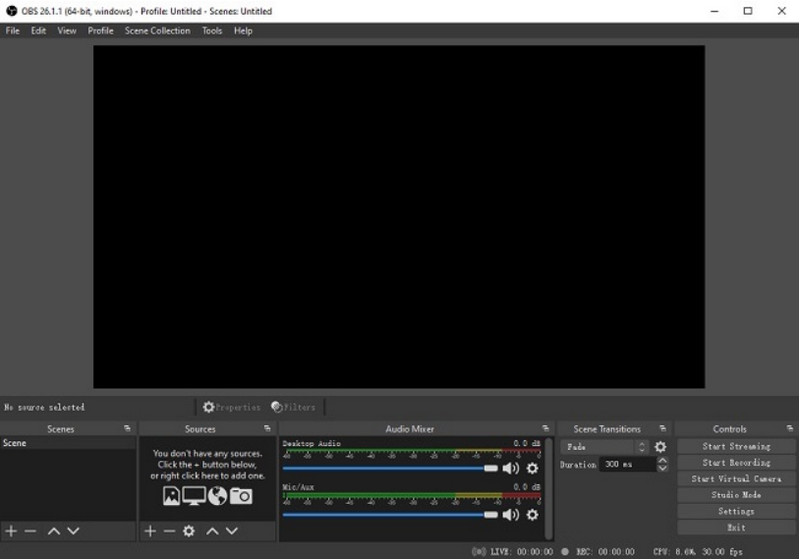
Trin 1Gå til det officielle OBS Screen Recorder-websted, download installationsprogrammet, og fuldfør installationen.
Trin 2Åben OBS skærmoptagerDu vil blive præsenteret for hovedgrænsefladen med paneler som f.eks. Scener og Kilder.
Trin 3I panelet Scener skal du klikke på + knappen og giv din scene et navn.
Trin 4Du kan tilføje et skærmbillede eller et vinduesbillede (for at optage en bestemt app) ved at klikke på + i Kilder panel og valg Vis Capture eller Vinduesoptagelse.
Trin 5Test Audio mixer ved at aktivere og justere mikrofonen og systemlyden.
Trin 6Tryk på Start optagelse knappen i højre side af brugerfladen.
Trin 7Når du er færdig, skal du klikke på Stop optagelseDenne video vil automatisk blive placeret i din standardmappe.
2. Brug af AVAide-skærmoptager
AVAide skærmoptager er et simpelt, men effektivt værktøj til optagelse af skærmaktivitet i høj kvalitet. Det er rettet mod brugere, der har brug for et brugervenligt optagelsessystem med klar lyd, et fleksibelt optagelsessystem med minimal konfiguration og intuitive kontroller.
Ydeevne:
AVAide Screen Recorder er optimeret til at optage jævnt og stabilt, selv under lange sessioner. Den understøtter output i høj opløsning på op til 4K/1080p med minimal latenstid i almindelige applikationer. Softwaren kan effektivt administrere samtidig skærm- og lydoptagelse for at sikre, at systemlyd og mikrofoninput forbliver synkroniseret.
- Optager skærmen i høj kvalitet med jævn og forsinkelsesfri ydeevne.
- Optager systemlyd og mikrofonlyd samtidigt med klar lydoutput.
- Understøtter webcam-optagelse med justerbart billede-i-billede-overlay.
- Tillader optagelse af fuld skærm, et valgt vindue eller et brugerdefineret område.
- Indeholder indbyggede redigeringsværktøjer til beskæring, forbedring og eksport af videoer.

 Sikker download
Trin 1Download og installer værktøjet
Gå til den officielle hjemmeside for AVAide Screen Recorder. Hent installationsprogrammet til dit Windows-system, og følg installationsprocessen.
Trin 2Start softwaren
Installationen kan efterfølges ved at åbne programmet. På hovedgrænsefladen kan du vælge Skærmoptager til at begynde med.
Trin 3Vælg optagelsesområde
Vælg mellem Fuld og Brugerdefinerede optagetilstande baseret på dine behov.
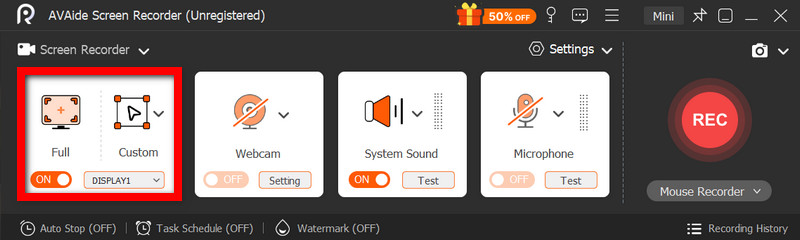
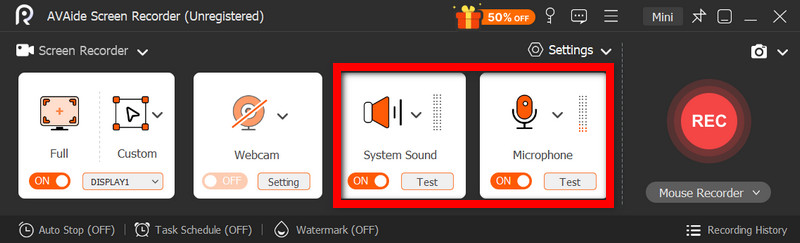
Trin 4Opsæt lyd og webcam
Aktiver Systemlyd og Mikrofon hvis du har brug for lyd. Webcammet kan også tændes for at optage ansigter.
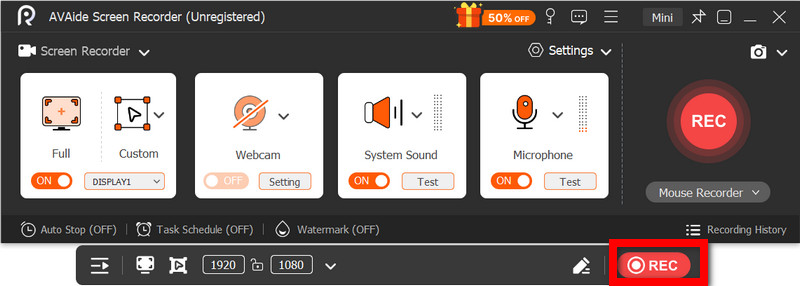
Trin 5Start optagelse
For at starte optagelsen af din skærm skal du trykke på REC knappen. Annotationer kan tilføjes under optagelsen, hvis det er nødvendigt.
Trin 6Stop og gem optagelsen
Klik på Hold op knappen, når du er færdig. Optagelsen gemmes automatisk, og du kan forhåndsvise eller redigere den med det samme.
Del 3. Andre gratis og enkle metoder
1. Brug af Snipping Tool (Windows 11)
Snipping Tool i Windows 11 har indbygget skærmoptagelse, der giver en nem og hurtig måde at optage skærmaktivitet på uden at installere ekstra software. Det er mest effektivt med korte klip, vejledninger og simpelt optagelsesarbejde.
Ydeevne:
Snipping Tool er velegnet til lette optagelser og tilbyder problemfri optagelse af små billeder. Ikke desto mindre mangler det funktioner, understøtter ikke avancerede indstillinger og håndterer muligvis ikke lange eller højtydende optagelser lige så effektivt som specifikke værktøjer.
Trin 1Åbn klippeværktøjet ved at klikke på Start menu.
Trin 2For at bruge værktøjslinjen skal du klikke på Optage.
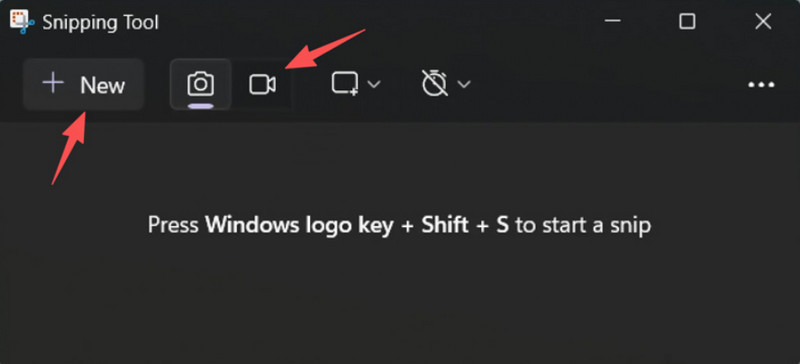
Trin 3For at optage en ny optagelse skal du vælge Ny.
Trin 4Vælg det område af skærmen, du vil optage.
Trin 5Klik Start for at starte optagelsen.
Trin 6Klik Hold op når du er færdig, og gem din optagelse.
2. Brug af Microsoft PowerPoint (alle Windows-versioner)
Microsoft PowerPoint indeholder en skærmoptagelsesfunktion, der giver dig mulighed for at tage et skærmbillede og integrere det i en præsentation. Det er også et nemt alternativ til at udvikle vejledninger, demonstrationer eller undervisningsslides uden at kræve yderligere optagelsessoftware.
Ydeevne:
PowerPoint giver ensartede resultater ved simpel skærmoptagelse, især til præsentationer og korte demonstrationer. Selvom det tilbyder rimelig videokvalitet, mangler det avancerede kontroller og er muligvis ikke egnet til kvaliteten af videoer optaget under lange optagelser.
Trin 1Start Microsoft PowerPoint, og forbered en ny eller en eksisterende præsentation.
Trin 2Klik på fanen Indsæt, og klik derefter Skærmoptagelse.
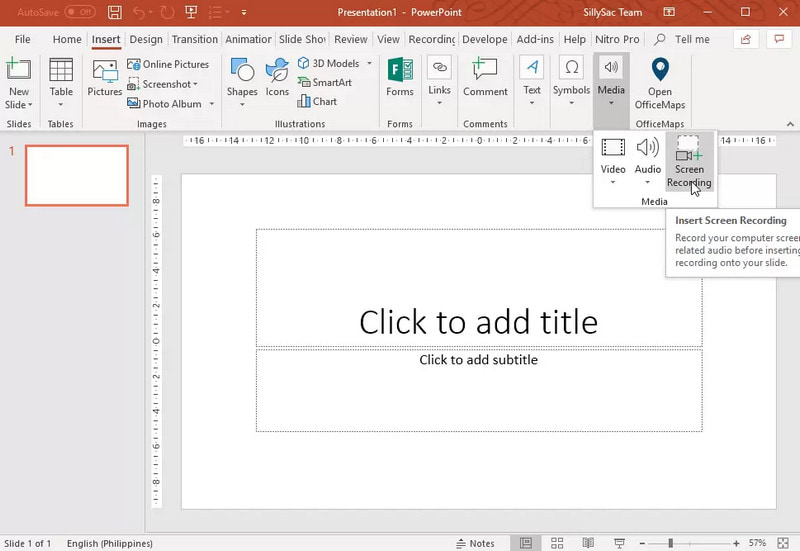
Trin 3Vælg den del af skærmen, du vil optage.
Trin 4Tillad lyd- eller markøroptagelse, når det er nødvendigt.
Trin 5Klik Optage for at begynde at optage din skærm.
Trin 6For at afslutte optagelsen, tryk på Windows + Shift + Q.
Trin 7For at gemme optagelsen skal du højreklikke på videoen og vælge Gem medie som.
Del 4. Fejlfinding af almindelige problemer
| Problem | Løsning |
| Spillinjen ville ikke åbne eller optage. | I indstillingerne kan du slå Xbox Game Bar fra. Gå til Indstillinger > Spil > Game Bar og drej den PÅForsøg på at trykke Windows + G igen, og genstart din pc (hvis det er nødvendigt). |
| Optagelsen har ingen lyd. | Sørg for, at systemlyd og mikrofon er slået til i indstillingerne for Game Bar. Sørg også for, at din lydenhed ikke er slået fra eller forkert valgt i Windows Lydindstillinger. |
| Min Dell bærbare computer kører langsomt under optagelse. | Brug Luk eller Minimer for at reducere unødvendige programmer og browserfaner. Skift til Høj ydeevne-tilstand i strømindstillingerne, og reducer optagelsesopløsningen, når det er nødvendigt, for at forbedre ydeevnen. |
| Den optagede videokvalitet er dårlig. | Indstil optagekvaliteten til den bedst tilgængelige indstilling i spillinjen, især når optagelse af Google Meet sessioner. Indstil din skærm til dens native opløsning, og opdater dine grafikdrivere for at gøre den skarpere og mere stabil. |
Læring hvordan man optager en skærm på en Dell bærbar computer giver dig fleksibilitet til vejledninger, møder eller endda spil. Uanset om det er et indbygget værktøj eller sofistikeret software, vil valget af den rigtige metode sikre, at optagelsen foretages med lethed og høj kvalitet, og at arbejdsgangen strømlines.
OM FORFATTEREN

Optag skærm, lyd, webcam, gameplay, onlinemøder, samt iPhone/Android-skærm på din computer.
Skærmoptagelse