Længes du efter intense og ekstreme shows? Så vil Peacock ikke skuffe dig. Peacock er en videostreamingside, hvor live sport og berømte film er samlet i én pakke. En anden ting, der forhindrer seere i at vende tilbage til denne side, er dens understøttelse af originale shows og NBC-netværksshows. For en lav startpris kan du allerede se din yndlings live sport. Men på grund af det konstant skiftende filmbibliotek er det blevet et problem for mange brugere. Løsningen? Download af indhold eller optagelse af skærmshows og film. Men ved at tage yderligere skridt kan vi tage dig med på en tur i Peacocks verden og finde ud af, om du kan få fat i en video fra denne streamingside. Til den tid vil du have svaret på spørgsmålet: "Kan man optage live sport på Peacock??"
Kan du optage på Peacock?
Det enkle svar på dette spørgsmål er nej. Peacock tilbyder en række film og liveshows, du kan nyde at se. Ulempen er, at den af en eller anden grund ikke har en indbygget optagefunktion. En af de primære årsager er Digital Rights Management, hvor ophavsretsindehavere og indholdsskabere implementerer rettigheds- og licensbegrænsninger. Det er en forhandling mellem netværk og studier for at beskytte indhold og forhindre distribution af originale kopier uden for Peacocks kontrol. Peacock er designet og formålet med at være en streamingtjeneste og ikke en live-tv-tjeneste. Derfor er en optager ikke nødvendigvis vigtig, da seerne kan se de tilgængelige shows når som helst.
Tilsyneladende vil Peacock have dig på deres platform. De tæller og værdsætter deres aktive streamere. Hvis de tillader folk at optage noget og se det senere offline eller uden for appen, vil de ikke tælle dig som en aktiv bruger. Peacock leveres med annonceunderstøttede niveauer, hvor visning og engagement betyder noget.
Hvad med live sport?
Hvis du spekulerer på, om du kan optage live sport, er det korte svar nej. Faktisk er der rapporteret om klager fra sportsfans over, hvorfor Peacock ikke tillader optagelse af live sport. Peacock blokerer også live sportoptagelse på grund af sportsrettighederne. Disse rettigheder inkluderer klausuler, der forbyder brugere at gemme live sport eller gemme indhold, selv til personlig brug. Indholdslicenser er komplekse. Derudover implementerer sportsligaer strenge regler for, hvornår og hvordan deres shows kan distribueres. Når optagelser er tilladt, vil der være en konflikt med aftalerne, og reglerne vil blive betydeligt komplicerede. En af de plausible løsninger til spil eller sport ville være at optage på YouTube TV med dets ubegrænsede cloud-DVR. Det kan sendes på NBC, hvilket giver dig mulighed for at optage på Peacock eller NBC-simulcast.
Selvom Peacock-eksklusive kampe ikke kan optages, fungerer det for kampe, der sendes på NBC. På den anden side er en fuld kamp tilgængelig at se on-demand som en genudsendelse. Dette sker efter en live sportsbegivenhed slutter, men det finder ikke sted hver eneste gang. Afhængigt af sporten og den specifikke rettighedsaftale kan tilgængeligheden af genudsendelsen være tilgængelig eller ej. Kort sagt er Peacock-genudsendelse ikke garanteret.
Metode 1: Optagelse på Peacock ved hjælp af tredjepartsværktøjer
Det er nyttigt at optage videoer, især når du skal lave højdepunkter. Derfor dækker dette afsnit værktøjer til at optage shows på Peacock.
1. AVAide skærmoptager
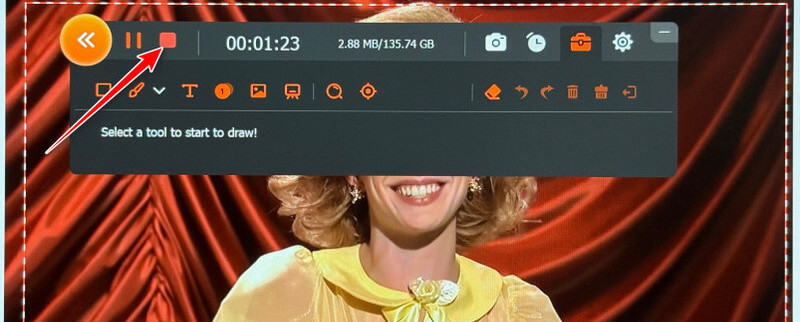
AVAide skærmoptager lader dig optage videoer på Peacock eller enhver aktivitet på din skærm med optagelser i høj kvalitet. Derudover understøtter den 60fps optagelse, så alt føles mere responsivt og flydende. Denne funktion er især nyttig, når du optager hurtige konkurrencespil, hvor du nemt kan spore mål i bevægelse. Udover at optage hele skærmen og et specifikt vinduesområde kan den opnå systemlyd rent uden forvrængning. Den er i stand til at justere lydniveauer før og under sessionen.
Da live sport finder sted på et bestemt tidspunkt, kan du planlægge, hvornår optagelsen skal starte og stoppe automatisk, uden at du behøver at trykke på optageknappen. Derudover kan du optage sport og livebegivenheder, uanset hvilket operativsystem din computer bruger. De flydende bevægelser og den rene lyd optages i en mere jævn afspilning. For at lære, hvordan du optager på Peacock ved hjælp af AVAide Screen Recorder, se vejledningen nedenfor.
Trin 1Klik på Gratis download knappen nedenfor. Uanset om du bruger Windows eller Mac, findes der et installationsprogram, der passer til din computer. Installer og få adgang til skærmoptageren.

GRATIS DOWNLOAD Til Windows 7 eller nyere
 Sikker download
GRATIS DOWNLOAD Til Mac OS X 10.13 eller nyere
Sikker downloadTrin 2 Gå derefter til Peacocks hjemmeside og søg efter den video eller livesport, du vil optage. Klik nu på Video-optager og klik på Fuld mulighed eller Brugerdefinerede mulighed for at vælge et bestemt område at optage.
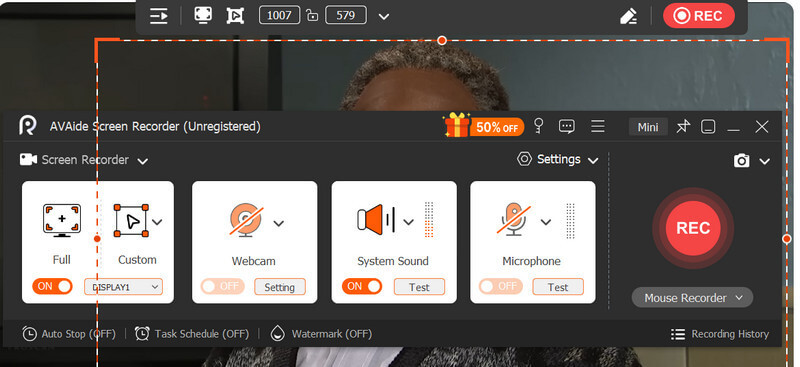
Trin 3Efter opsætningen skal du klikke på REC knappen for at starte optagelsesprocessen. Optagelsen starter efter en nedtælling på 3 sekunder for at gøre dig klar. Mens du optager, kan du tage et snapshot ved hjælp af Kamera knap.
Trin 4Når du er færdig med at optage, skal du klikke på Hold op knappen i den flydende værktøjslinje. Derefter dukker forhåndsvisningsvinduet op på skærmen. Herfra kan du trimme de uønskede dele eller de overskydende start- og slutdele. Når du er tilfreds, skal du klikke på knappen Gem og vælge en ønsket placering, hvor du vil gemme den endelige optagelse.
2. OBS Studio
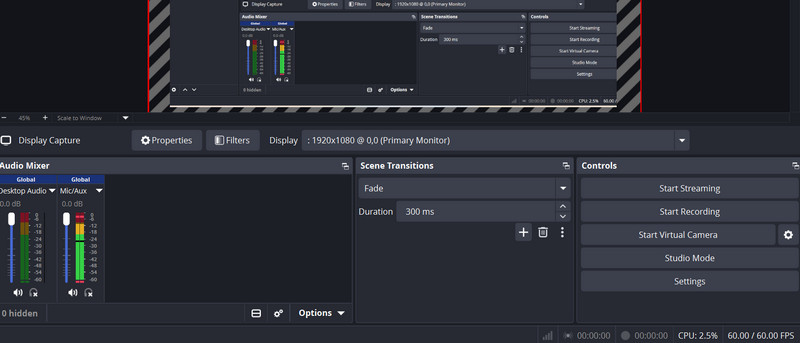
Et fuldt kapabelt og helt gratis værktøj, der kan klare opgaven med at optage dine yndlingsprogrammer fra Peacock, er OBS Studio. Dette program efterlader ikke et vandmærke på den færdige video, og der er ingen begrænsninger på optagelseslængden. Dets understøttelse af AMD, NVIDIA eller Intel QuickSync betyder, at værktøjet bruger systemets GPU og CPU, så der vil være meget mindre påvirkning af ydeevnen. Mens sessionen er i gang, vil din Peacock-stream ikke hakke eller buffere. Dets kraft rækker ud over blot at optage. Det er et populært værktøj til gameplay, selvom det kommer med sine egne ydeevneudfordringer. Derfor skal alle brugere vide det. hvordan man retter OBS-forsinkelse, når man spiller spilMen indtil videre kan du se trinene for at lære, hvordan dette værktøj fungerer til at optage videoer.
Trin 1Hent OBS Studio-appen fra den officielle hjemmeside, og installer den normalt uden nogen særlige indstillinger.
Trin 2Sørg nu for at deaktivere hardwareacceleration i din browser ved at navigere til Indstillinger > System > Slå indstillingerne Brug hardwareacceleration, når den er tilgængelig fraGenstart derefter din browser.
Trin 3Arbejd omkring dine ønskede konfigurationsindstillinger, herunder ændring af optageformat, encoder, kvalitet osv.
Trin 4Denne gang skal du klikke på plus knappen i vinduet Kilder og vælg Vis CaptureAlternativt kan du skifte til Windows-optagelse hvis den oprindelige indstilling viser en sort skærm.
Trin 5Hit Start optagelse i OBS og tjek forhåndsvisningen, hvis der vises en sort skærm. Optag nu dit Peacock-show. Tryk på Stop optagelse når det er færdigt.
3. iTop Skærmoptager
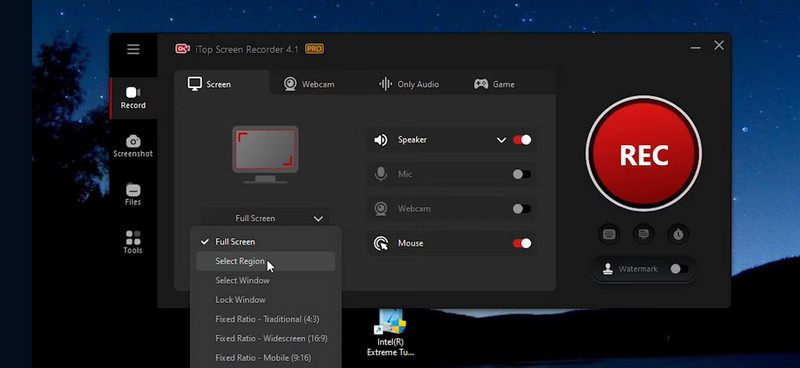
iTop Screen Recorder er et Windows-eksklusivt skærmoptagelsesprogram, der er designet til at optage DRM-beskyttet indhold, inklusive Peacock, Netflix og andre streamingtjenester. Derfor fortjener det sin plads blandt de bedste måder at optage videoer på. Det leveres med en forbedret tilstand, der omgår DRM-begrænsninger for at optage beskyttede videoer uden en sort skærm. Hvis du leder efter et værktøj, der tilbyder en DRM-omgåelsesfunktion, er iTop Screen Recorder derfor appen for dig. Følg instruktionerne nedenfor for at bruge den.
Trin 1Den samme fremgangsmåde: Hent softwaren og installer den på din computer.
Trin 2Vælg optagelsesområdet ved at klikke på dropdown menuen under skærmillustrationen på hovedgrænsefladen. For en brugerdefinerbar boks skal du vælge Vælg region indstillingen og juster optagelsesrammen til den ønskede størrelse.
Trin 3Klik på det røde på dette tidspunkt REC knappen i højre side af brugerfladen. I den flydende værktøjslinje kan du få adgang til Pause og Hold op knapper, samt tage skærmbilleder og bruge tegneværktøjer.
Trin 4For at gemme, klik på Hold op knappen og se et eksempel på optagelsen. Tryk på Gemme og eksporter til dit foretrukne format.
| Funktioner | AVAide skærmoptager | OBS Studio | iTop skærmoptager |
| Platforme | Windows og Mac | Windows, Mac, Linux | Kun Windows |
| Brugervenlighed | Begyndervenlig | Kompleks | Begyndervenlig |
| Videokvalitet | Op til 4k 60fps, jævn | Op til 4k 60fps, jævn | Hjørnefejl |
| Lydkvalitet | Støjreduktion inkluderet | Fremragende multi-track-funktion | Godt, ingen støjreduktion |
| DRM | Inkonsekvent, kræver løsninger | Inkonsekvent, kræver løsninger | Forbedret tilstand til DRM |
| Indbygget editor | Grundlæggende beskæring og annotationer | Ingen – eksterne værktøjer nødvendige | Kun grundlæggende beskæring |
| Vandmærke | Intet vandmærke | Ingen | Gratisversionen har et vandmærke |
| Planlagt optagelse | Indbygget | Muligt via plugins | Indbygget |
Metode 2: Peacocks officielle downloadfunktion
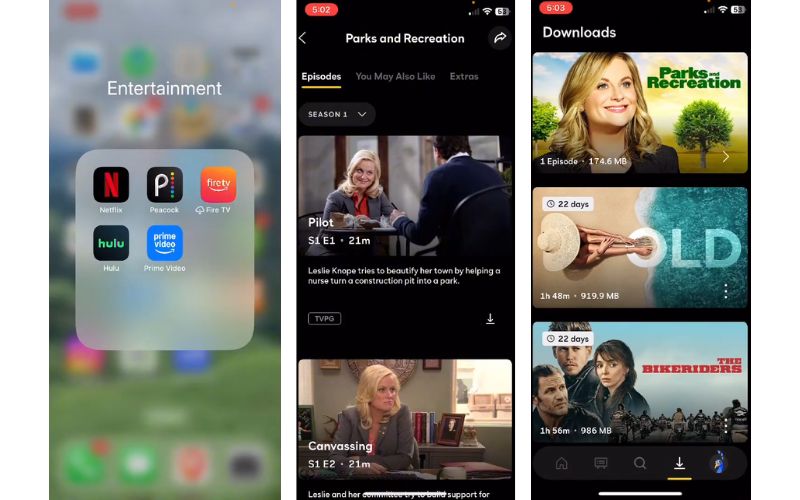
I stedet for at optage kan du downloade de serier, du ønsker at se offline. Det er muligt, hvis du er premium-abonnent. Denne handling er ikke ligefrem en optagelse, men du kan aktivere offline-visning ved at downloade udvalgte titler, så du kan se dem uden internetforbindelse. Tjek blot udløbsdatoen for de downloadede titler, da de fjernes efter et stykke tid. Det betyder, at du ikke kan have de downloadede serier permanent.
Denne funktion er fantastisk til mobilbrugere. Ja, du læste rigtigt. Du kan have dine yndlingsprogrammer lige ved hånden ved hjælp af Peacocks downloadfunktion. For at vise dig hvordan, kan du se nedenstående trin.
Trin 1Åbn Peacock-appen på din telefon, og tryk på den serie eller det program, du vil optage.
Trin 2Når du har valgt et show, vil du se en pil ned knappen under en videoforhåndsvisning. Tryk på den knap, og den vil begynde at downloade på din enhed.
Trin 3Få sekunder efter downloades din målvideo og er klar til offlinevisning.
Trin 4For at se alle dine offlinevideoer, vil du se en menu nederst på skærmen. En af knapperne er downloadmuligheden. Tryk på denne mulighed, og nyd at se Peacock-shows offline.
Juridiske og ophavsretlige overvejelser
Svaret på spørgsmålet "Kan man optage spil på Peacock?" er ja, med nogle løsninger og ved hjælp af tredjepartsværktøjer. Selvom det er muligt, anbefales det at optage, mens man nøje overholder de regler og politikker, der er implementeret af streamingtjenesteplatformen. Det lyder lovligt, når man taler om personlig brug. Alligevel forbyder Peacocks servicevilkår kopiering eller optagelse af indholdet, da det betragtes som en overtrædelse og kan føre til permanent udelukkelse af din konto. Så længe du ikke uploader optagelser offentligt på andre websteder, vil der ikke blive håndhævet nogen retslige skridt mod dig. Dette er ikke unikt for Peacock. Selv for andre streamingtjenester som f.eks. ReelShort-platformenKonklusion: Hold alle optagelser strengt private, og slet dem efter at have set dem. Distribuering i enhver form vil overskride en klar juridisk linje.
Der findes løsninger, som du kan lære hvordan man optager på PeacockHusk blot på Peacocks strenge servicevilkår og DRM-beskyttelse. Det er bevidst vanskeligt at optage indhold af en god grund. Som en tommelfingerregel bør du optage privat og ansvarligt. Del aldrig indhold, og sørg for at udtømme alle legitime muligheder først.
OM FORFATTEREN

Optag skærmaktiviteter med lyd, onlinemøder, gameplay-videoer, musik, webcam osv.
Skærmoptagelse