


Den indbyggede Android-skærmoptager har muligvis ikke nok funktioner. Der er dog nogle praktiske tips, du kan lære for at lave nemmere og mere alsidige optagelser på din telefonskærm. Dette indlæg vil vise dig omfattende Android-skærmoptagelse tutorial.
Hvis du foretrækker avanceret skærmoptagelse til spil, tutorials eller professionelle demoer, kan vi også hjælpe dig med at undgå rodet og give dig de bedste Android-skærmoptagelsesmetoder og -apps, der er tilgængelige i dag, komplet med trinvise tutorials, der hjælper dig med at opnå skarpe resultater i HD.
- Del 1: Sådan bruger du den indbyggede Android-skærmoptager
- Del 2: Nogle mærkespecifikke Android-optagerværktøjer
- Del 3: 4 flere alsidige måder at skærmoptage på Android
- Bonus: Optag skærm på desktop og mobiltelefon med den bedste kvalitet
- Del 4: Ofte stillede spørgsmål om, hvordan man optager skærmbilleder på Android
Del 1: Sådan bruger du den indbyggede Android-skærmoptager
De fleste enheder, der kører Android 11 eller nyere, leveres med en indbygget skærmoptagelsesapp, der findes i panelet Hurtigindstillinger. Du kan blot bruge den til at optage din telefons skærm.
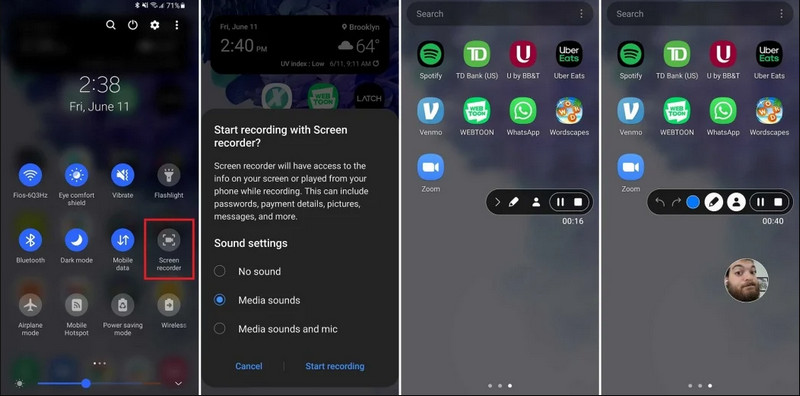
Trin 1Adgang til hurtigindstillinger
Stryg ned to gange fra toppen af skærmen for at udvide hele menuen Hurtige indstillinger.
Trin 2Vælg skærmoptager
Se efter SkærmoptagelseHvis du ikke kan se den, skal du trykke på Redigere knappen (med et blyantikon) og træk skærmoptagelsesfeltet ind i dit aktive gitter.
Trin 3Konfigurer optagelsesindstillinger
Når du finder Android-telefonen Skærmoptager værktøj, har du flere optagemuligheder. At vælge den rigtige kan gøre din Android-skærmoptagelse effektiv.
- Ingen lyd: Optag kun telefonskærmen uden systemlyd eller ekstern lyd.
- Medielyde: Optag skærmen med alle systemlyde, inklusive lyd fra alle apps på din telefon.
- Medielyde og mikrofon: Optag både systemlyde og eksterne lyde (telefonens indbyggede mikrofon eller mikrofonen fra dine øretelefoner).
Trin 4Start og stop skærmoptagelse
Foretag dit valg, og tryk på Start omkodning knappen. Der vises en nedtælling i statuslinjen. For at stoppe Android-skærmoptagelsen skal du trykke på Hold op knappen (hvis der er en statuslinje for optagelse) eller stryg ned i notifikationspanelet og tryk på den røde Hold op knap.
Del 2: Nogle mærkespecifikke Android-optagerværktøjer
Mange Android-telefonproducenter tilbyder proprietære skærmoptagere med avancerede funktioner som f.eks. Selfie-kameraoverlays. Se nogle af de populære Android-mærkers særlige optagefunktioner:
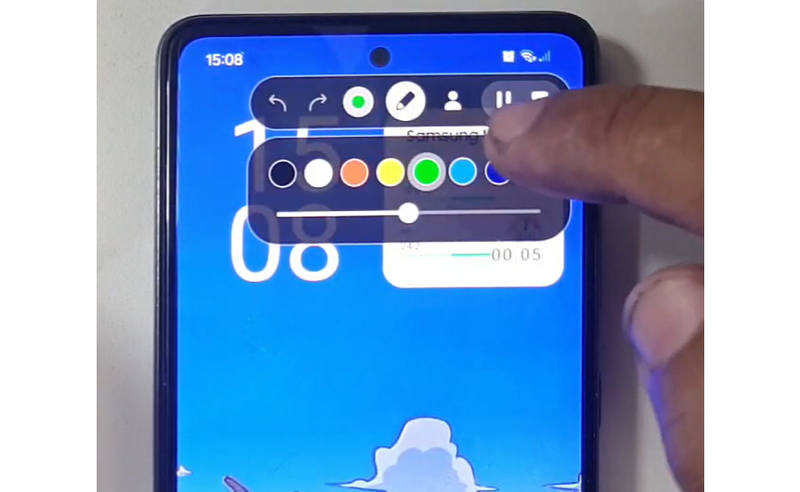
Samsung (One UI): Inkluderer en skærmoptager med en værktøjslinje, der giver dig mulighed for at tegne på skærmen i realtid.
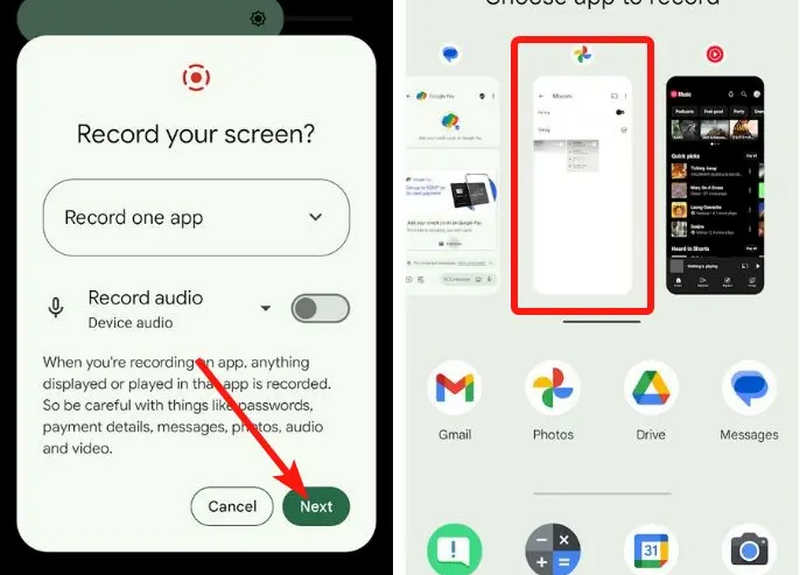
Google Pixel: Du kan vælge en bestemt app (f.eks. en bankapp eller WhatsApp) at optage. Hvis du afslutter appen eller trækker din notifikationsskærm ned under sessionen, vises disse handlinger ikke i den endelige video.
Xiaomi (MIUI/HyperOS): Har en dedikeret "Screen Recorder"-app med dybdegående tilpasningsmuligheder for billedhastigheder (FPS) og bitrater.
Huawei & Honor (HarmonyOS / MagicOS): En unik hardware-softwareintegration, hvor du kan starte eller stoppe en optagelse ved blot at dobbeltbanke på skærmen med to knoer.
OPPO, vivo og realme (ColorOS / OriginOS): Når et spil startes, optimerer skærmoptageren automatisk CPU/GPU-ressourcer for at sikre, at optagelse af et 4K/60FPS-klip ikke forårsager forsinkelser eller billedfald i spillet.
Del 3: 4 flere alsidige måder at skærmoptage på Android
Hvis din Android-telefon ikke har tilfredsstillende skærmoptagelsesfunktioner, kan du tjekke de fire Android-skærmoptagerapps. De kan tilbyde nogle praktiske og bekvemme funktioner.
1. AZ Skærmoptager
AZ skærmoptager er en meget populær Android-skærmoptagerapp i Play Butik. Den kan optage video i høj opløsning på din Android-telefonskærm. Applikationen giver dig også mulighed for at justere opløsning, billedhastighed og bithastighed afhængigt af forskellige optagelsesformål.
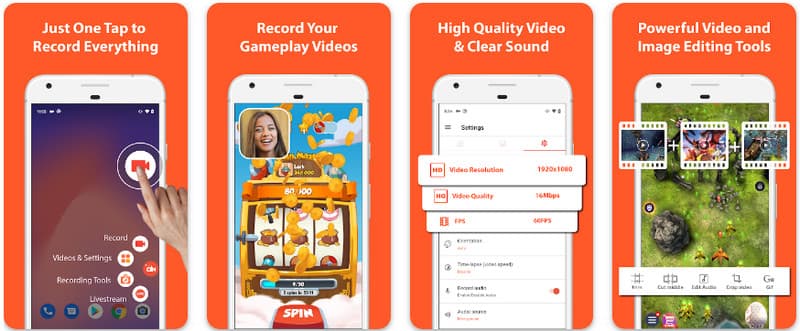
Desuden lader AZ Screen Recorder brugere optage lyden, der afspilles på enheden ved hjælp af en mikrofon. Dette gør det muligt at optage selv de mest indviklede optagelser af høj standard. Dens enkle arrangement af knapper og ensartede ydeevne gør appen til en favorit for mange. Lær, hvordan du optager en Android-skærm med dette ved at bruge vejledningen nedenfor.
Trin 1Når du har downloadet appen på din Android, skal du starte den. Klik derefter på kamera knappen for at få adgang til skærmoptagelsesfunktionen.
Trin 2Tryk på Start nu for at starte skærmoptagelsen på din Android, og en nedtælling vises på din skærm.
Trin 3For at stoppe skærmoptagelsen på din Android-telefon skal du trykke på Optage knappen igen. Med denne app kan du også skærmoptagelse på din iPhone med lyde aktiveret.
2. Mobizen Screen Recorder
Mobizen skærmoptager er en anden app til skærmoptagelse på Android, der er gratis tilgængelig i Play Store og lover nem og højkvalitets optagelse. Den giver muligheder for HD-optagelse med justerbare parametre og ren optagelse for at fjerne vandmærker. Derudover har Mobizen også intern lydoptagelse, som kan bruges til optagelsen, samt ansigtskamera og GIF, som kan tilføje mere til optagelsen. Den bruger også en nem tilgang til de forskellige funktioner og kontroller, der hjælper brugeren med at starte Android-skærmoptagelse eller redigere indholdet uden at fumle meget med appen. Find ud af, hvordan du optager skærm med Android ved hjælp af denne app.
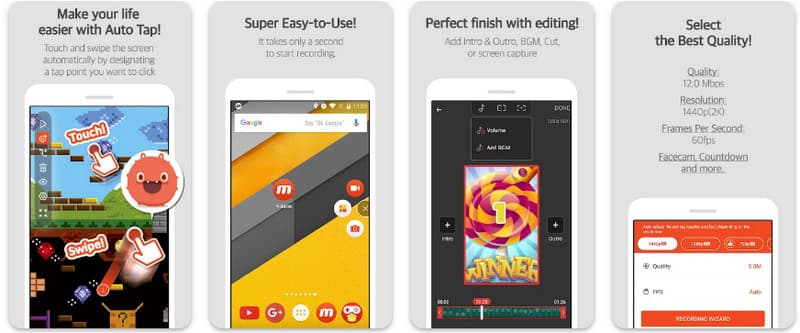
Trin 1Download den nu på din Android og åbn appen.
Trin 2Udfør den opsætning, der kræves, før du kan bruge skærmoptageren. En flydende optagerbjælke vises på skærmen. Tryk på kamera knap, så Start nu for at starte skærmoptagelsen.
Trin 3Når du er færdig, skal du trykke på M og hold op knappen for at stoppe skærmoptagelsen på din Android-telefon.
3. Skærmoptager - XRecorder fra Inshot
Skærmoptager - XRecorder er et kraftfuldt alt-i-et Android-værktøj, der forenkler skærmoptagelse ved at tilbyde HD-optagelse, op til 1080p ved 60FPS, uden at kræve root-adgang eller vandmærker. Som en førende metode til skærmoptagelse på Android 17/16 giver det en problemfri brugeroplevelse gennem et flydende kontrolvindue, der giver dig mulighed for at starte, sætte på pause og tegne på din skærm i realtid ved hjælp af et indbygget penselværktøj. Ud over simpel videooptagelse understøtter det intern lydoptagelse, facecam-overlays til streamere og integreret videoredigering, hvilket gør det til et ideelt valg for alle, der har brug for at oprette professionelle tutorials, gameplay-klip eller klare demonstrationer direkte fra deres mobilenhed.
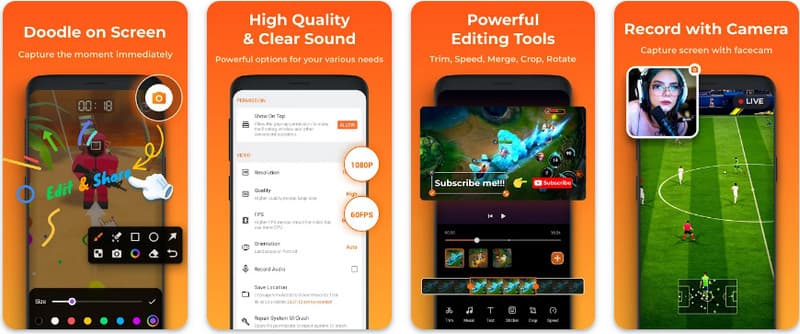
Trin 1Når download af XRecorder er færdig, skal du åbne den og trykke på Aktiver flydende ikon.
Trin 2Tryk derefter på Optage knappen for at starte optagelse og Start nu at bekræfte.
Trin 3Som du kan se, vises længden af optagelsen som et flydende ikon; tryk på hold op knappen for at gemme optagelsen.
4. Super Screen Recorder
Super skærmoptager er en førsteklasses løsning for alle, der leder efter en professionel måde at optage skærmbilleder på Android med maksimal fleksibilitet. Denne kraftfulde app leverer HD-optagelse og skiller sig ud ved at tilbyde en vandmærkefri oplevelse, selv i sin gratis version, hvilket sikrer, at dit indhold forbliver rent og professionelt. Den har et integreret ansigtskamera til at optage reaktioner i realtid og et alsidigt penselværktøj, der giver dig mulighed for at tegne på skærmen under optagelse, en essentiel funktion til at skabe engagerende tutorials eller walkthroughs. Uanset om du er nybegynder eller avanceret bruger, tilbyder Super Screen Recorder den robuste tilpasning, der er nødvendig for at mestre Android-skærmoptagelse med lethed.
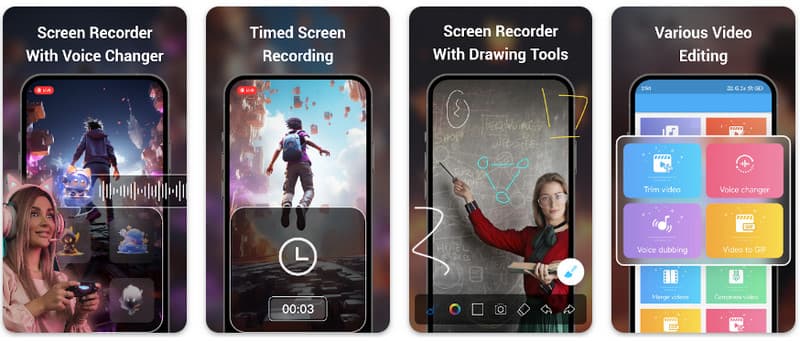
Trin 1Åbn Super Screen Recorder på din Android, og aktiver derefter appens flydende funktion for at bruge den.
Trin 2Tryk på på din skærm kamera knappen, bekræft indstillingerne, og tryk på Start nu. Derefter vises en nedtælling på tre sekunder, før optagelsen begynder.
Trin 3Tryk på firkant knappen for at afslutte optagelsen og gemme den på din Android-enhed.
Bonus: Optag skærm på desktop og mobiltelefon med den bedste kvalitet
Tror du, at man kan optage skærmen på sin Android-telefon på en computer? AVAide skærmoptager er primært designet til skærmoptagelse på Windows og Mac. Men den kan også optage din Android-telefons fulde skærm. Dette er især nyttigt, når du skal oprette en tutorial om bestemte handlinger på Android og derefter redigere videoen direkte på din Mac eller Windows.
Til skærmoptagelse på Windows og Mac understøtter AVAide Screen Recorder AV1- og HEVC-codecs, som kan komprimere optagelsesresultatet kraftigt, samtidig med at den bedste videokvalitet bevares. Den fulde hardwareacceleration giver dig mulighed for at optage lange videoer med meget lavt CPU-forbrug. Endnu mere interessant er, at den har en forbedret mikrofon, der forbedrer klarheden ved at fjerne baggrunds- og ekkolyde. Softwaren laver fremragende optagelser med enkle navigations- og redigeringsfunktioner, som f.eks. beskæring og annotationer. Selvom det er dyr software, anbefales den kraftigt, fordi den kan bruges til personlige og forretningsmæssige formål.
- Optag din Android- eller iOS-enhed med den bedste videokvalitet.
- Lav nemt vejledningsoptagelser med tegne- og annotationsfunktioner.
- Understøtter AV1- og HEVC-outputcodecs for at komprimere outputvideoen kraftigt.
- Tilbyd brugervenlige videoredigeringsfunktioner til at redigere dine optagelser på Android.
Trin 1Du kan nu downloade skærmoptageren på din pc ved at markere download-knappen her. Installer derefter appen ved at følge prompten på din skærm og start den for at gå videre til næste trin.

GRATIS DOWNLOAD Til Windows 7 eller nyere
 Sikker download
GRATIS DOWNLOAD Til Mac OS X 10.13 eller nyere
Sikker downloadTrin 2Nu hvor det allerede kører ind i dit system, skal du placere optagelsesrammen i det område, hvor du vil starte optagelsen. Her kan du optage hele din skærm ved at vælge indstillingen Fuld skærm i stedet for indstillingen Region.

Trin 3Dernæst kan system- og mikrofonoptagelsen sættes op, hvis det er nødvendigt. Hvis du vil tilføje dit ansigt til optagelsen, skal du aktivere indstillingen Webcam her. Klik derefter REC for at starte nedtællingen og begynde optagelsen.

Trin 4Når du afslutter optagelsen, skal du klikke på hold op knap, som er en rød firkant. Til det næste vindue, der vises, kan du redigere den optagelse, du tog tidligere med de tilgængelige muligheder her, og derefter placere din markør på optagelsen og trykke på Hent knappen for at gemme den. Denne app beviser sit værd som bedste open source-optager tilgængelig.

Del 4: Ofte stillede spørgsmål om, hvordan man optager skærmbilleder på Android
Hvor kan jeg finde skærmoptagelsen i mine indstillinger?
For at få adgang til den indbyggede funktion skærmoptagelse på Android uden tredjepartsapps, skal du stryge ned to gange fra toppen af skærmen for at åbne Hurtige indstillinger panel og se efter Skærmoptagelse (eller ikonet "Skærmoptagelse"). Hvis det ikke er synligt, skal du trykke på Redigere (blyant)-knappen for at trække skærmoptagelsesknappen ind i dine aktive felter. Når den er tilføjet, kan du blot trykke på ikonet, vælge dine lydpræferencer, f.eks. optagelse af interne systemlyde eller din mikrofon, og trykke på start for at begynde at optage din skærm direkte fra dine systemindstillinger.
Hvorfor kan jeg ikke finde skærmoptagelse på min Android?
Fraværet af en indbygget mulighed for at optage skærmbilleder på Android skyldes normalt, at din enhed kører et ældre operativsystem, da den indbyggede funktion først blev standardiseret med Android 11Hvis din software er opdateret, er knappen muligvis simpelthen skjult for dig. Hurtige indstillinger menu; du kan typisk se den ved at trykke på Redigere knappen i notifikationspanelet og trække feltet "Skærmoptagelse" ind i din aktive visning. Derudover kan nogle "Go Edition"-enheder på basisniveau eller specifikke producentskins deaktivere denne funktion for at spare systemressourcer. I så fald er det den mest effektive løsning at bruge en tredjepartsapp som XRecorder eller Super Screen Recorder.
Hvorfor forsvandt skærmoptagelsesknappen?
Skærmoptagelsesknappen forsvinder normalt, fordi den ved et uheld blev flyttet ud af det aktive område under Hurtige indstillinger. Du kan ofte gendanne den ved at trykke på Rediger (blyantikon) i din notifikationspanel og trække feltet tilbage. Det kan også være skjult på grund af strømsparetilstand, begrænset af en arbejdsprofil eller blot kræve en systemgenstart for at opdatere brugergrænsefladen efter en softwareopdatering.
Ved at bruge selvstudiet, der er anført her, har du lært hvordan man screen record på Android Samsung. Denne tutorial vil i høj grad gavne dig med hensyn til din skærmoptagelsesopgave, især hvis du er en Android-bruger. Del disse oplysninger med din Android-brugerven for at give dem en idé om, hvordan det skal gøres.
OM FORFATTEREN

Optag skærm, lyd, webcam, gameplay, onlinemøder, samt iPhone/Android-skærm på din computer.
Skærmoptagelse


