En stemmenotat kan tage dig med overalt. Du kan bruge den til at optage dine ideer, så du ikke glemmer dem, interviewe og endda optage almindelig lyd bare for sjov. På iPhone er der et par måder at optage lyd på i appen, og det kan være forvirrende, hvilken en du skal bruge til dine behov. I dette tilfælde har denne artikel samlet de bedste måder at... hvordan man optager et stemmememo på en iPhone, sammen med tips til redigering og deling af optagelser samt fejlfinding af mulige fejl, du måtte støde på.
Del 1. Sådan optager du et stemmememo på iPhone (grundlæggende)
iPhonen er rig på indbyggede funktioner, herunder den forudinstallerede Voice Memo-app, som du kan bruge til at optage lyd. Husk dog, at appen ikke kan optage intern lyd, men kun eksterne lyde fra din telefons højttaler eller en ekstern mikrofon. Men dette kan erstattes ved at bruge den indbyggede skærmoptager og senere bruge en tredjepartsapp til at konvertere videoen til en lydfil.
Husk desuden at opdatere din telefon til den nyeste iOS-version, da appen kan blive påvirket af dette. iOS 17 og nyere har introduceret avanceret iCloud-kryptering til optagelsesnavne, hvilket betyder, at forældede versioner vil få titlen til at vende tilbage til rå tidsstempler. Derudover får du adgang til transskriptionsfunktionen, der konverterer dine iPhone-optagelser af stemmememoer til søgbar tekst, og Voice Isolation, der fjerner baggrundsstøj i optagelserne. Når det er sagt, er her de grundlæggende måder at optage på din iPhone ved hjælp af den opdaterede Voice Memo-app.
Trin 1Åbn Voice Memo. Hvis du ikke kan finde appen, skal du tjekke Ekstraudstyr eller forsyningsvirksomheder mappen og tryk på den. Tryk blot på Optage knappen nederst på skærmen for at starte optagelsen.
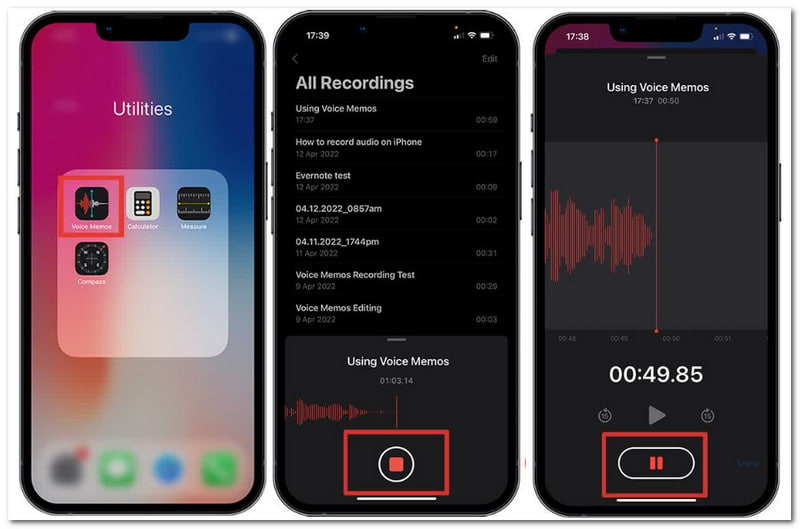
Trin 2Når du taler, skal du placere din mund cirka 15 til 25 cm fra din telefon for at få et bedre optagelsesresultat. Tryk på Hold op knappen, når optagelsen er færdig.
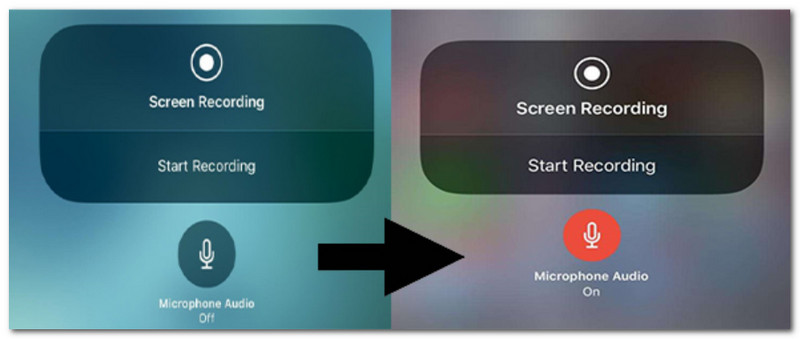
Trin 3For at optage intern lyd skal du gå til indstillingerne og åbne Kontrolcenteret. Flere kontroller, tryk på Plus knappen ved siden af skærmoptageren.
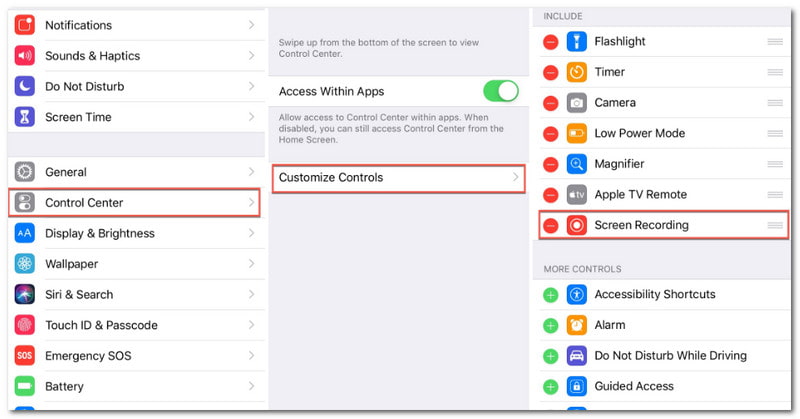
Trin 4Fra startskærmen skal du stryge ned fra øverste venstre hjørne af skærmen og trykke på Optage knap til skærmoptagelse på iPhoneSørg for at aktivere Mikrofon mulighed for at optage lyd. Optagelsen gemmes i Fotos-appen, men du skal bruge en konverter for at konvertere den til en lydfil.
Del 2. Redigering og deling af dit stemmememo
Det er almindeligt at lave fejl, når man optager lyd, og Voice Memo har et par grundlæggende redigeringsmuligheder til at fjerne uønskede dele. Følg nedenstående trin for at gøre dette:
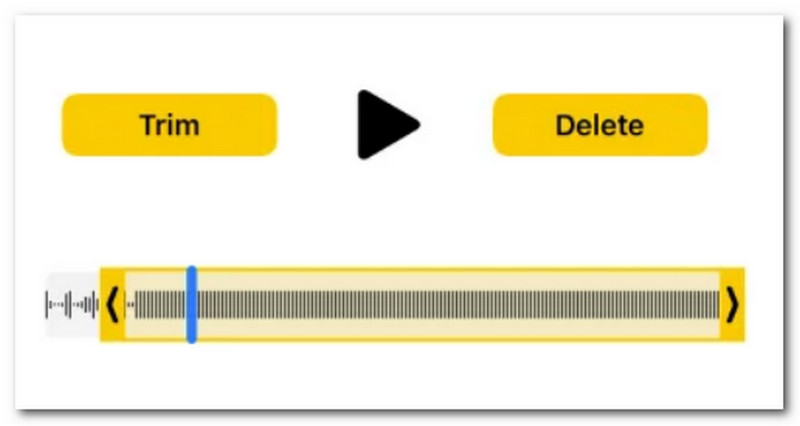
Trin 1Tryk på den optagede lyd fra Voice Memo. Fra Ellipsis menu, tryk på Trimme.
Trin 2Træk i de gule håndtag for at vælge de dele, du vil beholde, og tryk derefter på Spil. Tryk på Gem optagelse engang tilfreds med resultatet.
Del 3. Hvor længe kan en stemmememo optages på iPhone? ("Ingen grænser"-sandheden)
Du undrer dig måske over, "Hvor længe optager Voice Memo på en iPhone?", og om det giver dig mulighed for at optage lyd uden en specifik grænse. Vi uddyber svarene på dette spørgsmål, herunder andre faktorer, der kan påvirke din optagelse i Voice Memo.
Det korte svar: Der er ingen fastsat tidsgrænse
Sandheden er, at Voice Memo er designet uden en fastlagt tidsgrænse, hvilket betyder, at du kan fortsætte med at optage i timevis eller dage uden pause. Det betyder dog ikke, at din telefon vil kunne håndtere det.
Hvordan lagerplads påvirker optagelseslængden
Husk, at alle enheder har lagerkapacitet til at gemme forskellige mediefiler, og det anbefales ikke at maksimere den til kun lydoptagelse. Den sædvanlige optagelse på et minut kan allerede fylde op til 500 KB til 4 MB, afhængigt af formatet, hvilket kan påvirke lydkvaliteten, hvis du vælger et format med tab.
Hvordan batterilevetiden påvirker optagelseslængden
Non-stop lydoptagelse kan aktivt dræne din telefons batterilevetid. Så det er sikkert at sige, at det er umuligt at optage kontinuerligt med Voice Memo, da det påvirker mere end blot din telefons kapacitet.
Hvordan indstillinger for lydkvalitet påvirker optagelseslængden
Indstillingen af lydkvaliteten kan muligvis ikke ændre stemmenotatets varighed direkte, men den kan påvirke filstørrelsen. Hvis du vælger at optage i en højere kvalitet end standarden, kræver optagelsen flere data pr. sekund for at give bedre samplingshastighed, bitdybde eller bithastighed. Den vil gå tilbage til din telefons lagerkapacitet ved længere optagelser.
Del 4. Fejlfinding af almindelige problemer med stemmememoer
På et tidspunkt vil du støde på et problem, når du bruger din iPhone til at optage et stemmenotat. Derfor har vi forberedt nogle måder at løse almindelige problemer med følgende:
1. Optagelse af stemmememo gemmes ikke (eller gemmes kun delvist)
Hvis et stemmenotat er delvist eller helt mislykket, skal du muligvis lukke appen eller kontrollere, om du har nok lagerplads. Du skal muligvis slette nogle filer for at frigøre plads, før du fortsætter med optagelsen. For den del af den del, der ikke er gemt, skal du kontrollere de senest slettede filer og kontrollere, om de kan hentes.
2. Optagelse stopper, afbryder uden varsel
Hvis optagelsessessionen afbrydes pludselig, kan du prøve at slette den indbyggede app og geninstallere den om et par minutter. Du kan også aktivere Fokustilstand for at blokere opkald, hvilket kan afbryde optagelser.
3. Kan ikke finde stemmememo-appen
Søg efter appen på din startskærm. Hvis der ikke er en app, kan du stadig hente den fra App Store.
Bonus: Bedste iPhone-optager med høj kvalitet
Hvis dine stemmememoer på iPhone ikke gemmes, skal du hente AVAide skærmoptager som et alternativ til optagelse. Det er et multi-optagelsesværktøj, der tilbyder optagelse af lyd, webcam og andre kilder. Brugergrænsefladen er designet til at være enkel, så alle kan navigere i den uden besvær. Selvfølgelig optager optageren lyd i høj kvalitet, som du kan gemme i populære formater som WAV, MP3, AAC, M4A og mere. Ikke nok med det, dens grundlæggende redigeringsmulighed er livreddende, da den giver dig mulighed for at trimme og klippe optagelser med et par klik. AVAide Screen Recorder er et fremragende valg til optagelse på din iPhone, der hjælper dig med at optage stemmememoer, tutorials, møder og mere.
Trin 1Klik på Hent knappen for at hente AVAide Screen Recorder på din computer. Installer og åbn softwaren.

GRATIS DOWNLOAD Til Windows 7 eller nyere
 Sikker download
GRATIS DOWNLOAD Til Mac OS X 10.13 eller nyere
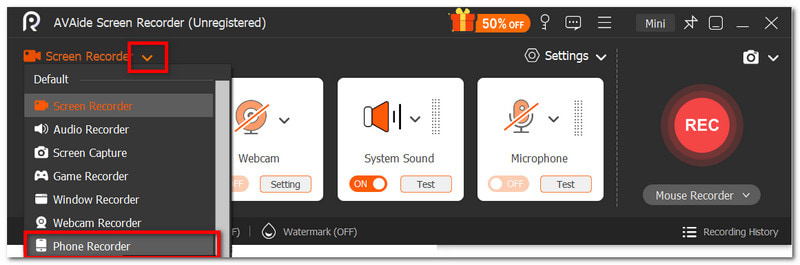
Sikker downloadTrin 2Åbn Drop-down menuen i øverste venstre hjørne, og vælg Telefonoptager mulighed for at tilslutte din iPhone.
Trin 3Når du ser telefonskærmen på dit skrivebord, skal du klikke på Optage knappen. Når optagelsen er færdig, kan du eksportere den som en lydfil og dele den med andre enheder.
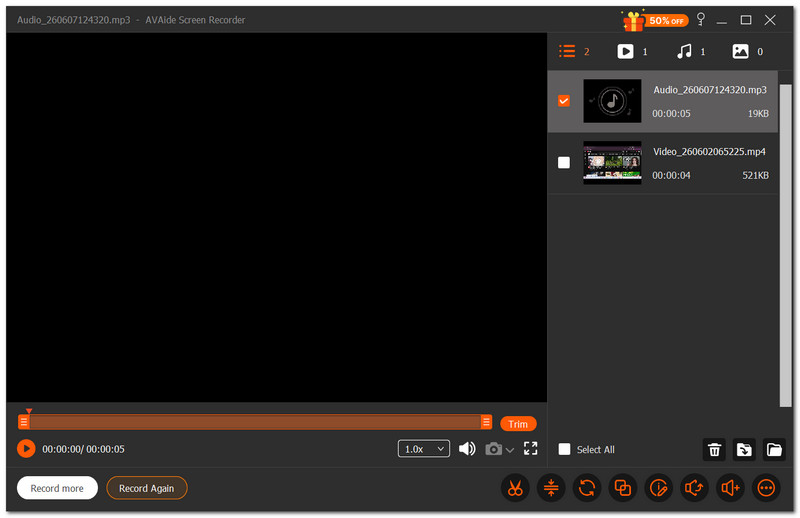
Afslutningsvis har denne artikel vejledt dig i lydoptagelse og besvarelse af spørgsmålet: 'Hvor længe optager en stemmememo på en iPhone?' Stemmememo er en af de bedste stemmeoptager-apps på iPhone, men der er en professionel og nem måde at få optagelser fra din telefon, og det er AVAide Screen Recorder. Det er ikke kun vigtigt at optage lyd fra din iPhone, men det er også en optager til spil, møder og tutorials. Få den gratis version for at prøve dens førsteklasses funktioner på Windows og Mac.
OM FORFATTEREN

Optag skærm, lyd, webcam, gameplay, onlinemøder, samt iPhone/Android-skærm på din computer.