عند حضور اجتماع أو درس عبر الإنترنت باستخدام تطبيق زووم، فمن المحتمل أنك ترغب في التقط لقطات شاشة على تطبيق زووم للاستخدام لاحقًا. نقدم هنا دليلًا شاملًا حول كيفية التقاط لقطات الشاشة في تطبيق زووم باستخدام الميزات الافتراضية لأنظمة ويندوز وماك والأجهزة المحمولة، أو باستخدام الميزات المدمجة في تطبيق زووم نفسه. كما سنتناول مسألةً مهمةً تشغل بال الكثيرين: هل يستطيع زووم اكتشاف التقاط لقطات الشاشة؟ ستجد الإجابة في هذه المقالة.
- الجزء الأول: كيفية التقاط لقطة شاشة في برنامج زووم على جهاز كمبيوتر (ويندوز)
- الجزء الثاني: كيفية التقاط لقطة شاشة في تطبيق زووم على جهاز ماك
- الجزء الثالث: كيفية التقاط لقطة شاشة في تطبيق زووم على الهاتف المحمول (آيفون وأندرويد)
- الجزء الرابع: استخدام الميزات المدمجة في برنامج زووم
- الجزء الخامس: هل يقوم تطبيق زووم بإرسال إشعارات لقطات الشاشة؟
الجزء الأول: كيفية التقاط لقطة شاشة في برنامج زووم على جهاز كمبيوتر (ويندوز)
1. استخدام مفتاح Print Screen (ملء الشاشة)
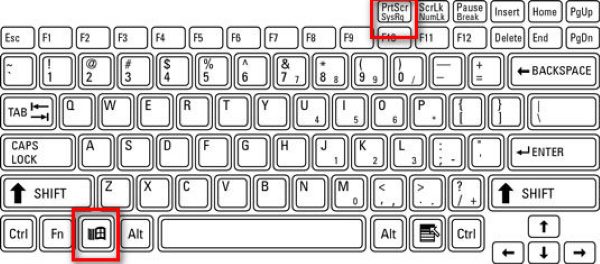
استخدم اختصار لوحة المفاتيح لالتقاط الشاشة في نظام ويندوز لكامل الشاشة. أثناء اجتماع زووم، اضغط شبابيك إلى جانب PrtScn المفتاح (الذي يوجد عادةً بجانب مفاتيح الوظائف).
سيتم أخذ نسخة من كل شيء مرئي على شاشتك وحفظها على الفور في C:\Users\YOUR_USERNAME\Pictures\Screenshots (في نظامي التشغيل ويندوز 10 و11).
2. استخدام أداة القص / القص والرسم (الأفضل للتكبير)
يضعط يفوز + يحول + س لإخفاء سطح المكتب وإظهار شريط أدوات التقاط الصور في الأعلى. يمكنك بعد ذلك رسم مستطيل، أو اختيار لقطات حرة، أو لقطات نافذة، أو لقطات ملء الشاشة.
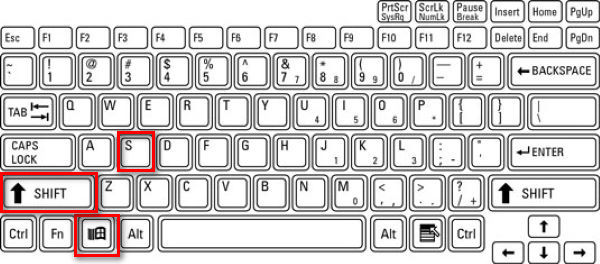
هذه الميزة مثالية لتطبيق زووم، حيث يمكنك التقاط نافذة زووم بالكامل أو جزء منها. بعد التقاط الصورة، تُنسخ إلى الحافظة، ويظهر إشعار. انقر على الإشعار لتعديل لقطة الشاشة.
3. استخدام Alt + PrtScn (للنافذة النشطة فقط)
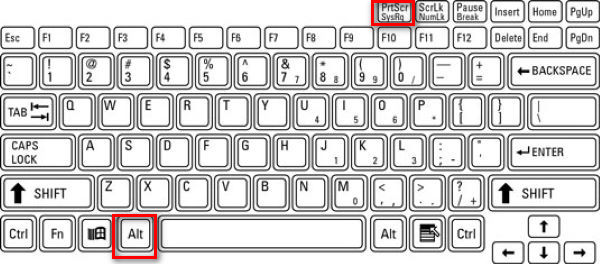
الخطوة 1انقر على نافذة التكبير/التصغير للتأكد من أنها نشطة.
الخطوة 2يضعط بديل + PrtScn.
هذا يلتقط فقط النافذة النشطة، وهي اجتماع Zoom، ويضعها في الحافظة.
4. استخدام أداة خارجية
أفضل استخدام أداة خارجية لالتقاط لقطات الشاشة على برنامج Zoom، لأن الصور تُحفظ بالتالي في موقع محدد أقوم بتحديده، منفصلة عن لقطات الشاشة الأخرى التي يلتقطها نظام Windows، مما يسهل البحث عن صور معينة.
تتوفر مجموعة متنوعة من أدوات التقاط لقطات الشاشة لمكالمات Zoom، مثل ShareX وIcecream Screen Recorder وSnagit و AVAide مسجل الشاشةكما هو الحال مع برنامج AVAide Screen Recorder، يمكنك وضع الصور في نفس المجلد، مما يسهل عليك تنظيم جميع لقطات الشاشة. سأوضح لك كيفية القيام بذلك خطوة بخطوة.
الخطوة 1قم بتنزيل وتثبيت برنامج التسجيل

تنزيل مجاني لنظام التشغيل Windows 7 أو أحدث
 تحميل آمن
تنزيل مجاني لنظام التشغيل Mac OS X 10.13 أو الإصدارات الأحدث
تحميل آمنالخطوة 2قم بتشغيل المسجل
الخطوه 3ادخل اجتماع زووم
الخطوة 4انقر على آلة تصوير الزر الموجود في أعلى يمين نافذة مسجل الشاشة AVAide.
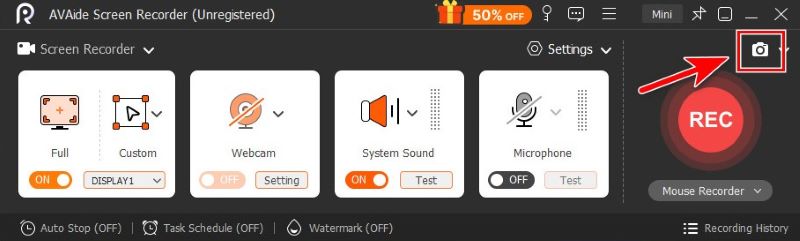
الخطوة الخامسةقص بشكل حر عن طريق سحب الماوس، أو مرر المؤشر فوق تطبيق التكبير/التصغير لالتقاط نافذته.
الخطوة 6عندما تكون راضيًا عن القص، انقر يحفظثم اختر المجلد الذي تريد حفظ الملف فيه.
الجزء الثاني: كيفية التقاط لقطة شاشة في تطبيق زووم على جهاز ماك
الميزات المدمجة في النظام كافية بالنسبة لنا لالتقاط لقطات الشاشة على نظام ماك.
1. التقاط الشاشة الكاملة
لالتقاط الشاشة بأكملها على جهاز ماك، اضغط يأمر + يحول + 3.

2. الالتقاط الانتقائي (الأفضل لتطبيق التكبير/التصغير)
إذا كنت بحاجة إلى تحديد منطقة مستطيلة معينة على شاشة الاجتماع، فاضغط يأمر + يحول + 4.

3. التقاط نافذة محددة
الخطوة 1يضعط يأمر + يحول + 4
الخطوة 2انطلق إلى الفضاء.

يتحول المؤشر بعد ذلك إلى أيقونة كاميرا. انقر على نافذة التكبير/التصغير لالتقاط تلك النافذة فقط.
4. استخدام تطبيق لقطة الشاشة
الخطوة 1 يضعط يأمر + يحول + 5 لفتح شريط أدوات لقطة الشاشة من Apple.

الخطوة 2اختر الأداة التي تفضلها.

أنصح به التقاط نافذة و استحوذ على جزء، مناسب لالتقاط نافذة Zoom فقط دون أي تشتيت.

- يمكنك أيضًا استخدام ميزات نظام التشغيل Mac الافتراضية أو أداة خارجية لـ قم بتعديل لقطة الشاشة على نظام ماك كما تفضل.
الجزء الثالث: كيفية التقاط لقطة شاشة في تطبيق زووم على الهاتف المحمول (آيفون وأندرويد)
1. على أجهزة iPhone / iPad
تعتمد الطريقة على طراز جهازك.
الخطوة 1ابدأ اجتماعك على تطبيق زووم.
الخطوة 2التقط صورة للشاشة.
- لأجهزة iPhone المزودة بـ التعرف على الوجه ولا يوجد منزل زر (آيفون X والإصدارات الأحدث، باستثناء آيفون SE) وأجهزة آيباد المزودة بـ بلا مأوى زر:
اضغط على الزر الجانبي + رفع الصوت. - لأجهزة iPhone أو iPad المزودة بـ مسكن زر (آيفون SE، الإصدار 8 والإصدارات الأقدم، أجهزة آيباد القديمة):
اضغط على زر جانبي / علوي + مسكن.
حرر كلا الزرين بسرعة. سترى الشاشة تومض، وتلتقط الشاشة بأكملها، وستظهر صورة مصغرة للتعديل أو الحفظ.
2. على نظام أندرويد
اختصار: تستخدم معظم هواتف أندرويد النظام الكلاسيكي قوة + خفض الصوت اختصار. يختلف هذا الاختصار باختلاف ماركة جهازك. لذا، إذا لم يعمل هذا الاختصار، وهو أمر طبيعي، أنصحك بالتحقق من طراز هاتفك والبحث عنه.
أثناء تشغيل اجتماع Zoom، اضغط مع الاستمرار على الزرين معًا لمدة ثانية أو ثانيتين حتى تومض الشاشة. سيتم حفظ لقطة الشاشة في تطبيق المعرض أو تطبيق الصور.
شريط الأدوات: اسحب القائمة عن طريق التمرير لأسفل على شاشتك. ابحث عن لقطة شاشة انقر على الزر الموجود في القائمة واختر من بين لقطات الشاشة الكاملة، واللقطة الحرة، ولقطات الشاشة القابلة للتمرير.
الجزء الرابع: استخدام الميزات المدمجة في برنامج زووم
ميزة "التقاط لقطة" في تطبيق زووم (لمشاركة الشاشة فقط)
تتميز ميزة التقاط لقطات الشاشة المدمجة في برنامج Zoom بسهولة استخدامها ببضع نقرات فقط.
الخطوة 1انقر محادثة في أسفل نافذة التكبير
الخطوة 2انقر على لقطة شاشة أيقونة أسفل مربع الدردشة.
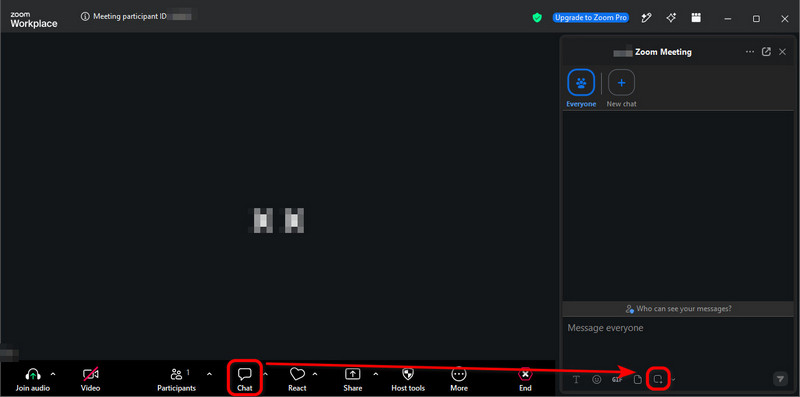
الخطوه 3اسحب مؤشر الماوس فوق الجزء الذي تريده من الشاشة، ثم انقر يأسر.
لقطة الشاشة موجودة الآن في صندوق الدردشةيمكنك إرسالها إلى المشاركين الآخرين في الاجتماع بنقرة واحدة على طائرة ورقية أيقونة في أسفل اليمين.
- لا يتم حفظ لقطة الشاشة في مربع الدردشة تلقائيًا على جهاز الكمبيوتر الخاص بك. إذا كنت ترغب في حفظها، فانقر بزر الماوس الأيمن على الصورة وحدد حفظ باسم….
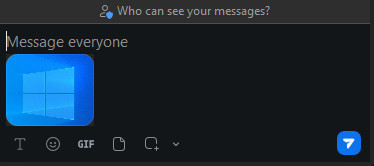
- على الرغم من أن هذه الطريقة بسيطة وسريعة للغاية، إلا أنها قد تفشل أحيانًا لأن المضيف قد يعطل خاصية الدردشة في الاجتماع أو حفظ المحادثات. في هذه الحالة، ستعرف ما يجب فعله: استخدم ميزات نظام التشغيل أو أداة خارجية مثل مسجل الشاشة AVAide.
ما هو "مولد لقطات شاشة اجتماعات زووم"؟
يبدو كأداة لالتقاط لقطات الشاشة، أليس كذلك؟ لقد انخدعت به في البداية، لكنه في الواقع أداة تابعة لجهة خارجية. إنشاء صور وهمية لمكالمات Zoom.
يقدمون نماذج محاكاة لمكالمات Zoom، حيث تقوم بتحميل الصور وإدخال الأسماء لإنشاء لقطة شاشة واقعية للاجتماع مع مشاركين وهميين.
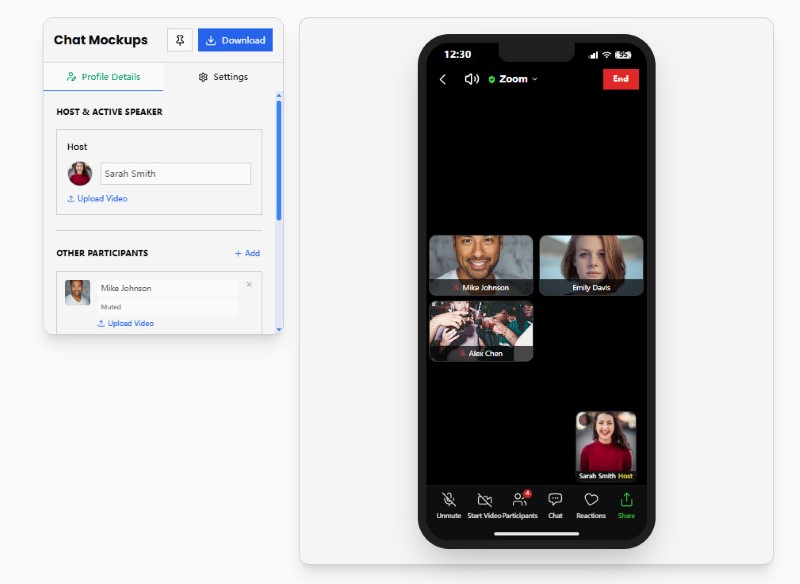
لا نبحث في هذه المقالة عن مولدات لقطات شاشة اجتماعات زووم. ولكن إذا كنت مهتمًا بإنشاء صور ساخرة مزيفة من اجتماعات زووم، فجرّب مواقع مثل Pradoy أو Kapwing. إنها ممتعة للغاية.
الجزء الخامس: هل يقوم تطبيق زووم بإرسال إشعارات لقطات الشاشة؟
باختصار، لا يخبرك تطبيق Zoom عندما يقوم أحد المشاركين بالتقاط لقطات شاشة، سواء كان ذلك باستخدام ميزات نظام التشغيل، أو أداة خارجية، أو ميزة التقاط الصور المدمجة في Zoom.
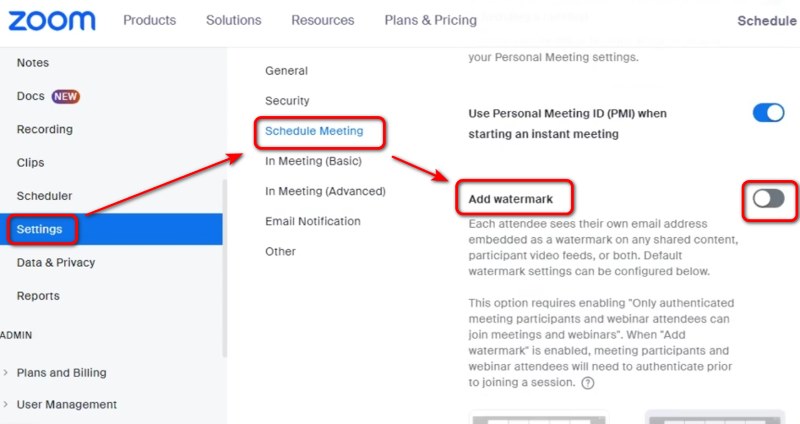
بصفتك مضيفًا أو مشاركًا للشاشة، قد تشعر بالقلق من أن ما يظهر على شاشتك قد ينتشر دون علمك. حتى الآن، لا توجد طريقة محددة لمنع ذلك، باستثناء إضافة علامة مائية على شاشتك - ادخل إلى إعدادات بوابة Zoom الإلكترونية وقم بتفعيل خيار "إضافة علامة مائية" للقيام بذلك.
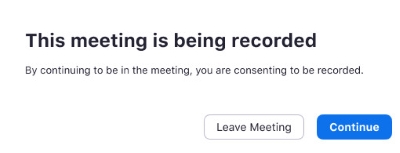
لكن تطبيق زووم يرسل إشعارًا عندما يقوم شخص ما بذلك يسجل اجتماع Zoomعند الانضمام إلى اجتماع يتم تسجيله، أو عندما يبدأ المضيف بالتسجيل، ستتلقى إشعارًا بالموافقة. يمكنك إما الموافقة أو مغادرة الاجتماع.
التقاط لقطات الشاشة على تطبيق زووم يُعدّ استخدام Zoom سهلاً على أنظمة Windows وMac وiPhone وAndroid، وذلك باستخدام ميزات الجهاز أو أدوات خارجية أو ميزات Zoom نفسها. لا يُرسل Zoom إشعارات للمضيفين أو المشاركين عند التقاط لقطة شاشة عادية. مع ذلك، من المهم احترام الخصوصية وحقوق النشر وقواعد الاجتماع قبل التقاط محتوى Zoom أو مشاركته. إذا كنت قلقًا بشأن الخصوصية، فأوضح للمشاركين أنك لا تُفضّل التقاط لقطات الشاشة قبل مشاركة شاشتك.
نبذة عن المؤلف

التقط أفضل لحظة باستخدام AVAide Screen Recorder. تسجيل الشاشة وتخصيصها ومشاركتها في ثوانٍ.
تسجيل الشاشة