هل ترغب بتسجيل شاشة وصوت جهاز الكمبيوتر الذي يعمل بنظام ويندوز؟ هناك العديد من الأسباب التي تدفعك لتسجيل شاشة وصوت جهاز الكمبيوتر. يمكنك تسجيل ألعابك، أو إنشاء دروس تعليمية، أو مراجعة المحتوى أو المنتجات، أو إنشاء محتوى، وغير ذلك الكثير. فالصورة والصوت الواضحان والسلسان يُضفيان جودةً ممتازةً على تسجيلاتك. يمكنك اتباع الطرق الخمس المذكورة في هذه المقالة لتحقيق ذلك بفعالية. تسجيل الشاشة والصوت على نظام التشغيل Windows.
- الجزء 1. هل يمكن لنظام Windows تسجيل الشاشة بالصوت؟
- الجزء 2. 3 طرق لتسجيل الشاشة على نظام التشغيل Windows مع الصوت
- الجزء 3. طريقتان لتسجيل الصوت على نظامي التشغيل Windows 10 و11
- الجزء الرابع: مقارنة بين أجهزة تسجيل الشاشة والصوت الخمسة
- الجزء الخامس: الأسئلة الشائعة حول تسجيل الشاشة والصوت على نظام ويندوز
الجزء 1. هل يمكن لنظام Windows تسجيل الشاشة بالصوت؟
نعم، يتيح لك نظام ويندوز تسجيل شاشة سطح المكتب مع صوت النظام والميكروفون. يُعدّ امتلاك برنامج تسجيل الشاشة والصوت المناسبين أساسيًا لتسجيل سلس للشاشة والصوت. سواء كنت بحاجة إلى برنامج تسجيل عالي الأداء للألعاب أو حلٍّ دقيق للدروس التعليمية، فإن الأداة المثالية تضمن مزامنة مثالية بين الصورة والصوت. لقد قمنا بالبحث نيابةً عنك! انتقل إلى القسم التالي لاستكشاف أفضل الطرق والخطوات التفصيلية لتسجيل شاشة ويندوز مع الصوت باحترافية.
الجزء 2. 3 طرق لتسجيل الشاشة على نظام التشغيل Windows مع الصوت
1. تسجيل الشاشة مع الصوت على نظام ويندوز باستخدام برنامج AVAide Screen Recorder
يُعدّ أحد أكثر برامج تسجيل الشاشة فعاليةً، والذي يدعم الميكروفون وصوت النظام، هو برنامج تسجيل الشاشة مع الصوت على نظام ويندوز. AVAide مسجل الشاشةيُسهّل عليك هذا المُسجّل للشاشة والصوت تحقيق هدفك. كما يُتيح لك تسجيل شاشة حاسوبك على نظام ويندوز بطريقتين: إما تسجيل الشاشة كاملةً أو جزء مُحدد منها. يُمكنك أيضاً تسجيل مُحتويات مُتنوعة، مثل مكالمات الفيديو، والفيديوهات، واجتماعات زووم، وألعاب الفيديو، والفيديوهات التعليمية، وغيرها. بالإضافة إلى ذلك، يُوفر لك عملية تسجيل سلسة وخالية من المتاعب، سواءً كنت مُستخدماً مُحترفاً أو غير مُحترف.
علاوة على ذلك، يمكنك تحسين ملفك بعد عملية تسجيل الشاشة والصوت. يمكنك ضغط الفيديو وقصه وتقليمه وتغيير تنسيقه. وبذلك، يمكنك الحصول على النتيجة التي تريدها قبل حفظ الفيديو على جهاز الكمبيوتر الخاص بك. لذا، لمعرفة كيفية تسجيل الشاشة بالصوت على نظام التشغيل Windows، راجع الخطوات أدناه.
الخطوة 1وصول AVAide مسجل الشاشة على جهاز الكمبيوتر الذي يعمل بنظام Windows. اضغط على الأزرار أدناه لتنزيل البرنامج وتثبيته على جهاز الكمبيوتر الخاص بك على الفور.

تنزيل مجاني لنظام التشغيل Windows 7 أو أحدث
 تحميل آمن
تنزيل مجاني لنظام التشغيل Mac OS X 10.13 أو الإصدارات الأحدث
تحميل آمنالخطوة 2بعد ذلك، حدد الطريقة التي تريد تسجيل شاشتك بها. يمكنك الاختيار ممتلىء أو العادة. ثم قم بتشغيل نظام الصوت لتسجيل شاشتك مع الصوت.

الخطوه 3لبدء تسجيل شاشتك بالصوت، انقر فوق REC بعد ثلاث ثوانٍ، سيبدأ البرنامج عملية التسجيل. ثم انقر فوق قف لإكمال تسجيل الشاشة.

الخطوة 4انقر على يستورد اضغط على الزر الموجود في الواجهة السفلية لحفظ شاشتك المسجلة.

2. استخدم برنامج OBS لتسجيل الشاشة مع الصوت على نظام ويندوز
أوبس من بين أفضل مسجلات الشاشة مفتوحة المصدر لتسجيل شاشة حاسوبك مع الصوت، يُعدّ OBS من البرامج الشائعة التي يمكنك الاعتماد عليها للحصول على النتيجة المرجوة. كما أنه قادر على تسجيل ملفات الوسائط المتعددة على شاشتك، بما في ذلك علامات التبويب والنوافذ والألعاب وغيرها. إذا كنت ترغب في تسجيل شاشة حاسوبك مع الصوت بجودة ممتازة، فاستخدم OBS فورًا. العيب الوحيد فيه هو أن واجهته قد تكون غير واضحة. إذا كنت مبتدئًا، فمن الأفضل أن تتدرب على استخدام هذا البرنامج لتسجيل الشاشة مع الصوت. لمعرفة كيفية تسجيل الشاشة على نظام ويندوز 10 مع الصوت، اتبع الخطوات الموضحة أدناه.
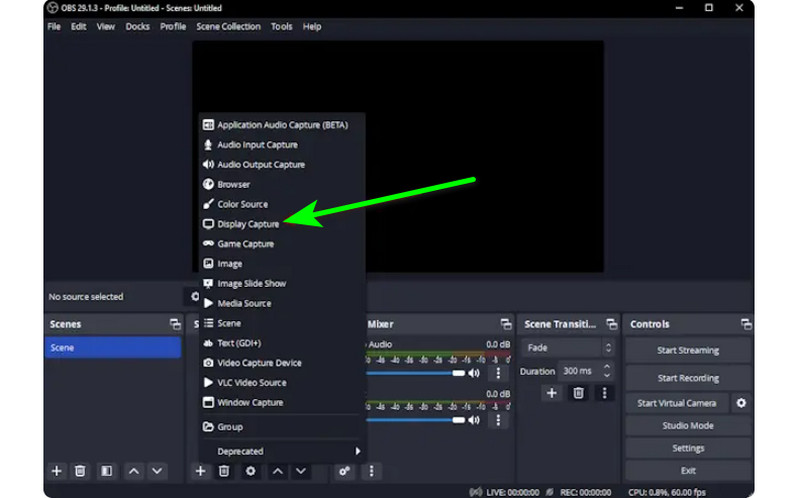
الخطوة 1قم بتشغيل ملف أوبس البرنامج بعد عملية التثبيت. بعد ذلك، انتقل إلى زائد الرمز أدناه وحدد التقاط العرض الخيار. يمكنك اختيار المحتوى الذي تريد تسجيله على شاشتك.
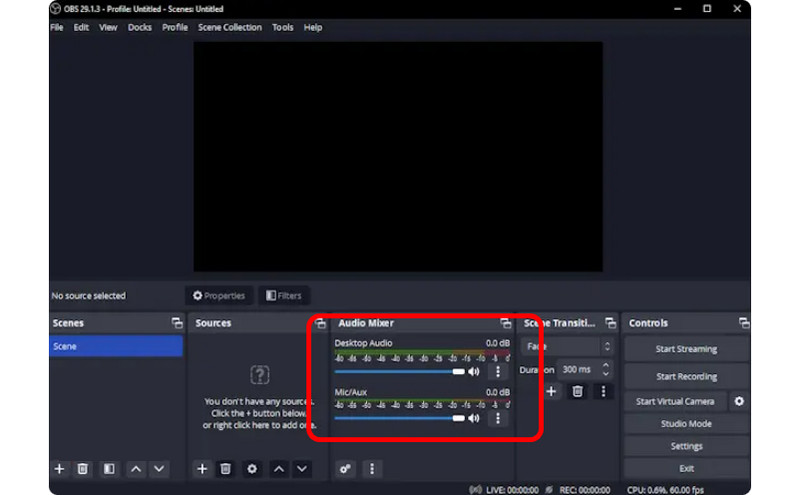
الخطوة 2ثم انتقل إلى خلاط الصوت وقم بتشغيل الصوت حتى تتمكن من تسجيل الشاشة بالصوت.
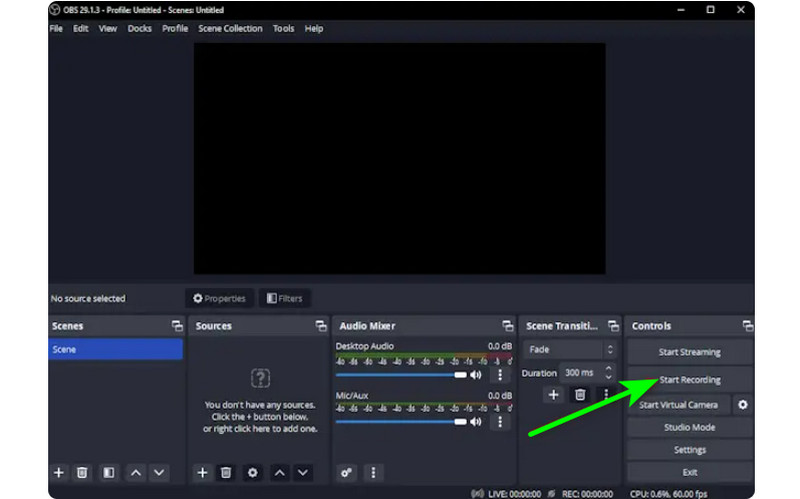
الخطوه 3انقر على ابدأ التسجيل انقر على الخيار الموجود على الواجهة اليمنى لبدء تسجيل الشاشة. إذا كنت تريد إيقاف عملية التسجيل، فانقر على إيقاف التسجيل زر.
3. استخدم برنامج Clipchamp لتسجيل الشاشة مع الصوت على نظام التشغيل Windows
هل تريد معرفة كيفية تسجيل الشاشات على نظام التشغيل Windows 11 بالصوت؟ إذن، استخدم كليبشامب يعد هذا البرنامج مفيدًا للغاية، حيث يتيح لك تسجيل شاشتك بالصوت بسلاسة، نظرًا لأنه يتميز بعملية بسيطة قد تستمتع بها. يمكنك حتى تشغيل كاميرا الويب الخاصة بك إذا أردت. إنه مثالي للتعليق على محتوى معين أو إنشاء مقاطع فيديو تعليمية. لذا، لبدء تعلم كيفية تسجيل الشاشة على نظام التشغيل Windows، راجع الطرق أدناه.
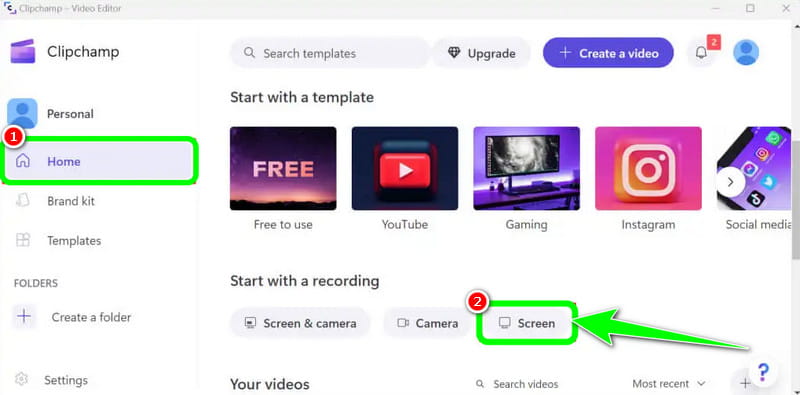
الخطوة 1من الواجهة الرئيسية لـ كليبشامب، انتقل إلى مسكن القسم وانقر على شاشة الخيار. ثم ستظهر صفحة ويب أخرى على شاشتك.
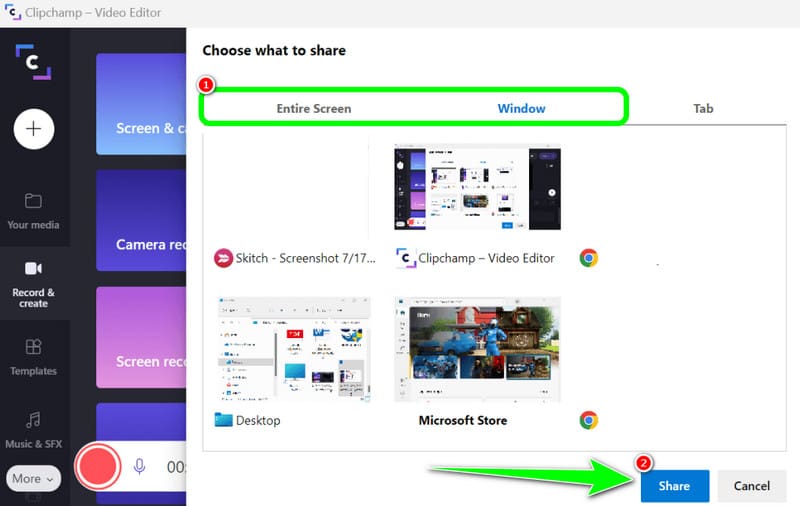
الخطوة 2بعد ذلك ، انقر فوق أحمر من الواجهة اليسرى. بعد ذلك، سترى كل المحتوى على شاشتك، مثل علامات التبويب والنوافذ والمزيد.
الخطوه 3انقر فوق الشاشة التي تريد تسجيلها، مثل الشاشة بالكامل والنافذة وعلامة التبويب. لبدء التسجيل، انقر فوق شارك الزر. ثم بعد العملية، انقر فوق إيقاف التسجيل لحفظ الشاشة المسجلة على جهاز الكمبيوتر الخاص بك.
الجزء 3. طريقتان لتسجيل الصوت على نظامي التشغيل Windows 10 و11
1. تسجيل الصوت على نظام ويندوز باستخدام برنامج أوداسيتي
هل تريد معرفة كيفية تسجيل الصوت على نظام التشغيل Windows 10؟ إذا كان الأمر كذلك، فاستخدم برنامج Audacity. يمكن لهذا البرنامج غير المتصل بالإنترنت مساعدتك في تسجيل أي صوت من جهاز الكمبيوتر الخاص بك. بالإضافة إلى ذلك، لن تجد الأمر صعبًا نظرًا لأن البرنامج يمكن أن يوفر عملية سهلة، مما يجعله مسجل صوت مثاليًا لجميع المستخدمين. لذا، لبدء تسجيل الصوت، راجع الخطوات التي قدمناها أدناه.
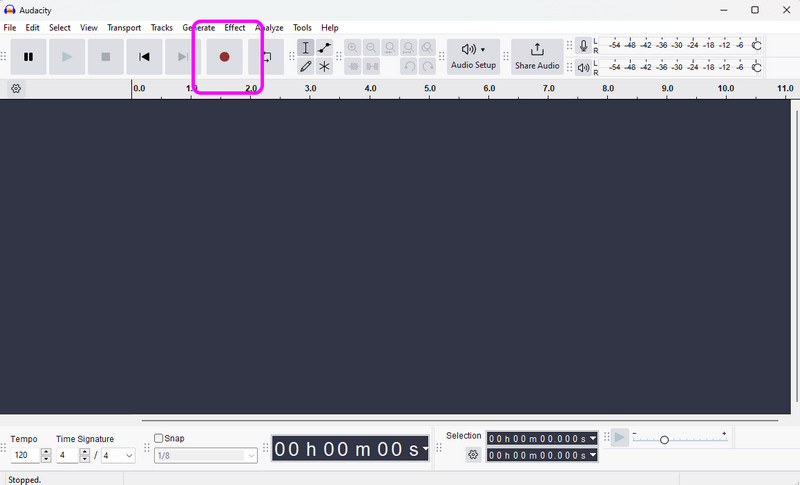
الخطوة 1التثبيت والتشغيل الجرأة على نظام التشغيل Windows الخاص بك. ثم، من الواجهة الرئيسية، انقر فوق سجل من الواجهة العلوية، وبذلك تبدأ عملية تسجيل الصوت.
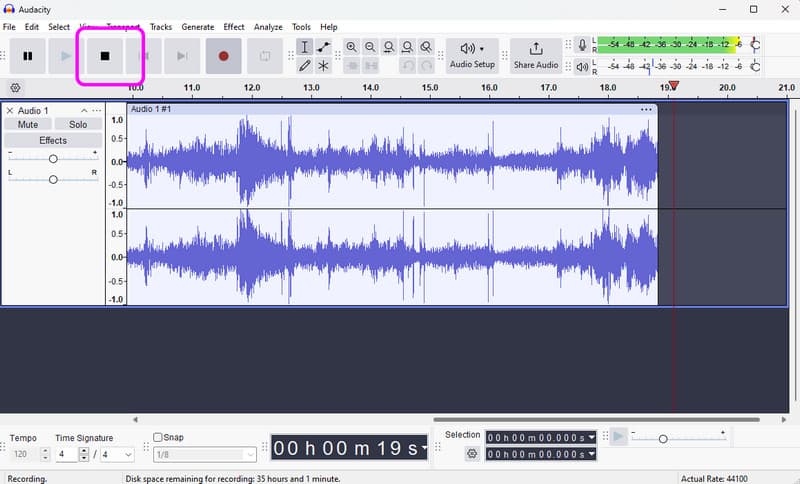
الخطوة 2بعد ذلك، إذا انتهيت من التسجيل، انقر فوق قف ثم يمكنك المتابعة إلى عملية الحفظ.
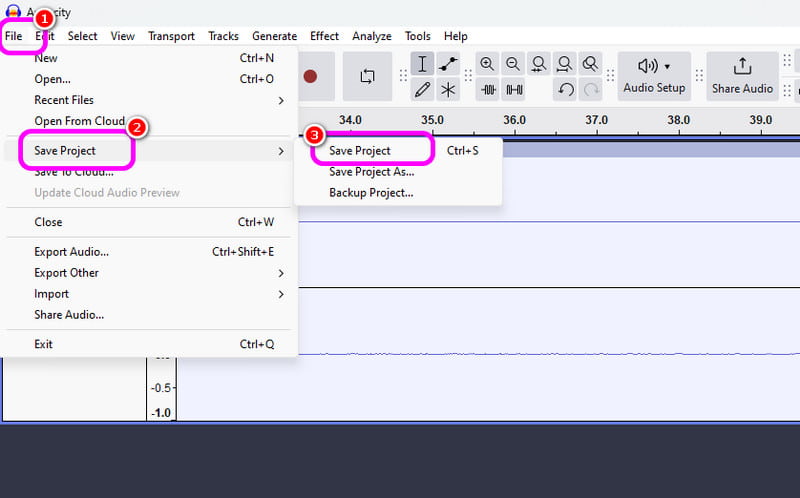
الخطوه 3لحفظ الصوت المسجل، انتقل إلى ملف > حفظ المشروع قسم لحفظ ملف الصوت النهائي على جهازك.
2. تسجيل الصوت على نظام ويندوز باستخدام مسجل الصوت في ويندوز
برنامج آخر يمكنه أن يوفر لك عملية تسجيل صوتية سلسة في نظام التشغيل Windows هو مسجل صوت Windowsبعد الوصول إلى مسجل الصوت هذا، يمكنك البدء في تسجيل أي محتوى صوتي من جهازك. ما يعجبنا هنا هو أن الواجهة بسيطة بحيث يمكنك تسجيل الصوت بسهولة وسرعة. العيب الوحيد هو أنه لا يوفر أدوات تحرير لتحسين الصوت المسجل.
الخطوة 1تحميل مسجل صوت Windows على جهازك. بعد ذلك، قم بتشغيله لبدء العملية.
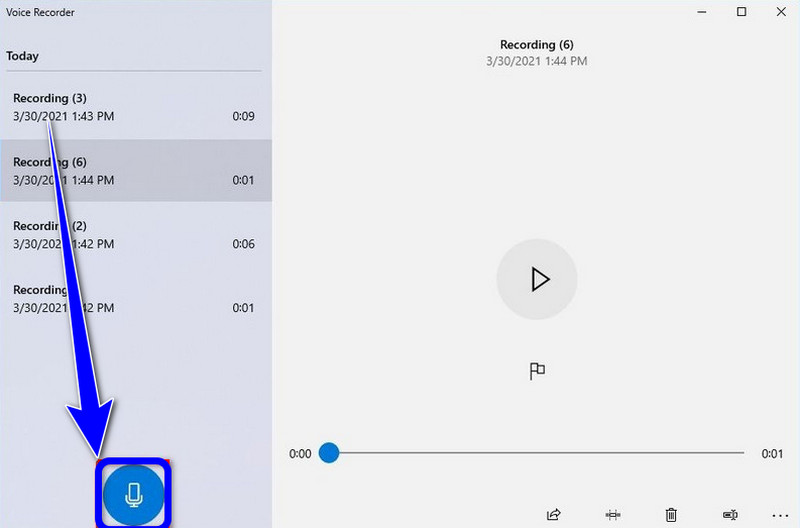
الخطوة 2من الواجهة الرئيسية، انقر فوق ميكروفون الرمز لبدء عملية التسجيل.
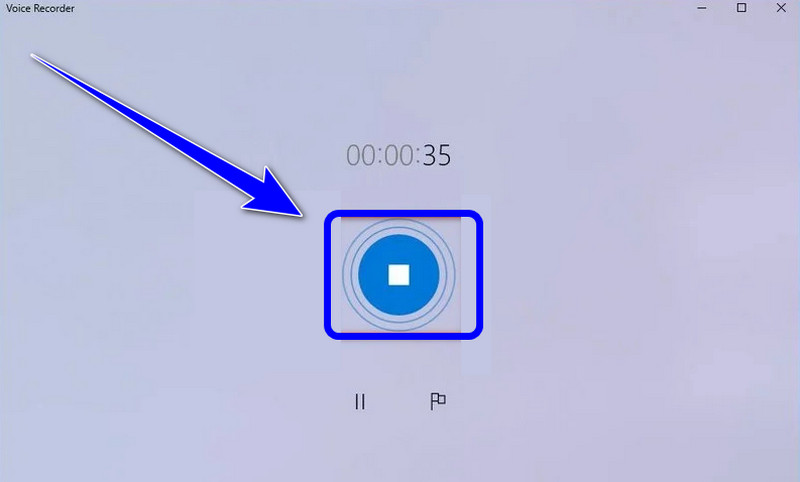
الخطوه 3لإيقاف عملية التسجيل الصوتي، انقر فوق قف بعد ذلك، يمكنك الاستماع إلى الصوت الذي قمت بتسجيله.
الجزء الرابع: مقارنة بين أجهزة تسجيل الشاشة والصوت الخمسة
| ميزة | AVAide مسجل الشاشة | ستوديو OBS | كليبشامب | الجرأة | مسجل صوت Windows |
| الفئة الرئيسية | مجموعة التقاط متكاملة | البث الاحترافي | محرر المتصفح الأساسي | محرر صوتي محترف | مذكرة صوتية أساسية |
| تسجيل فيديو | مدعوم (حتى دقة 4K/60 إطارًا في الثانية) | مدعوم (متقدم) | مدعوم (أساسي) | غير مدعوم | غير مدعوم |
| تسجيل الصوت | النظام والميكروفون في وقت واحد | دعم متعدد المسارات | المدخلات الأساسية فقط | التقاط الصوت المتقدم | ميكروفون فقط |
| واجهة المستخدم | سهل الاستخدام وبديهي | منحنى تعليمي حاد | بسيط يعتمد على المتصفح | تقني/تقليدي | تصميم بسيط للغاية |
| تحرير مدمج | إضافة التعليقات/القص في الوقت الفعلي | لا شيء (مطلوب خارجي) | محرر الجدول الزمني الكامل | تحرير الصوت المتقدم | التشذيب الأساسي فقط |
| نقطة بيع فريدة | أوضاع مخصصة للألعاب والهاتف | طبقات مشهد غير محدودة | دمج الوسائط المخزنة | تقليل الضوضاء/المزج | أداة النظام الأصلية |
| القيمة الإجمالية | الأفضل من حيث الكفاءة والجودة | الأفضل للتقنيات المتقدمة | الأفضل لمقاطع الفيديو القصيرة على مواقع التواصل الاجتماعي | الأفضل لأعمال الصوت النقي | الأفضل لتدوين الملاحظات البسيطة |
الجزء الخامس: الأسئلة الشائعة حول تسجيل الشاشة والصوت على نظام ويندوز
لماذا لا يعمل اختصار لوحة المفاتيح Alt+R في نظام ويندوز؟
إذا لم يعمل اختصار Alt + R (الاختصار القياسي لشريط ألعاب Xbox في نظام Windows)، فعادةً ما يكون ذلك بسبب تعارض في البرامج، أو تعطيل أحد الإعدادات، أو قيود في الجهاز. يُنصح بإغلاق البرامج الأخرى التي تحتوي على ميزات تسجيل الشاشة.
لماذا لا يوجد صوت عند تسجيل الشاشة على نظام ويندوز؟
السبب الأكثر شيوعًا لتسجيلات الصوت الصامتة هو إعدادات إدخال الصوت غير الصحيحة. لحل هذه المشكلة، تأكد من تفعيل كلٍ من صوت النظام (الصوت الداخلي) والميكروفون في برنامج التسجيل. في نظام التشغيل Windows 11، تحقق من إعدادات الخصوصية والأمان للتأكد من أن التطبيق لديه إذن الوصول إلى الميكروفون. بالإضافة إلى ذلك، تأكد من تعيين جهاز التشغيل كـ"الجهاز الافتراضي" في لوحة تحكم الصوت في Windows، حيث أن العديد من برامج التسجيل لا تستطيع التقاط الصوت من مخارج "افتراضية" أو "بلوتوث" إلا إذا تم تكوينها بشكل خاص.
كيف يمكنني تسجيل الصوت الداخلي على نظام ويندوز بدون ميكروفون؟
لتسجيل الصوت الداخلي للنظام دون التقاط ضوضاء الخلفية من الميكروفون، يجب عليك إيقاف تشغيل خيار "صوت النظام" أو "الصوت الداخلي" في برنامج تسجيل الصوت والشاشة.
إذا كنت تريد أن تتعلم كيفية تسجيل الشاشة على نظام التشغيل Windows مع الصوتيمكنك الحصول على كافة التفاصيل من هذا المنشور. لذا، اطلع على كافة المعلومات وجرِّب العملية للحصول على عملية تسجيل شاشة وصوت فعّالة. أيضًا، إذا كنت تريد البرنامج الأكثر موثوقية لمساعدتك في تسجيل شاشة بصوت مثالي، فلا شك أن برنامج AVAide Screen Recorder هو أفضل برنامج يمكنك الوصول إليه. لذا، قم بتشغيل البرنامج على نظام Windows الخاص بك واستمتع بإمكانياته الشاملة.
نبذة عن المؤلف

سجل الشاشة والصوت وكاميرا الويب واللعب والاجتماعات عبر الإنترنت بالإضافة إلى شاشة iPhone / Android على جهاز الكمبيوتر الخاص بك.
تسجيل الشاشة