هل تتوق إلى مشاهدة برامج مثيرة وحماسية؟ إذن، لن يخيبك موقع Peacock. Peacock هو موقع لبث الفيديو يجمع بين البث المباشر للأحداث الرياضية والأفلام الشهيرة في باقة واحدة. ومن بين العوامل التي قد تمنع المشاهدين من العودة إلى هذا الموقع هو دعمه للبرامج الأصلية وبرامج شبكة NBC. يمكنك مشاهدة برامجك الرياضية المفضلة مباشرةً بسعر ابتدائي منخفض. ومع ذلك، ونظرًا للتغيير المستمر في مكتبة الأفلام، فقد أصبح هذا الأمر مشكلةً للعديد من المستخدمين. ما الحل؟ تحميل المحتوى أو تسجيل البرامج والأفلام. لكن اتخاذ خطوات إضافية سيسمح لنا بأخذك في جولة في عالم Peacock واكتشاف ما إذا كان بإمكانك تحميل فيديو من هذا الموقع. عندها، ستجد إجابةً على السؤال:هل يمكنك تسجيل البث المباشر للأحداث الرياضية على منصة Peacock؟؟ "
هل يمكنك التسجيل على منصة Peacock؟
الإجابة المباشرة على هذا السؤال هي لا. صحيح أن منصة Peacock تقدم مجموعة متنوعة من الأفلام والعروض المباشرة التي يمكنك الاستمتاع بمشاهدتها، إلا أن عيبها يكمن في عدم وجود خاصية تسجيل مدمجة، لسبب غير معروف. أحد الأسباب الرئيسية هو إدارة الحقوق الرقمية، حيث يفرض أصحاب حقوق النشر ومنشئو المحتوى قيودًا على الحقوق والتراخيص. وهي عبارة عن مفاوضات بين الشبكات والاستوديوهات لحماية المحتوى ومنع توزيع النسخ الأصلية خارج سيطرة Peacock. صُممت Peacock لتكون خدمة بث مباشر، وليست خدمة تلفزيونية مباشرة. لذا، فإن جهاز التسجيل ليس ضروريًا بالضرورة، إذ يمكن للمشاهدين متابعة البرامج المتاحة في أي وقت.
يبدو أن منصة Peacock تسعى لجذب المستخدمين النشطين. فهي تُقدّر وتُثمّن عدد مُستخدميها النشطين. إذا سمحت المنصة للمستخدمين بتسجيل المحتوى ومشاهدته لاحقًا دون اتصال بالإنترنت أو خارج التطبيق، فلن يتم احتسابهم كمستخدمين نشطين. تُقدّم Peacock باقات مدعومة بالإعلانات، حيث تُؤخذ مرات الظهور والتفاعل بعين الاعتبار.
ماذا عن البث المباشر للأحداث الرياضية؟
إذا كنت تتساءل عما إذا كان بإمكانك تسجيل البث المباشر للأحداث الرياضية، فالإجابة المختصرة هي لا. في الواقع، وردت شكاوى من مشجعي الرياضة حول سبب عدم سماح منصة Peacock بتسجيل البث المباشر. كما تحظر Peacock تسجيل البث المباشر للأحداث الرياضية بسبب حقوق البث الرياضي. تتضمن هذه الحقوق بنودًا تمنع المستخدمين من الاحتفاظ بسجلات للبث المباشر أو تخزين المحتوى، حتى للاستخدام الشخصي. تراخيص المحتوى معقدة. بالإضافة إلى ذلك، تفرض الاتحادات الرياضية قواعد صارمة بشأن وقت وكيفية توزيع برامجها. عند السماح بالتسجيل، سيحدث تعارض مع الاتفاقيات، وستصبح القواعد أكثر تعقيدًا. أحد الحلول الممكنة لتسجيل المباريات أو الأحداث الرياضية هو التسجيل على YouTube TV مع مساحة التخزين السحابية غير المحدودة. يمكن بث المباريات على قناة NBC، مما يسمح لك بالتسجيل على Peacock أو البث المتزامن على NBC.
بينما لا يمكن تسجيل المباريات الحصرية على منصة Peacock، فإن هذه الميزة متاحة للمباريات التي تُبث على قناة NBC. من جهة أخرى، تتوفر إعادة عرض المباراة كاملةً عند الطلب. يحدث هذا بعد انتهاء البث المباشر للحدث الرياضي، ولكنه ليس متاحًا في كل مرة. فبحسب نوع الرياضة واتفاقية الحقوق الخاصة، قد تكون إعادة العرض متاحة أو غير متاحة. باختصار، إعادة العرض على Peacock غير مضمونة.
الطريقة الأولى: التسجيل على منصة Peacock باستخدام أدوات خارجية
يُعدّ تسجيل الفيديوهات مهارةً مفيدة، خاصةً عند الحاجة إلى إنشاء مقاطع مميزة. لذا، يتناول هذا القسم أدوات تسجيل البرامج على منصة Peacock.
1. AVAide مسجل الشاشة
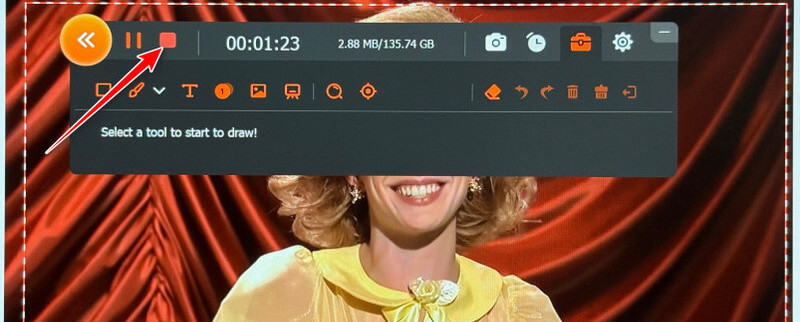
AVAide مسجل الشاشة يتيح لك هذا التطبيق تسجيل مقاطع فيديو على منصة Peacock أو أي نشاط على شاشتك بجودة عالية. كما يدعم التسجيل بمعدل 60 إطارًا في الثانية، مما يجعل كل شيء أكثر سلاسة واستجابة. تُعد هذه الميزة مفيدة للغاية عند تسجيل الألعاب التنافسية السريعة، حيث تُسهّل تتبع الأهداف سريعة الحركة. بالإضافة إلى تسجيل الشاشة كاملةً ومنطقة محددة منها، يُمكنه تسجيل صوت النظام بوضوح تام دون تشويش. كما يُمكنه ضبط مستويات الصوت قبل وأثناء التسجيل.
بما أن البث المباشر للأحداث الرياضية يُبث في أوقات محددة، يمكنك جدولة وقت بدء التسجيل وإيقافه تلقائيًا دون الحاجة إلى الضغط على زر التسجيل. علاوة على ذلك، يمكنك تسجيل الأحداث الرياضية والمباشرة بغض النظر عن نظام تشغيل جهاز الكمبيوتر الخاص بك. يتم تسجيل الحركة السلسة والصوت النقي بسلاسة أكبر. لمعرفة كيفية التسجيل على منصة Peacock باستخدام مسجل الشاشة AVAide، راجع الدليل أدناه.
الخطوة 1انقر على تحميل مجاني الزر أدناه. سواء كنت تستخدم نظام ويندوز أو ماك، ستجد برنامج تثبيت مناسبًا لجهازك. ثبّت برنامج تسجيل الشاشة وابدأ استخدامه.

تنزيل مجاني لنظام التشغيل Windows 7 أو أحدث
 تحميل آمن
تنزيل مجاني لنظام التشغيل Mac OS X 10.13 أو الإصدارات الأحدث
تحميل آمنالخطوة 2 بعد ذلك، انتقل إلى موقع Peacock الإلكتروني وابحث عن الفيديو أو البث المباشر للأحداث الرياضية التي ترغب في تسجيلها. ثم انقر على آلة تسجيل الفيديو الخيار وانقر فوق ممتلىء الخيار أو العادة خيار لتحديد منطقة معينة للتسجيل.
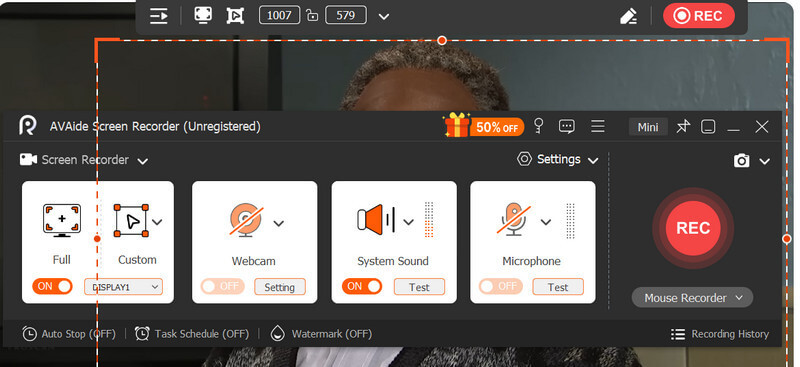
الخطوه 3بعد الإعداد، انقر فوق REC اضغط على الزر لبدء عملية التسجيل. سيبدأ التسجيل بعد عد تنازلي لمدة 3 ثوانٍ لتجهيزك. أثناء التسجيل، يمكنك التقاط صورة باستخدام آلة تصوير زر.
الخطوة 4عند الانتهاء من التسجيل، انقر فوق قف انقر على الزر الموجود في شريط الأدوات العائم. ستظهر نافذة المعاينة على شاشتك. من هنا، يمكنك قص الأجزاء غير المرغوب فيها أو الأجزاء الزائدة في البداية والنهاية. عند الانتهاء، انقر على زر "حفظ" واختر الموقع الذي ترغب في حفظ التسجيل النهائي فيه.
2. برنامج OBS Studio
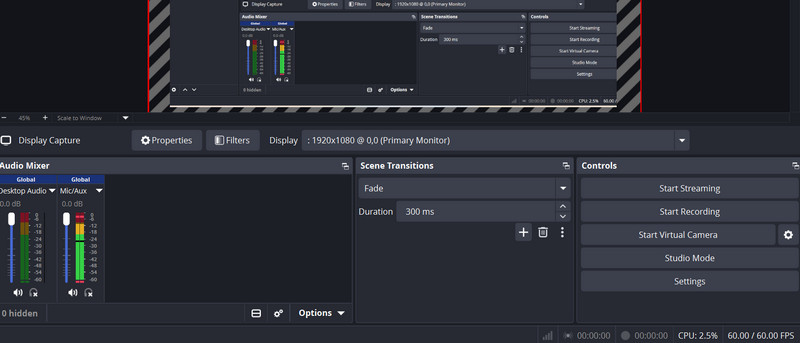
يُعدّ برنامج OBS Studio أداةً مجانيةً بالكامل وذات إمكانياتٍ عالية، تُتيح لك تسجيل برامجك المفضلة من منصة Peacock. لا يضع هذا البرنامج علامةً مائيةً على الفيديو النهائي، كما أنه لا يفرض أي قيود على مدة التسجيل. وبفضل دعمه لتقنيات AMD وNVIDIA وIntel QuickSync، يستفيد البرنامج من معالج الرسوميات ووحدة المعالجة المركزية في النظام، مما يُقلّل بشكلٍ كبير من تأثيره على الأداء. أثناء البث، لن يُعاني بث Peacock من أي تقطّع أو انقطاع. ولا تقتصر مزايا البرنامج على التسجيل فقط، فهو أداةٌ شائعةٌ لتسجيل الألعاب، على الرغم من بعض التحديات التي قد تواجهها في الأداء. لذا، من الضروري أن يكون كل مستخدمٍ على درايةٍ بهذه الميزات. كيفية إصلاح مشكلة التقطيع في برنامج OBS أثناء تشغيل الألعابلكن في الوقت الحالي، تحقق من الخطوات لمعرفة كيفية عمل هذه الأداة لتسجيل مقاطع الفيديو.
الخطوة 1قم بتنزيل تطبيق OBS Studio من موقعه الرسمي على الويب وقم بتثبيته بشكل طبيعي دون أي إعدادات خاصة.
الخطوة 2الآن، تأكد من تعطيل تسريع الأجهزة في متصفحك عن طريق الانتقال إلى إعدادات > نظام > قم بإيقاف تشغيل إعدادات "استخدام تسريع الأجهزة عند توفره".ثم أعد تشغيل متصفحك.
الخطوه 3قم بتعديل إعدادات التكوين التي ترغب بها، بما في ذلك تغيير تنسيق التسجيل، والمشفر، والجودة، وما إلى ذلك.
الخطوة 4هذه المرة ، انقر فوق زائد انقر على الزر في نافذة المصادر واختر التقاط العرضأو بدلاً من ذلك، انتقل إلى التقاط ويندوز إذا كان الخيار الأولي يعرض شاشة سوداء.
الخطوة الخامسةيضرب ابدأ التسجيل في برنامج OBS، تحقق من المعاينة تحسبًا لظهور شاشة سوداء. الآن، سجل عرضك على منصة Peacock. اضغط إيقاف التسجيل عند الانتهاء.
3. مسجل الشاشة iTop
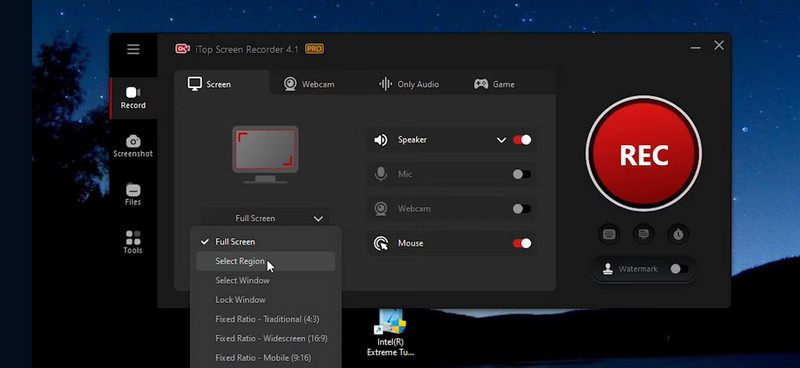
برنامج iTop Screen Recorder هو برنامج حصري لنظام ويندوز لتسجيل الشاشة، مصمم خصيصًا لتسجيل المحتوى المحمي بتقنية إدارة الحقوق الرقمية (DRM)، بما في ذلك خدمات البث مثل Peacock وNetflix وغيرها. لذا، فهو يستحق مكانته بين أفضل برامج تسجيل الفيديو. يأتي البرنامج مزودًا بوضع مُحسّن يتجاوز قيود DRM لتسجيل الفيديوهات المحمية دون ظهور شاشة سوداء. لذلك، إذا كنت تبحث عن أداة توفر ميزة تجاوز DRM، فإن iTop Screen Recorder هو التطبيق الأمثل لك. اتبع التعليمات أدناه لاستخدامه.
الخطوة 1نفس الإجراء: احصل على البرنامج وقم بتثبيته على جهاز الكمبيوتر الخاص بك.
الخطوة 2حدد منطقة التسجيل بالنقر على اسقاط القائمة أسفل رسم الشاشة في الواجهة الرئيسية. للحصول على مربع قابل للتخصيص، اختر حدد المنطقة قم بتفعيل هذا الخيار واضبط إطار التسجيل على الحجم الذي تريده.
الخطوه 3عند هذه النقطة، انقر فوق اللون الأحمر REC الزر الموجود على الجانب الأيمن من الواجهة. في شريط الأدوات العائم، يمكنك الوصول إلى يوقف و قف الأزرار، بالإضافة إلى التقاط لقطات الشاشة واستخدام أدوات الرسم.
الخطوة 4للحفظ، انقر فوق قف اضغط على الزر لمعاينة التسجيل. يحفظ ثم قم بالتصدير إلى التنسيق الذي تفضله.
| سمات | AVAide مسجل الشاشة | ستوديو OBS | مسجل الشاشة iTop |
| المنصات | نظامي التشغيل Windows و Mac | ويندوز ، ماك ، لينوكس | نوافذ فقط |
| سهولة الاستعمال | مناسب للمبتدئين | معقد | مناسب للمبتدئين |
| جودة الفيديو | دقة تصل إلى 4K بمعدل 60 إطارًا في الثانية، سلسة | دقة تصل إلى 4K بمعدل 60 إطارًا في الثانية، سلسة | خلل في الزاوية |
| جودة الصوت | خاصية إلغاء الضوضاء متضمنة | ميزة ممتازة ومتعددة المسارات | جيد، لا يوجد خاصية إلغاء الضوضاء |
| إدارة الحقوق الرقمية | غير متناسق، ويتطلب حلولاً بديلة. | غير متناسق، ويتطلب حلولاً بديلة. | الوضع المحسّن لإدارة الحقوق الرقمية |
| محرر مدمج | تقليم أساسي وتعليقات توضيحية | لا حاجة لأدوات خارجية | التشذيب الأساسي فقط |
| علامة مائية | لايوجد علامة مائية | لا أحد | النسخة المجانية تحتوي على علامة مائية |
| التسجيل المجدول | مدمج | ممكن عبر الإضافات | مدمج |
الطريقة الثانية: ميزة التنزيل الرسمية من Peacock
بدلاً من التسجيل، يمكنك تحميل البرامج التي ترغب بمشاهدتها دون اتصال بالإنترنت. هذا متاحٌ لمشتركي الخدمة المميزة. هذه العملية ليست تسجيلاً بالمعنى الحرفي، ولكنها تتيح لك مشاهدة البرامج دون اتصال بالإنترنت عن طريق تحميل عناوين محددة. تأكد من تاريخ انتهاء صلاحية العناوين المحملة، حيث تُحذف تلقائيًا بعد فترة. أي أنك لن تتمكن من الاحتفاظ بهذه البرامج المحملة بشكل دائم.
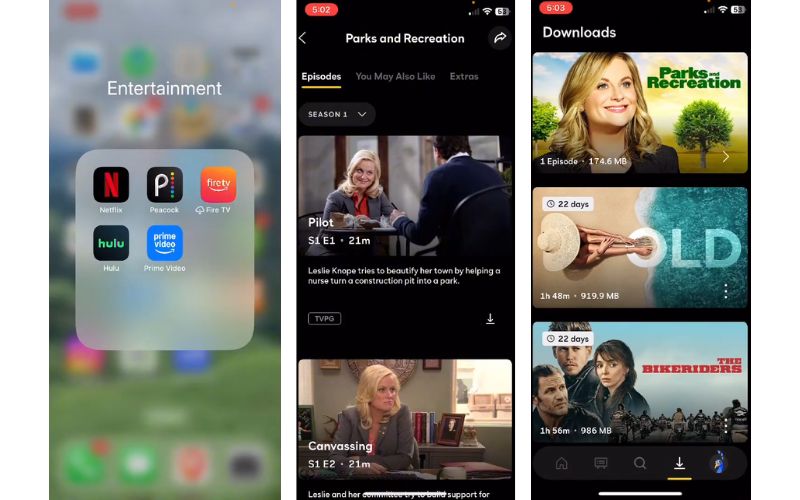
هذه الميزة رائعة لمستخدمي الهواتف المحمولة. نعم، قرأتَها بشكل صحيح. يمكنك الآن مشاهدة برامجك المفضلة بسهولة تامة باستخدام ميزة التنزيل في تطبيق Peacock. لمعرفة كيفية القيام بذلك، اتبع الخطوات التالية.
الخطوة 1افتح تطبيق Peacock على هاتفك وانقر على البرنامج أو المسلسل الذي ترغب في تسجيله.
الخطوة 2بعد اختيار العرض، سترى السهم لأسفل يوجد زر أسفل معاينة الفيديو. انقر على هذا الزر، وسيبدأ التنزيل على جهازك.
الخطوه 3بعد ثوانٍ، سيتم تنزيل الفيديو المطلوب وسيكون جاهزًا للمشاهدة دون اتصال بالإنترنت.
الخطوة 4لمشاهدة جميع مقاطع الفيديو التي قمت بحفظها دون اتصال بالإنترنت، ستجد قائمة أسفل الشاشة. أحد الأزرار الموجودة هو زر التنزيل. انقر على هذا الخيار واستمتع بمشاهدة برامج Peacock دون اتصال بالإنترنت.
الاعتبارات القانونية وحقوق النشر
الإجابة على سؤال "هل يُمكن تسجيل الألعاب على منصة Peacock؟" هي نعم، مع بعض الحلول البديلة واستخدام أدوات خارجية. ورغم إمكانية التسجيل، يُنصح بالالتزام التام بقواعد وسياسات منصة البث. يبدو الأمر قانونيًا للاستخدام الشخصي، إلا أن شروط خدمة Peacock تحظر نسخ أو تسجيل محتواها، إذ يُعتبر ذلك انتهاكًا وقد يؤدي إلى حظر حسابك نهائيًا. طالما أنك لا تُحمّل التسجيلات علنًا على مواقع أخرى، فلن تُتخذ أي إجراءات قانونية ضدك. هذا الأمر ليس حكرًا على Peacock، بل ينطبق أيضًا على خدمات بث أخرى مثل... منصة ريل شورتخلاصة القول: حافظ على سرية جميع التسجيلات واحذفها بعد مشاهدتها. إن توزيعها بأي شكل من الأشكال يُعد مخالفة قانونية واضحة.
توجد حلول بديلة يمكنك تعلمها كيفية التسجيل على منصة بيكوكضع في اعتبارك شروط خدمة Peacock الصارمة وحماية إدارة الحقوق الرقمية (DRM). تسجيل المحتوى صعبٌ عمدًا لسبب وجيه. كقاعدة عامة، سجّل بشكل خاص ومسؤول. لا تشارك المحتوى أبدًا، وتأكد من استنفاد جميع الخيارات المشروعة أولًا.
نبذة عن المؤلف

تسجيل أنشطة الشاشة بالصوت ، والاجتماعات عبر الإنترنت ، ومقاطع فيديو اللعب ، والموسيقى ، وكاميرا الويب ، وما إلى ذلك.
تسجيل الشاشة