إذا كنت من مستخدمي أجهزة ماك وتحتاج إلى تسجيل الشاشة والصوت، فلا داعي للبحث في أي مكان آخر. كل ما تحتاجه موجود بالفعل في برنامج QuickTime Player.
في هذا تسجيل الشاشة باستخدام QuickTime سنرشدك في هذا الدليل إلى كيفية استخدامه من البداية إلى النهاية، بدءًا من فتح الأداة وحتى إيقاف التسجيل وحفظه. هيا بنا نبدأ الآن!
الجزء الأول: مقدمة سريعة لتسجيل الشاشة باستخدام برنامج QuickTime
برنامج QuickTime Player هو برنامج مجاني لنظام التشغيل Mac. يأتي مثبتًا مسبقًا لتتمكن من استخدامه فورًا. على الرغم من أنه معروف كمشغل وسائط، إلا أنه يعمل أيضًا كـ مسجل الشاشة لنظام التشغيل Macبفضل ذلك، يمكنك التقاط صور لشاشتك دون الحاجة إلى تطبيقات خارجية. إضافةً إلى ذلك، تتميز واجهة المستخدم بالبساطة، مما يجعل استخدامها سهلاً.
1. القدرات الأساسية
- يمكن التسجيل
للاستخدام اليومي، يغطي البرنامج الأساسيات. يمكنك تسجيل الشاشة كاملةً، أو تحديد منطقة معينة. كما يمكنك تسجيل فيديو من كاميرا الويب باستخدام "تسجيل فيلم جديد". ويتيح لك أيضًا تسجيل الصوت من الميكروفون، بالإضافة إلى إمكانية عرض نقرات الماوس على الشاشة. - لا يمكن التسجيل (أصليًا)
للأسف، لا يمكنه تسجيل صوت النظام، وذلك بسبب قيود أمان نظام التشغيل ماك. كما أنه لا يمكنه تسجيل الشاشة وكاميرا الويب معًا. - محددات
لأنه أساسي مشغل فيديو 4K على الرغم من وجود بعض الميزات في برنامج التسجيل، إلا أنه يفتقر إلى بعضها. فهو يحفظ الفيديوهات بصيغة .mov فقط، مما قد يؤدي إلى زيادة حجم الملفات. إضافةً إلى ذلك، لا يحتوي على ميزات تحرير متقدمة، فلا يمكنك تعديل الخط الزمني، كما لا يمكنك إضافة تعليقات أو مؤثرات.
الجزء الثاني: كيفية بدء تسجيل الشاشة باستخدام QuickTime
إذا كنت ترغب في معرفة كيفية استخدام برنامج QuickTime Player لتسجيل الشاشة مع الصوت، فإن الأمر لا يتطلب سوى إعداد بسيط قبل البدء.
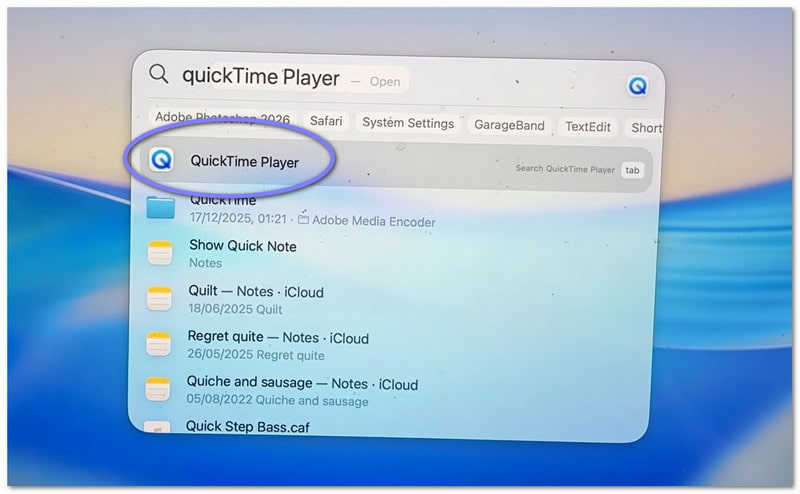
الخطوة 1أولاً، انتقل إلى التطبيقات افتح المجلد ثم افتح البرنامج. إذا كنت تريد طريقة أسرع، فاستخدم بحث Spotlight. اضغط يأمر + فضاءثم اكتب مشغل الكويك تايم. يضعط يدخل لفتحه.
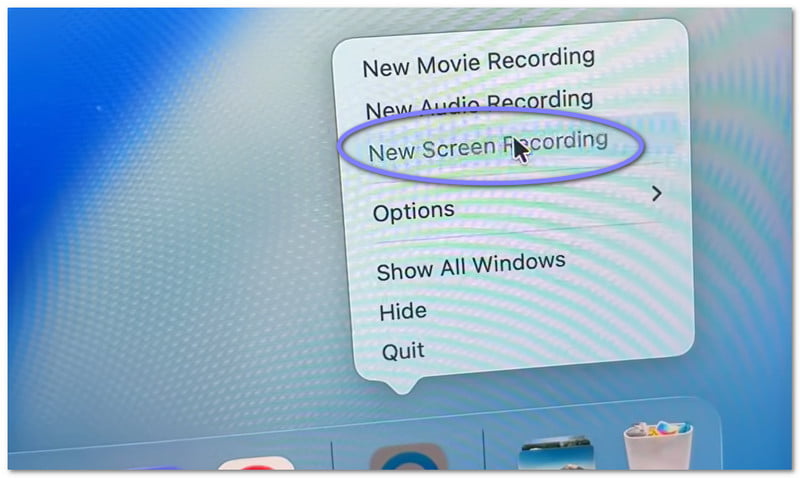
الخطوة 2بعد فتح البرنامج، انتقل إلى شريط القوائم العلوي. انقر ملف، ثم اختر تسجيل شاشة جديدستظهر لك شاشة تسجيل صغيرة. إذا كنت تريد اختصارًا، فاضغط يأمر + مراقبة + شماليفتح برنامج تسجيل الشاشة على الفور.
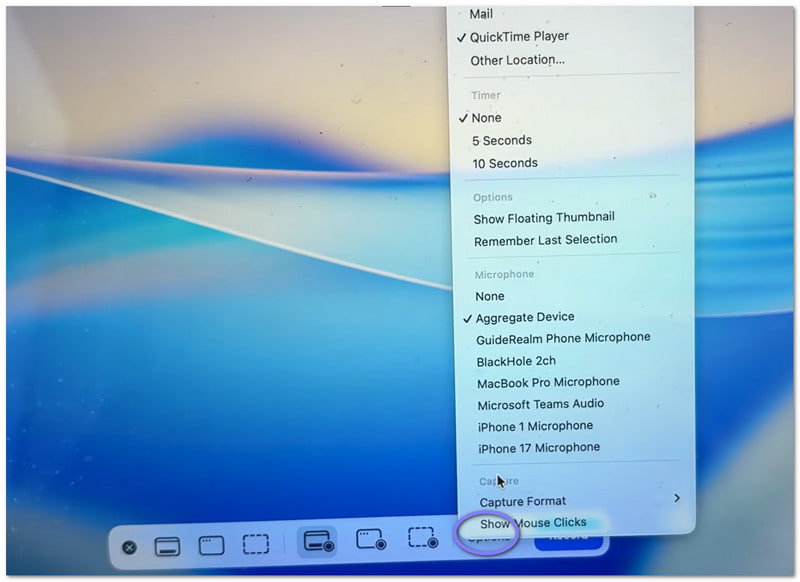
الخطوه 3قبل البدء، خذ لحظة للتحقق من الإعدادات. انقر فوق خيارات زر التسجيل في لوحة التحكم. هنا، يمكنك اختيار الميكروفون إذا كنت ترغب في تسجيل صوتك. كما يمكنك ضبط مؤقت قصير إذا كنت بحاجة إلى وقت للاستعداد. بالإضافة إلى ذلك، اختر مكان حفظ الملف بعد التسجيل.
الخطوة 4الآن، حدد ما تريد تصويره. إذا كنت تريد تصوير كل شيء، فانقر في أي مكان على الشاشة. سيتم تسجيل الشاشة كاملةً. أما إذا كنت تريد تصوير جزء منها فقط، فحدد المنطقة المطلوبة واسحب مؤشر الماوس لتحديدها.
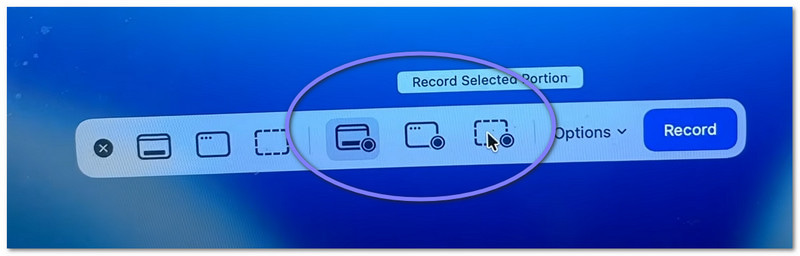
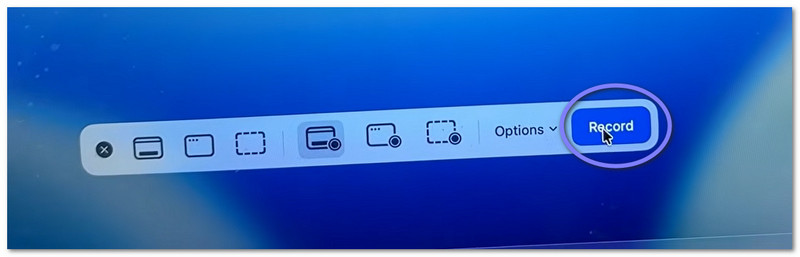
الخطوة الخامسةأخيرًا ، انقر فوق ملف سجل اضغط على الزر للبدء. بعد فترة وجيزة، سيبدأ التسجيل. أثناء التسجيل، قم بمهمتك حسب الحاجة.
الجزء الثالث: كيفية إيقاف وحفظ تسجيل QuickTime
سنشرح لكم فيما يلي كيفية إيقاف تسجيل الشاشة باستخدام برنامج QuickTime، بالإضافة إلى كيفية حفظ الملف بشكل صحيح:
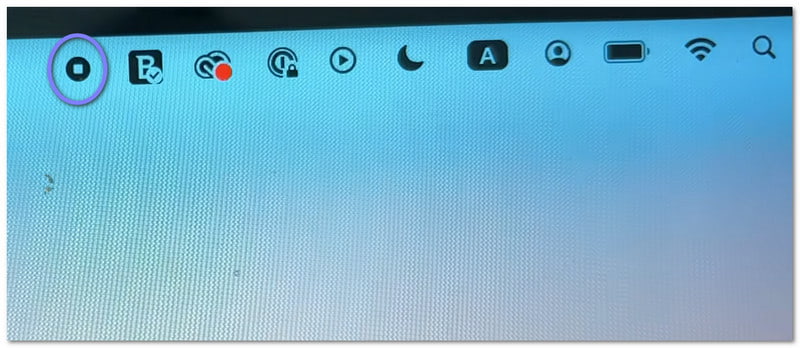
الخطوة 1أولاً، حرك مؤشر الماوس إلى أعلى يمين الشاشة. ابحث عن قف زر. يبدو كدائرة بداخلها مربع صغير. انقر عليه لإنهاء التسجيل. كخيار آخر، يمكنك الضغط على يأمر + مراقبة + خروج على لوحة المفاتيح الخاصة بك.
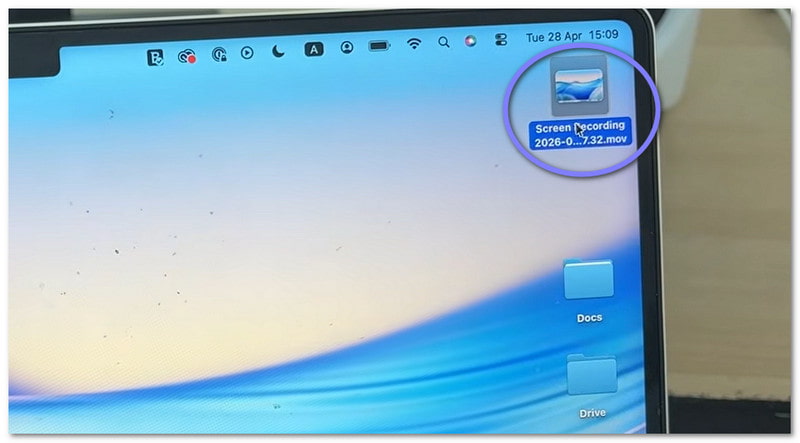
الخطوة 2بعد التوقف، قد تظهر معاينة صغيرة في زاوية الشاشة. هذا هو تسجيلك. يمكنك النقر عليها فورًا إذا أردت فتح الفيديو ومراجعته. إذا تجاهلتها، فسيتم حفظ الملف تلقائيًا.
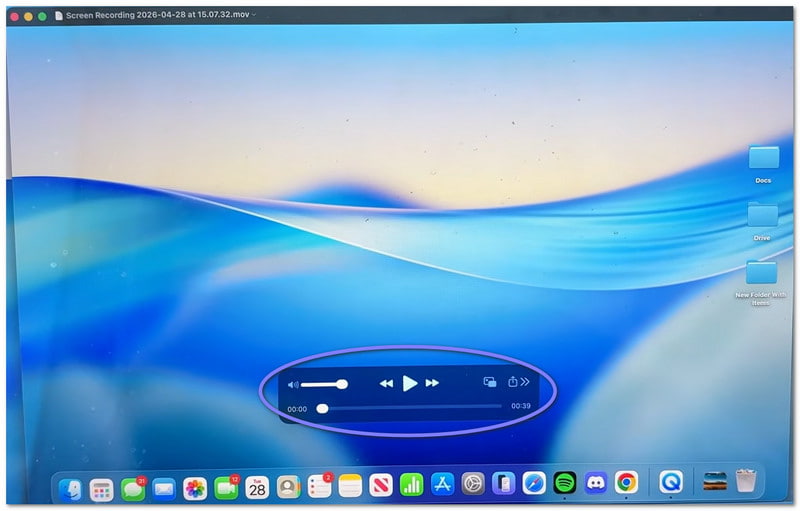
الخطوه 3يُحفظ الفيديو افتراضيًا على سطح المكتب أو الموقع الذي تختاره. إذا كنت ترغب في حفظه بنفسك، فافتح الفيديو أولًا. ثم انتقل إلى شريط القوائم وانقر على ملف، ومن بعد يحفظبعد ذلك، اكتب اسمًا لملفك. اختر المكان الذي تريد حفظه فيه، ثم انقر. يحفظ.
الخطوة 4بمجرد فتح الفيديو، يمكنك إجراء تعديلات بسيطة. على سبيل المثال، يمكنك قص البداية أو النهاية. كما يمكنك تدوير الفيديو إذا لزم الأمر. بالإضافة إلى ذلك، يمكنك مشاركته مباشرةً من التطبيق.
الجزء الرابع: استكشاف الأخطاء وإصلاحها
أحيانًا، لا تسير عملية تسجيل الشاشة كما هو مخطط لها. قد تحدث بعض المشاكل البسيطة. لكن لحسن الحظ، يمكن إصلاح معظمها بسهولة في برنامج QuickTime Player.
1. "واجه برنامج QuickTime Player خطأً أثناء تسجيل شاشتك."
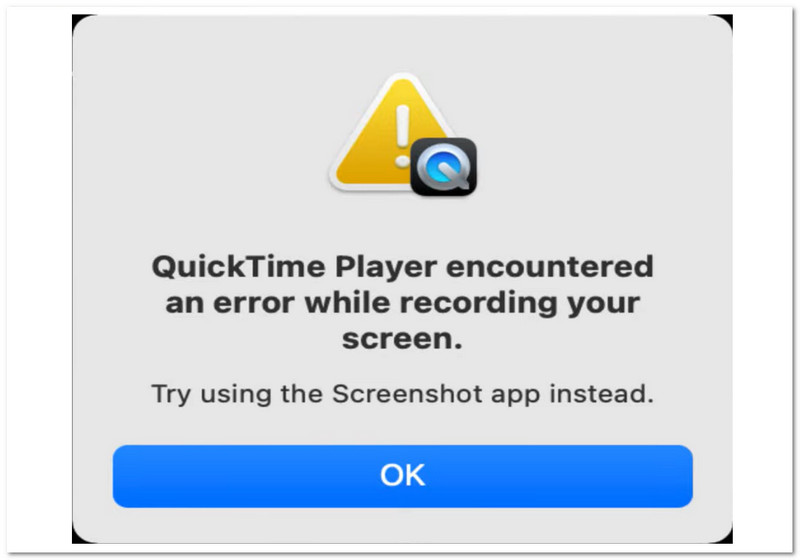
هناك بعض الأسباب الأساسية التي قد تؤدي إلى ظهور خطأ "واجه برنامج QuickTime Player خطأ أثناء تسجيل الشاشة".
أولاً، تحقق من مكان حفظ الملفات. إذا كنت تحفظها على قرص خارجي، فحاول التبديل إلى سطح المكتب. غالباً ما يحل ذلك المشكلة. ثانياً، تحقق من مساحة التخزين لديك. إذا كان القرص ممتلئاً، فقد يفشل التسجيل.
تأكد أيضًا من تفعيل الأذونات. انتقل إلى اعدادات النظام > الخصوصية والأمان > تسجيل الشاشةثم تحقق مما إذا كان برنامج QuickTime Player مسموحًا به.
2. تسجيل QuickTime الخاص بي لا يحتوي على صوت!
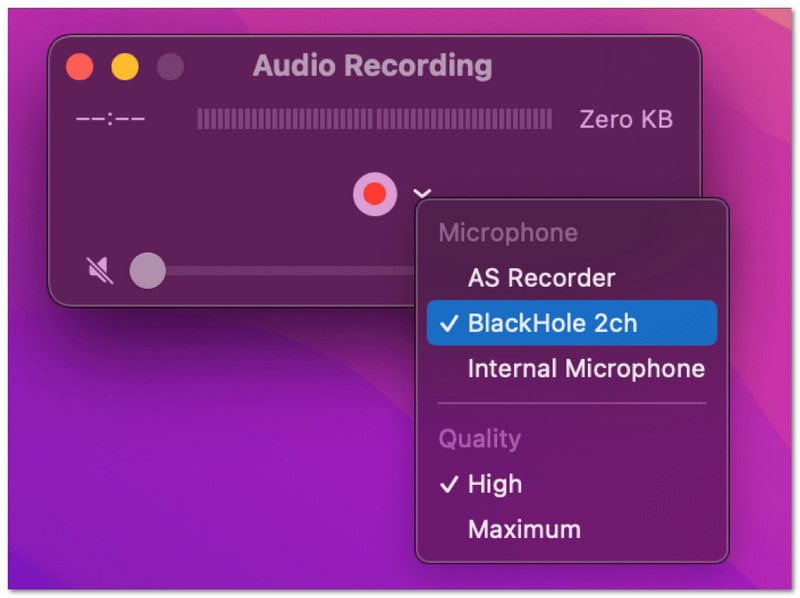
إذا كان الفيديو الخاص بك لا يحتوي على صوت، فتحقق من الإعدادات قبل التسجيل. افتح خيارات من القائمة، اختر ميكروفونًا، مثل "الميكروفون المدمج". إذا لم يتم اختيار أي ميكروفون، فلن يتم تسجيل أي صوت. اختبر الميكروفون أولًا للتأكد من عمله.
3. برنامج QuickTime لا يسجل صوت النظام
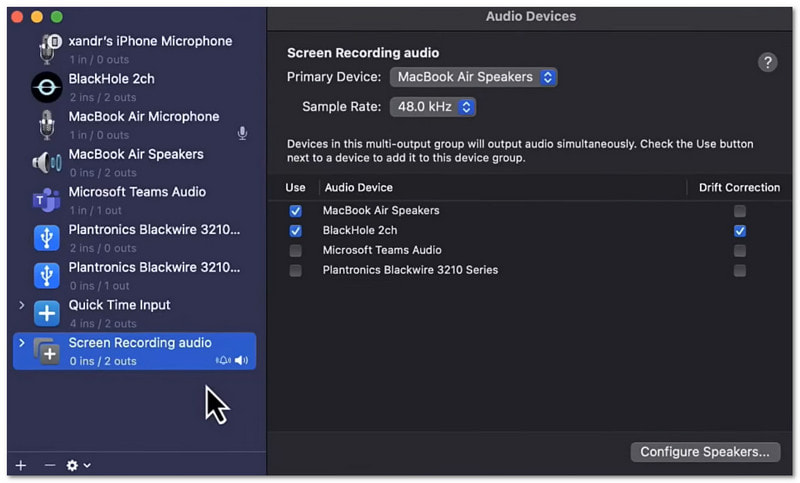
هذا أمر طبيعي. لا يستطيع برنامج QuickTime Player تسجيل صوت النظام افتراضيًا، وذلك بسبب قواعد نظام التشغيل Mac. لتسجيل صوت النظام، تحتاج إلى أدوات إضافية، مثل استخدام ميزة تشغيل الموسيقى في الخلفية أو ميزة التسجيل الحلقي.
الجزء الخامس: هل يوجد بديل لبرنامج QuickTime لنظام التشغيل Windows؟
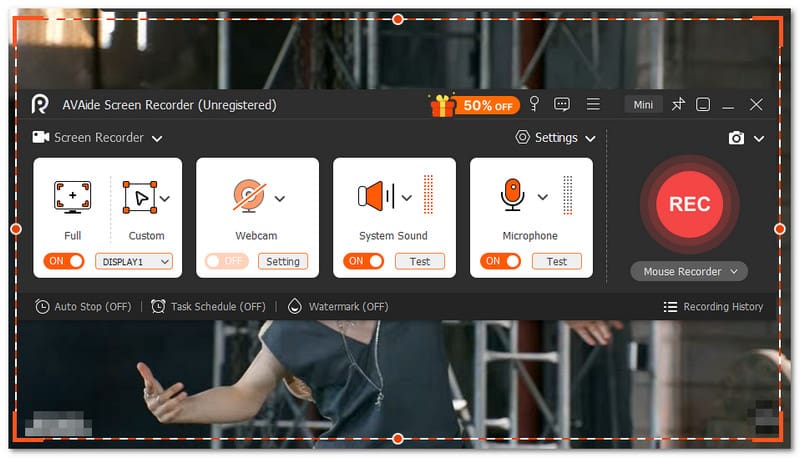
نعم، يوجد بديل لبرنامج QuickTime لتسجيل الشاشة على نظام ويندوز. وهو ليس سوى AVAide مسجل الشاشة.

تنزيل مجاني لنظام التشغيل Windows 7 أو أحدث
 تحميل آمن
تنزيل مجاني لنظام التشغيل Mac OS X 10.13 أو الإصدارات الأحدث
تحميل آمنباستخدام هذه الأداة، يمكنك بسهولة اختيار تسجيل الشاشة بملء الشاشة أو تسجيل مخصص لها. كما يمكنك تشغيل كاميرا الويب وصوت النظام والميكروفون. لا تحتاج إلى إعدادات معقدة، فبضغطة زر واحدة يمكنك تفعيل ما تحتاجه. والأفضل من ذلك، أنها تتيح لك تسجيل فيديو الشاشة بجودة عالية وبدون أي تأخير، وتدعم دقة تصل إلى 4K، ما يضمن وضوحًا وسلاسة في كل شيء.
لذا، مهما كان ما تقوم بتسجيله، مثل الدروس التعليمية، أو اللعب، أو الاجتماعات، أو مقاطع الفيديو عبر الإنترنت، فإنه يستطيع التقاطها بوضوح جيد وأداء ثابت.
دلائل الميزات:
- يمكنك ضبط وقت بدء وإيقاف التسجيل تلقائيًا.
- يمكنك التسجيل لساعات طويلة بسلاسة دون أي تأخير أو مشاكل في الأداء.
- يمكنك مشاهدة التسجيل مباشرة بعد ذلك وإعادة التسجيل إذا لم تكن راضيًا.
- يمكنك إضافة نصوص وصور وعلامات سبورة بيضاء وعلامات تركيز أثناء التسجيل لتسليط الضوء على النقاط الرئيسية.
- يمكنك قص وتعديل وضغط ودمج وتحويل مقاطع الفيديو، وضبط أو تعزيز الصوت بعد التسجيل.
كيف كانت تجربة التعلم؟ كيفية استخدام برنامج QuickTime Player لتسجيل الشاشةالأمر سهل للغاية، أليس كذلك؟ يمكنك البدء بسرعة والانتهاء دون أي مشكلة.
المشكلة الوحيدة هي محدودية ميزاته. فهو لا يمتلك قوة مسجل كامل مثل AVAide مسجل الشاشة.
لذا، سواء كنت من مستخدمي نظام ويندوز أو ماك، يمكنك الاعتماد على برنامج AVAide Screen Recorder. حمّله الآن واستمتع بميزاته وتجربة التسجيل السلسة!
نبذة عن المؤلف

التقط أفضل لحظة باستخدام AVAide Screen Recorder. تسجيل الشاشة وتخصيصها ومشاركتها في ثوانٍ.
تسجيل الشاشة