يُعرف تطبيق ديسكورد كمنصة تواصل شهيرة للمجتمعات المتخصصة. ومن مزاياه إمكانية بث مقاطع الفيديو أو الأفلام لمشاهدتها مع الأصدقاء. مع ذلك، يواجه المستخدمون في كثير من الأحيان شاشة سوداء دون سبب واضح، مما يُفسد متعة المشاهدة الجماعية. فكيف يُمكن حل هذه المشكلة؟ إصلاح مشكلة الشاشة السوداء في بث ديسكوردستجد هنا إرشادات حول الأسباب المحتملة الأخرى والحلول المناسبة للشاشات السوداء.
الجزء الأول: الأسباب المحتملة لظهور شاشة سوداء في بث ديسكورد
لا يقتصر البحث عن "كيفية إصلاح مشكلة الشاشة السوداء أثناء البث المباشر على ديسكورد" على الحلول المباشرة فحسب، بل إن معرفة الأسباب المحتملة لهذه المشكلة تُعدّ خطوةً بالغة الأهمية. لذا، يمكنك مراجعة القائمة التالية التي تضم جميع الاحتمالات، وقد تتمكن من تحديد المشكلة على ديسكورد وحلها بسرعة من جانبك.
تسريع الأجهزة في ديسكورد والمتصفح
إذا قمتَ بتفعيل خاصية تسريع الأجهزة في ديسكورد، فقد تتعارض هذه الخاصية مع برامج تشغيل وحدة معالجة الرسومات في جهازك. من جهة أخرى، قد يؤدي بث الفيديوهات من متصفح مثل كروم أو إيدج إلى منع ديسكورد من بث الفيديو أو تسجيله.
مشاكل في وحدة معالجة الرسومات وبرامج تشغيل الرسومات
قد تتسبب برامج التشغيل القديمة أو التالفة في عدم توافق برنامج ديسكورد. وينطبق الأمر نفسه على استخدام وحدات معالجة رسومية متعددة: فقد يخطئ ديسكورد في تحديد وحدة معالجة الرسوميات التي يجب التقاط مخرجاتها.
محتوى محمي
ستتعرف على كيفية إصلاح مشكلة الشاشة السوداء في بث Discord إذا لم تكن منصة البث محمية. الأكثر شيوعًا خدمات بث الفيديو على غرار Disney+ وNetflix وHulu، لا يدعم Discord البث المباشر.
الجزء الثاني: كيفية إصلاح مشكلة الشاشة السوداء في بث ديسكورد
توجد عدة طرق لحل مشكلة الشاشة السوداء في ديسكورد، ومعظم الحلول موجودة ضمن الإعدادات الأساسية. فلنبدأ مباشرةً.
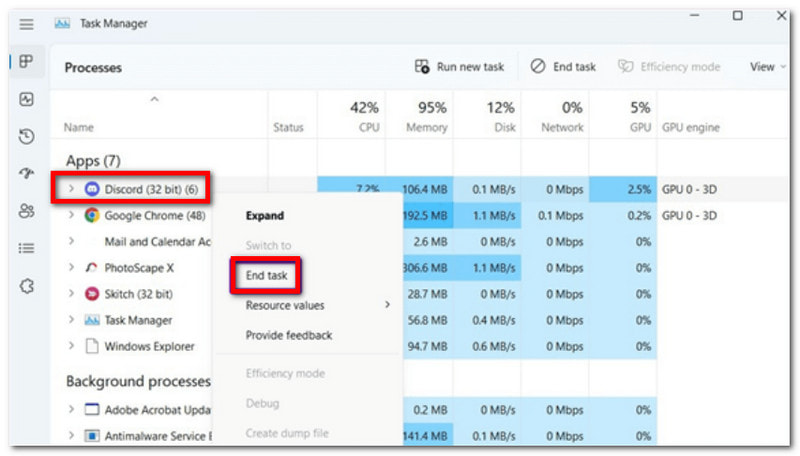
1. إنهاء مهام تشغيل Discord
كيفية إصلاح مشكلة الشاشة السوداء أثناء البث المباشر على ديسكورد بسرعة؟ أفضل طريقة لحل هذه المشكلة هي إنهاء جميع عمليات ديسكورد الجارية وإعادة تشغيل التطبيق، لأنها قد تكون سببًا في تعطل البث. إليك الخطوات التي يجب اتباعها:
الخطوة 1انقر بزر الماوس الأيمن على شريط المهام واختر مدير المهام.
الخطوة 2بمجرد ظهور النافذة، انقر على السهم المجاور لـ Discord، ثم انقر بزر الماوس الأيمن على كل مهمة واختر إنهاء المهمةبعد ذلك، أعد تشغيل التطبيق.
2. وضع المسؤول
يتطلب تطبيق ديسكورد بعض الأذونات والميزات ليعمل بسلاسة. هذا يعني أنه إذا لم يكن يعمل كمسؤول على جهازك، فقد يتسبب ذلك في حدوث خلل، مثل ظهور شاشة سوداء. إليك خطوات إصلاح مشكلة الشاشة السوداء أثناء مشاهدة نتفليكس على ديسكورد عبر وضع المسؤول:
الخطوة 1أغلق تطبيق ديسكورد على جهازك أولاً. قد تحتاج أيضاً إلى إغلاق تطبيقات البث مثل نتفليكس أو هولو.
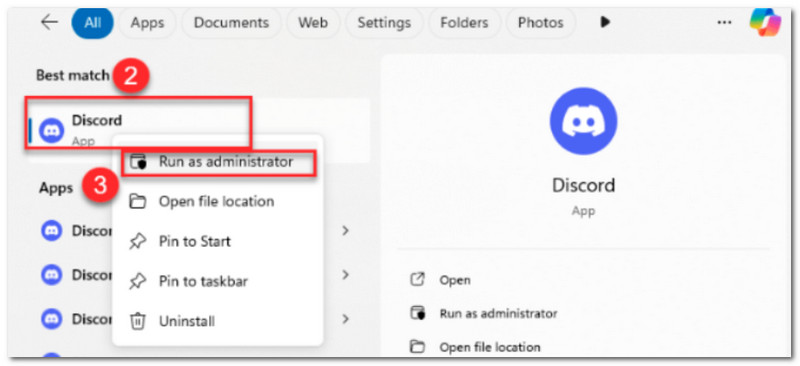
الخطوة 2ابحث عن تطبيق Discord في قائمة ابدأ، ثم انقر بزر الماوس الأيمن عليه. اختر وانقر تشغيل كمسؤولثم قم بتأكيد التغييرات. كرر نفس الخطوات لمنصة البث، ثم افتح التطبيقات وحاول البث.
3. إيقاف تشغيل تسريع الأجهزة
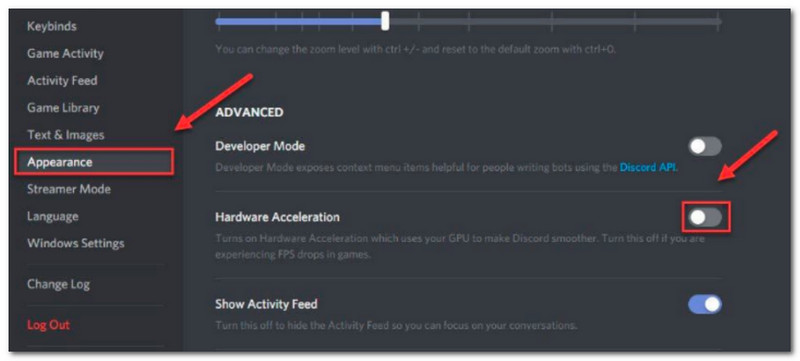
ربما لم تلاحظ، لكن خاصية تسريع الأجهزة مُفعّلة على جهازك، مما يُساعد تطبيقات مثل ديسكورد على العمل بسلاسة. مع ذلك، يتسبب تسريع الأجهزة في استخدام ديسكورد لوحدة معالجة الرسومات (GPU) في جهازك، مما يؤدي إلى أعطال أثناء البث المباشر على المنصة. لإيقاف هذه الخاصية، تعرّف على كيفية إصلاح مشكلة الشاشة السوداء في ديسكورد عند محاولة بث نتفليكس أدناه:
الخطوة 1افتح تطبيق ديسكورد على جهازك وانقر على إعدادات في الزاوية السفلية اليسرى.
الخطوة 2اذهب إلى مظهر ستجد في القائمة تسريع الأجهزة تحت متقدمقم بإيقاف تشغيله ثم أكد ذلك بالنقر تمام.
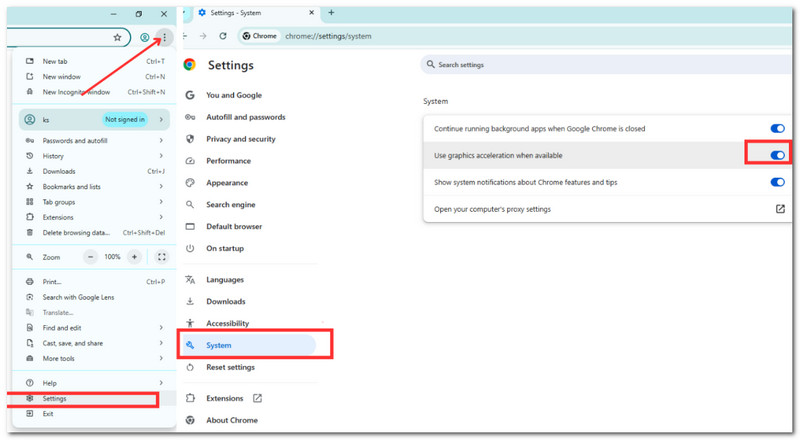
الخطوه 3إذا كنت تستخدم ديسكورد في متصفح، يمكنك إيقاف تشغيله في إعدادات. ثم اذهب إلى نظام قم بتشغيل القائمة استخدم تسريع الرسومات عند توفره اختيار.
4. تحديث برامج تشغيل بطاقة الرسومات
قد تتسبب برامج تشغيل بطاقة الرسومات القديمة في حدوث أعطال أثناء البث المباشر على ديسكورد. لتجنب هذه المشكلة أو حلها من جانبك، إليك كيفية إصلاح مشكلة الشاشة السوداء عند بث نتفليكس على ديسكورد عن طريق تحديث برامج تشغيل بطاقة الرسومات في النظام:
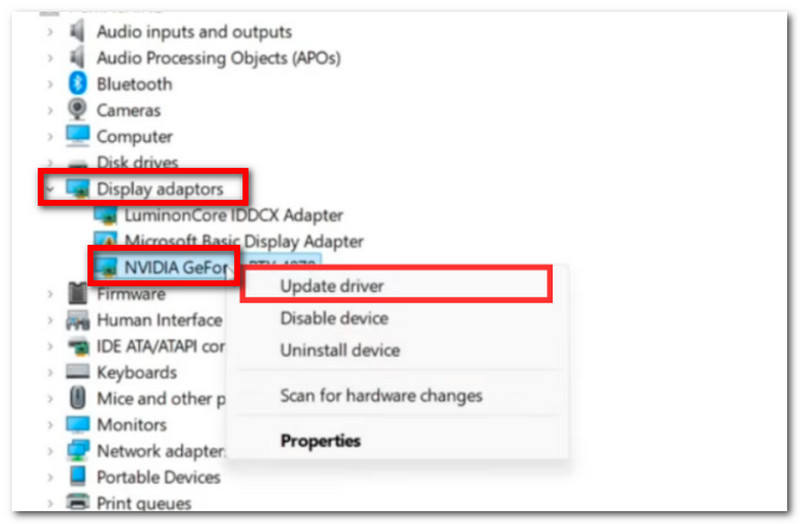
الخطوة 1تأكد من اتصالك بشبكة إنترنت مستقرة وقوية. ثم اضغط في نفس الوقت شبابيك و X اضغط على لوحة المفاتيح لتشغيل مجموعة من خيارات النظام. اختر مدير الجهاز.
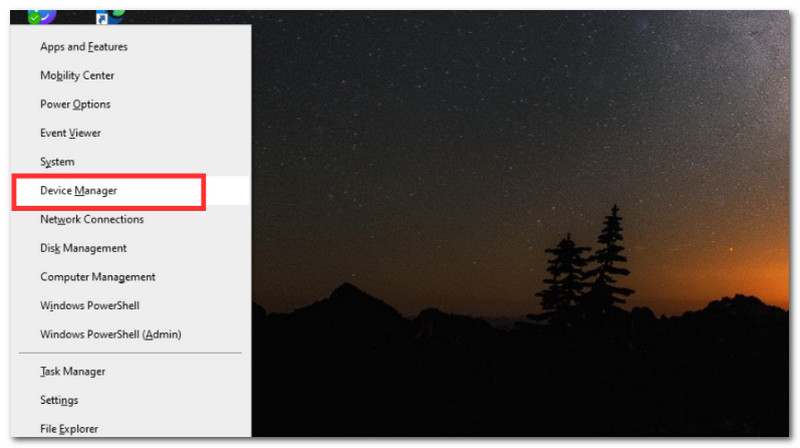
الخطوة 2عندما تظهر نافذة منبثقة، ابحث عن محولات العرض قم بتوسيع القائمة بالنقر على السهم المجاور لها. حدد برنامج تشغيل الرسومات بالنقر بزر الماوس الأيمن عليه، ثم انقر فوق تحديث برنامج التشغيل زر.
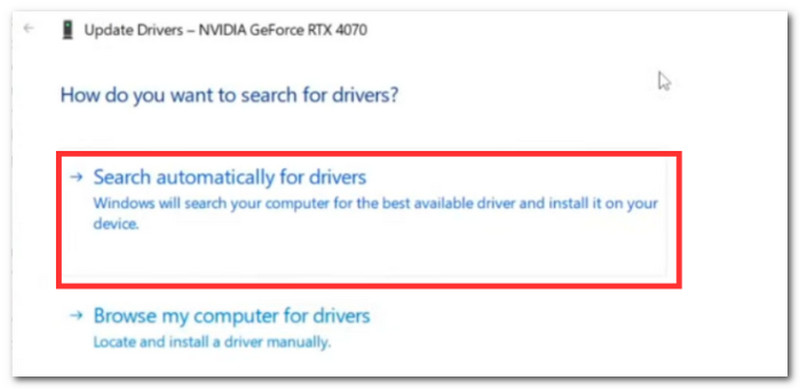
الخطوه 3عند ظهور نافذة منبثقة، اختر البحث التلقائي بالنسبة لخيار برامج التشغيل. سيبدأ جهاز الكمبيوتر الخاص بك بتحديث برامج تشغيل الرسومات، ولكن ستحتاج إلى إعادة تشغيل جهاز الكمبيوتر الخاص بك، ثم إعادة تشغيل تطبيق Discord.
5. تفعيل خاصية العرض داخل اللعبة
كيفية حل مشكلة الشاشة السوداء في ديسكورد عند بث ديزني+؟ قد تحتاج أيضًا إلى تجربة تفعيل ميزة عرض الشاشة داخل اللعبة في تطبيق ديسكورد. إذا لم تكن هذه الميزة مُفعّلة، فقد يكون هذا هو سبب ظهور الشاشة السوداء أثناء البث. اتبع الخطوات الكاملة أدناه:
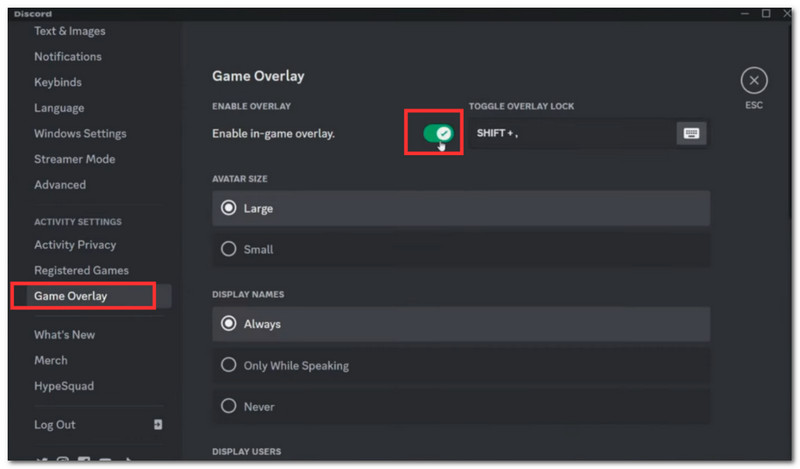
الخطوة 1قم بتشغيل تطبيق Discord على جهاز الكمبيوتر الخاص بك، وانتقل إلى إعدادات المستخدم في الزاوية السفلية اليسرى.
الخطوة 2تصفح الخيارات في الزاوية اليسرى، ثم اختر تراكب اللعبةقم بتفعيل خيار "تمكين التراكب داخل اللعبة"، ثم حاول البث مرة أخرى.
الجزء الثالث: أفضل أداة لتحويل الفيديو غير المتوافق قبل البث
كيفية إصلاح مشكلة الشاشة السوداء أثناء البث المباشر على ديسكورد إذا كان الفيديو الذي ستبثه غير متوافق؟ حسنًا، لديك افايد محول الفيديو لتحويل الفيديو بسرعة وجودة عالية! أداة أنيقة مصممة لتحويل أكثر من 300 صيغة فيديو، تدعم الصيغ المتوافقة مع ديسكورد مثل MP4 وMOV وWebM وغيرها. بالإضافة إلى دعمها لتحويل الفيديوهات عالية الدقة، تتيح لك أيضًا تقليل دقة فيديوهات 4K و8K لتخفيف الحمل على وحدة معالجة الرسومات ومنع ظهور شاشة سوداء مؤقتة على جهازك. في الوقت نفسه، يضمن AVAide سرعة تحويل فائقة مع الحفاظ على جودة الفيديو الأصلية، كل ذلك ضمن واجهة بسيطة وسهلة الاستخدام للمبتدئين.
الخطوة 1للبدء، قم بتنزيل برنامج AVAide Video Converter على جهاز الكمبيوتر الخاص بك (يدعم نظامي التشغيل ويندوز وماك). اتبع التعليمات لتثبيت البرنامج بالكامل.

تنزيل مجاني لنظام التشغيل Windows 7 أو أحدث
 تحميل آمن
تنزيل مجاني لنظام التشغيل Mac OS X 10.13 أو الإصدارات الأحدث
تحميل آمنالخطوة 2انقر على يضيف اضغط على الزر لفتح مجلدك المحلي. حمّل الفيديو الذي تريد تحويله. يمكنك أيضاً تحميل عدة ملفات فيديو لتحويلها دفعة واحدة.
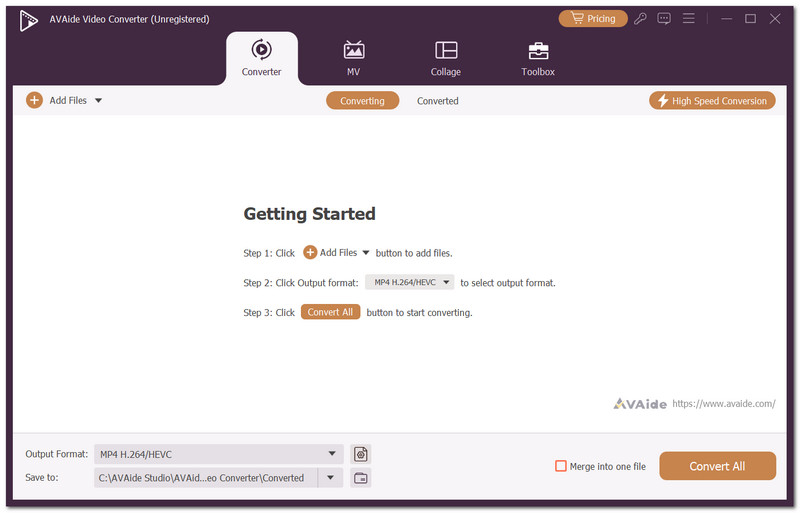
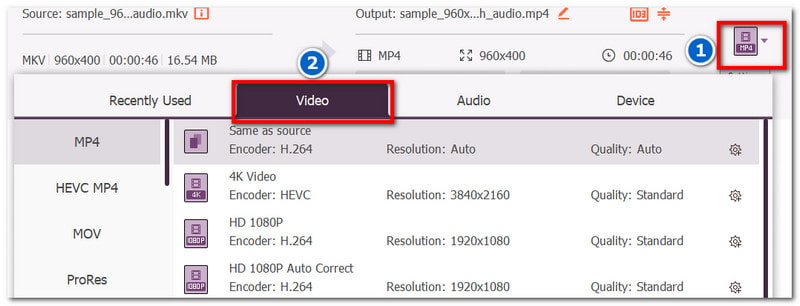
الخطوه 3اذهب إلى صيغة القائمة بجانب الفيديو الذي تم تحميله. من فيديو اختر من علامة التبويب تنسيق الفيديو الناتج المطلوب، مثل MP4 أو MOV أو أي تنسيق آخر يدعمه Discord.
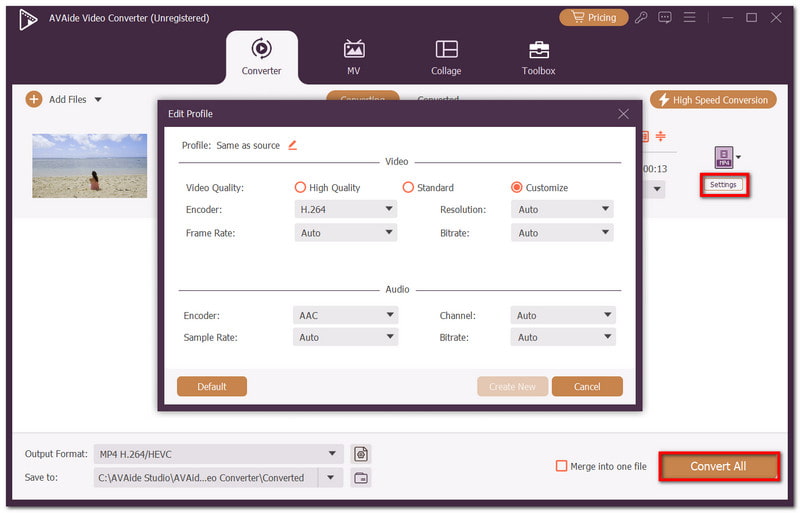
الخطوة 4يمكنك، إن شئت، تعديل إعدادات إخراج الفيديو من قائمة الإعدادات. يمكنك ضبط المُشفّر وجودة الفيديو ودقته، بالإضافة إلى إعدادات أخرى. بعد الانتهاء، انقر على زر "تحويل الكل" لحفظ الفيديو بصيغة إخراج جديدة.
لقد علمتك هذه المقالة كيفية إصلاح مشكلة الشاشة السوداء أثناء البث المباشر على ديسكورديوفر البرنامج طرقًا لتحديد المشاكل والحلول الممكنة. مع ذلك، قد لا يكون الفيديو المرفوع على ديسكورد مدعومًا. لذا، يُعدّ برنامج AVAide Video Converter حلاً موصى به لإجراء تحويلات سريعة واحترافية، وحتى كـ ضاغط فيديو ديسكوردليس هذا فحسب، بل يوفر البرنامج الأدوات اللازمة لتقليل حجم الملفات عالية الدقة دون التأثير على جودة الفيديو. حمّله مجانًا لتجربته على نظامي التشغيل ويندوز وماك.
نبذة عن المؤلف

مربع أدوات الفيديو الكامل الخاص بك الذي يدعم أكثر من 350 تنسيقًا للتحويل بجودة لا مثيل لها.
تحرير الفيديو
- فيديو راقي بالذكاء الاصطناعي
- إزالة العلامة المائية من الفيديو
- إزالة النص من الفيديو
- تصغير 4K إلى 1080p / 720p
- إزالة الضوضاء الخلفية من الفيديو
- MP4 محرر البيانات الوصفية
- شحذ جودة الفيديو
- إرجاع الفيديو
- إصلاح جودة الفيديو الرديئة
- إزالة البيانات الوصفية من الفيديو/الصوت
- فيديو الكاميرا الأمامية المرآة/غير المرآة